CoGS Web User Guide
CoGS Web is a web browser for the Apple IIGS. It needs a CoGS card. The card fetches a page over Wi-Fi or Ethernet, reads its HTML and style sheets, lays it out with the IIGS's own fonts and draws it. The IIGS shows the result and sends back your keys and clicks.
This guide is for version 1.03 of the program. There is a second program for the Apple IIe. It has its own chapter, On an Apple IIe.
What you need
- An Apple IIGS, ROM 01 or ROM 3, running GS/OS System 6.
- A CoGS card with firmware 1.50 or later. If the card's firmware is older, the program says so when it starts. Update the card from its own About screen (About / Update, then U). A card on firmware 1.31 or older takes two updates. Pick 1.42 first, then update again to 1.50.
- The card joined to a network. Join one in CoGS Config (Open Apple-Control-Esc) or in the CoGS control panel. The browser never changes the network settings.
Memory is not a concern on most machines. In the emulator the program ran on a ROM 01 with 1.25 MB and on a ROM 3 with 1 MB.
An accelerator is not needed. Laying out the page and decoding pictures happen on the card, so what the IIGS's speed changes is how fast a screen is copied.
Starting it
Double-click CoGS.Web in the Finder. The program is one file. It needs no fonts and no folder of its own, so you can copy it to any disk.
The card's catalog has it three ways, under Browse Disks:
- CoGS Web is an 800K volume with the program and a Read.Me. Mount it next to your boot disk and open the program from there, or drag it to your hard disk.
- CoGS Boot Disk (cogsall), CoGS Boot + Squeezer (cogsasq) and Communications have the program at the top level.
- CoGS Web Boot Disk starts the IIGS straight into the browser, with no Finder. It is under Featured as well. Q on that disk brings up the System 6 Program Launcher, where CoGS.Web can be opened again.
L in Browse Disks, then cogs web, lists them. The same disk images can be downloaded from whatisthe2gs.com/cogs-web.
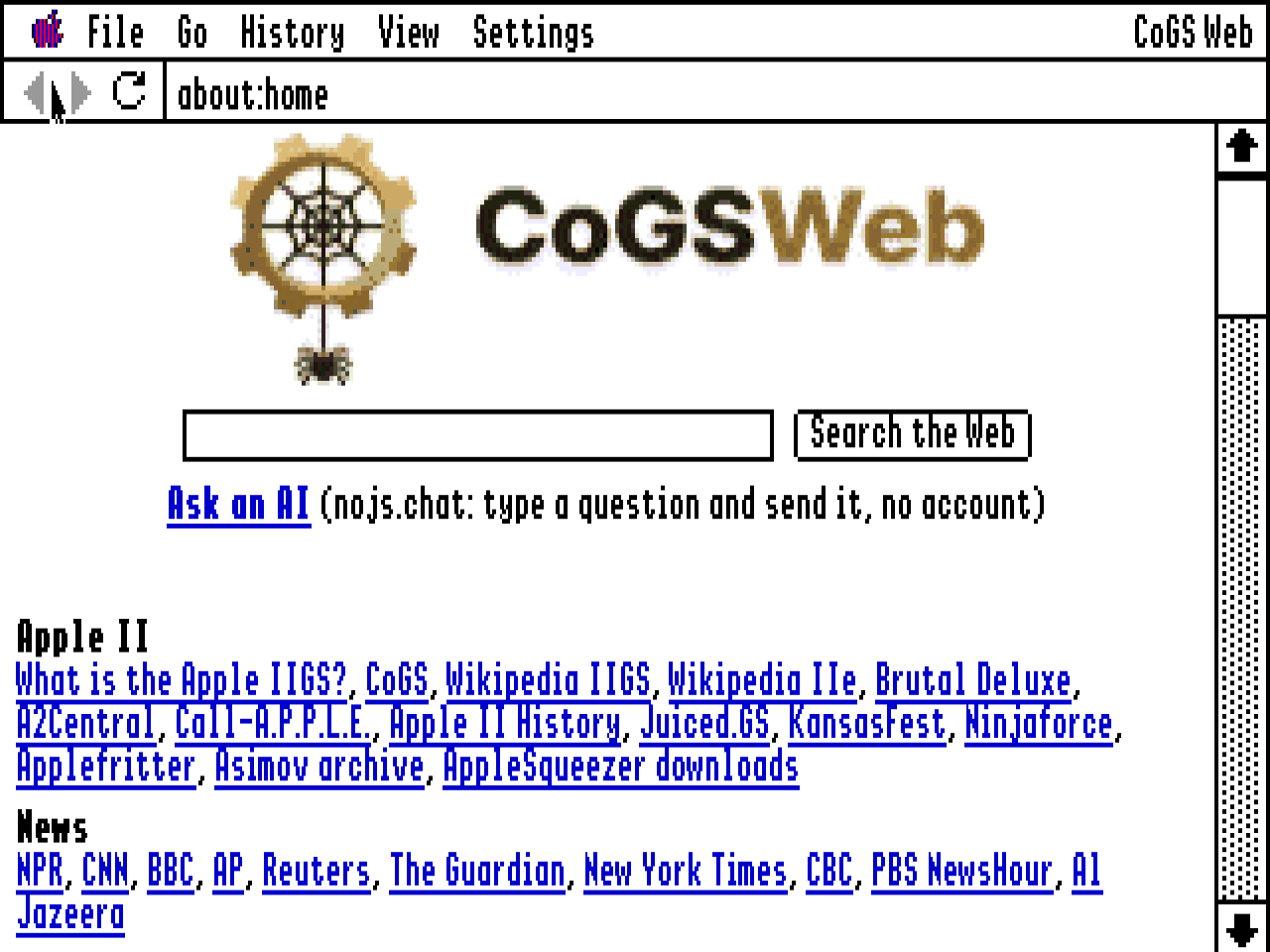
The home page opens first. It has a search box, a link to an AI you can ask questions with no account, and a list of sites that are known to read well.
The screen
The menu bar is at the top with the page's title at its right. Under it is the address bar. It has back, forward and reload buttons and the page's address. While a page loads, reload turns into stop, the bar says what the card is doing, and the field fills from the left.
The page is under that, with a scroll bar at the right.
Show Address Bar in the View menu puts the address bar away to give the page 13 more rows. It then comes down by itself while a page loads and when you click the page's title.
Getting around
With the mouse:
- Click a link to follow it.
- Click the address to type a new one.
- Click a box or button on a form to pick it.
- Use the scroll bar's arrows, track and thumb the way any GS window works.
With the keyboard:
| Key | What it does |
|---|---|
| Space, Down | Scroll down a screen, or a few lines |
| Up, Delete, - | Scroll back up |
| Tab | Pick the next link or form field |
| Shift-Tab | Pick the previous one |
| Return | Follow the picked link, or work the picked field |
| G | Go to an address |
| B or [ | Back |
| ] | Forward |
| H | Home page |
| R | Reload |
| Esc | Stop a page that is loading |
| F | Download the picked link, or this page |
| L | Load the large pictures on this page |
| C | Style sheets off and on |
| T | Go round the AppleSqueezer GS Turbo pages |
| Q | Quit |
Every key has a menu item, and the menu items show their Open Apple keys.
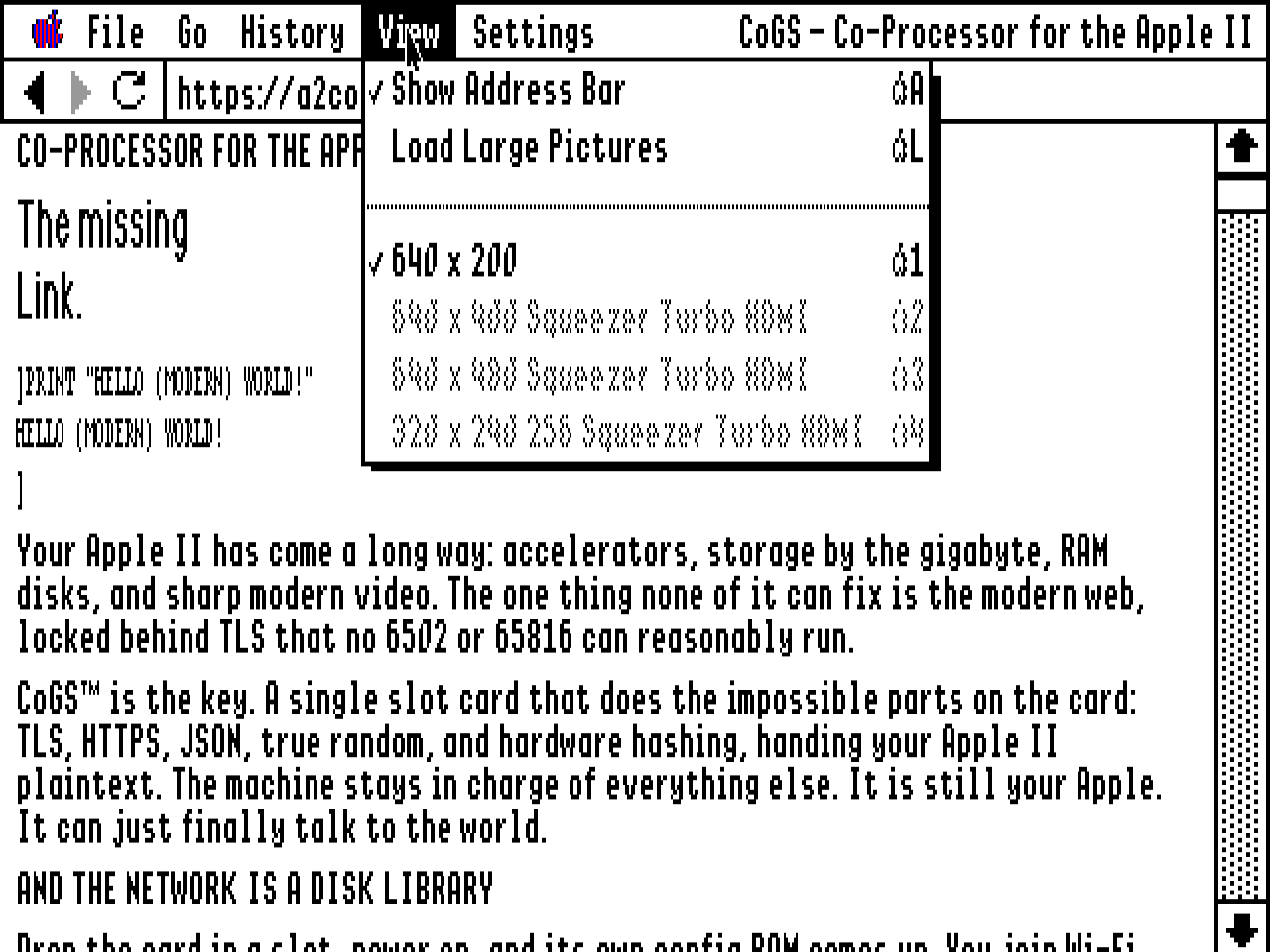
You can type an address without https://. The History menu lists the last ten pages you opened, newest first, and keeps them between runs.
A click on the address, or G, picks the whole address. Type to replace it, or press an arrow key to keep it and change part of it. The Left and Right arrows move the cursor, Up takes it to the start and Down to the end. Delete rubs out the character before the cursor, and what you type goes in at the cursor. A second click in the address puts the cursor at the character you clicked. Ctrl-X empties the line. Esc, or a click anywhere else, leaves the address as it was. A form's text box is typed the same way.
Forms
Tab picks a form's boxes and buttons along with the page's links. Return on a text box lets you type into it. Return on a check box ticks it, on a list steps to its next choice, and on a button sends the form. A click does the same.
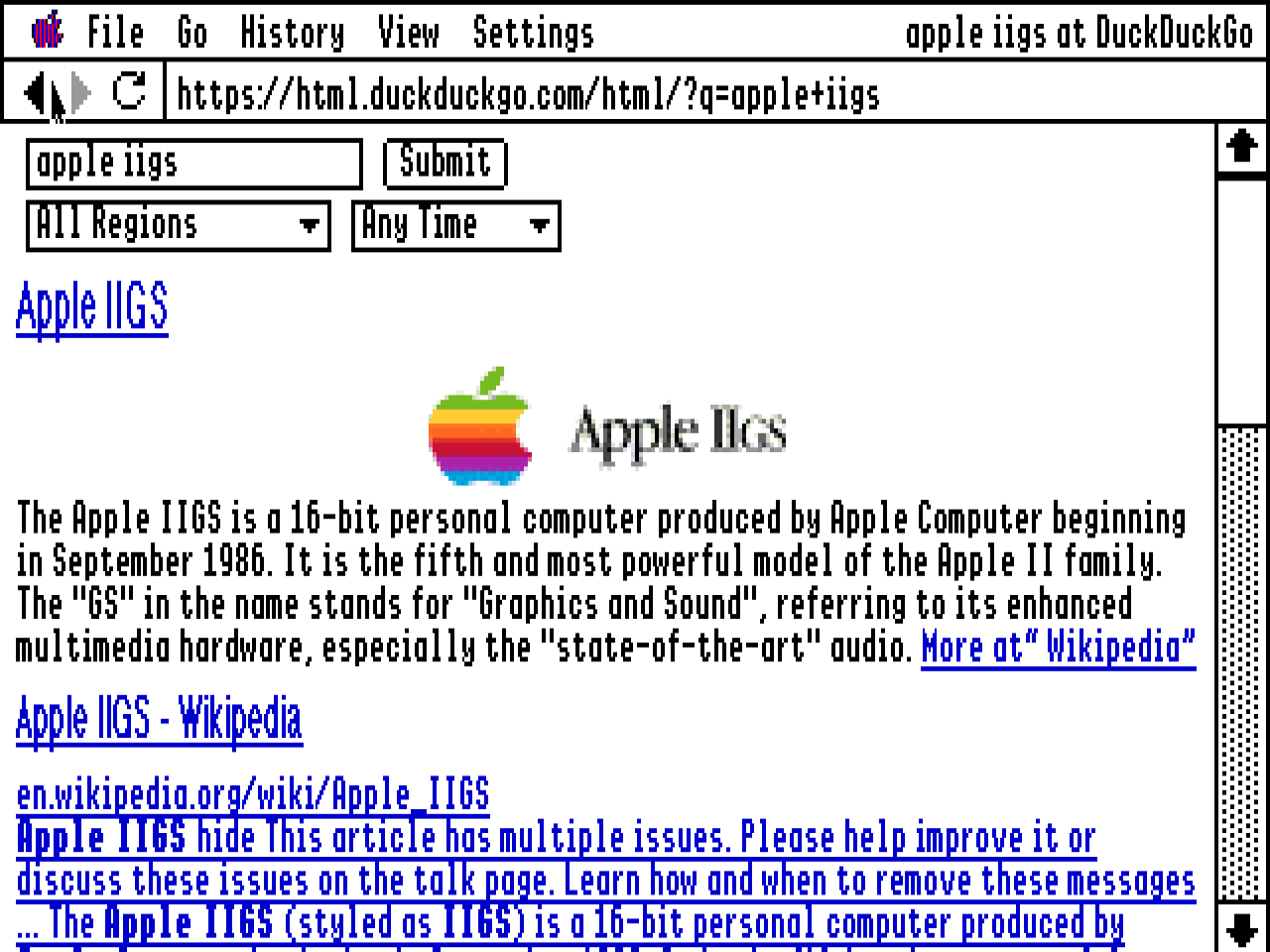
The card keeps a site's cookies for as long as the browser is open, so a sign-in that is a plain form followed by a cookie works. I've tested that against a test server and not against a list of real sites.
Pictures
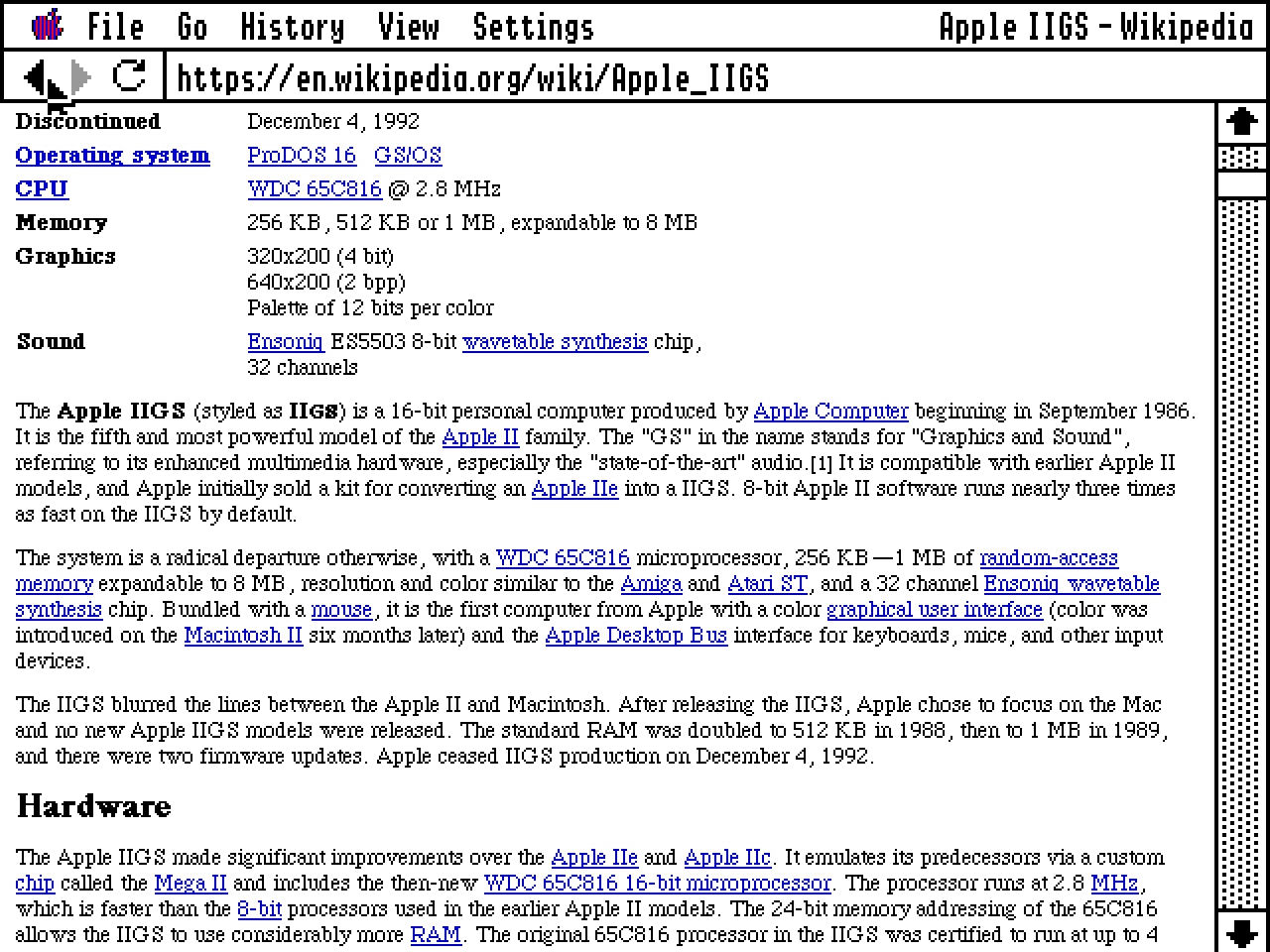
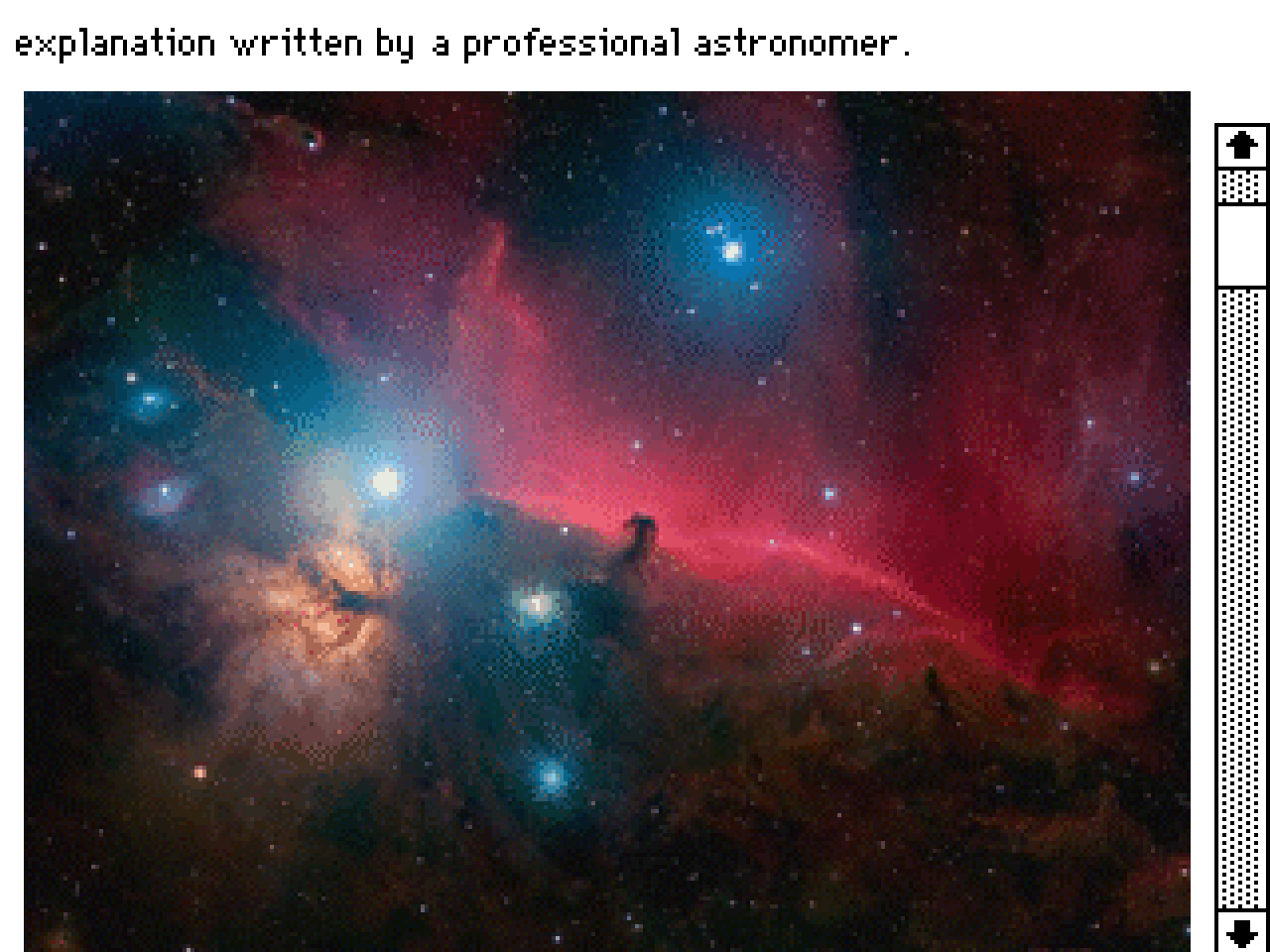
JPEG, PNG and GIF pictures are shown. On the normal 640 x 200 screen each band of a picture gets its own palette, so a photograph has many more colors than the 16 a single line allows.
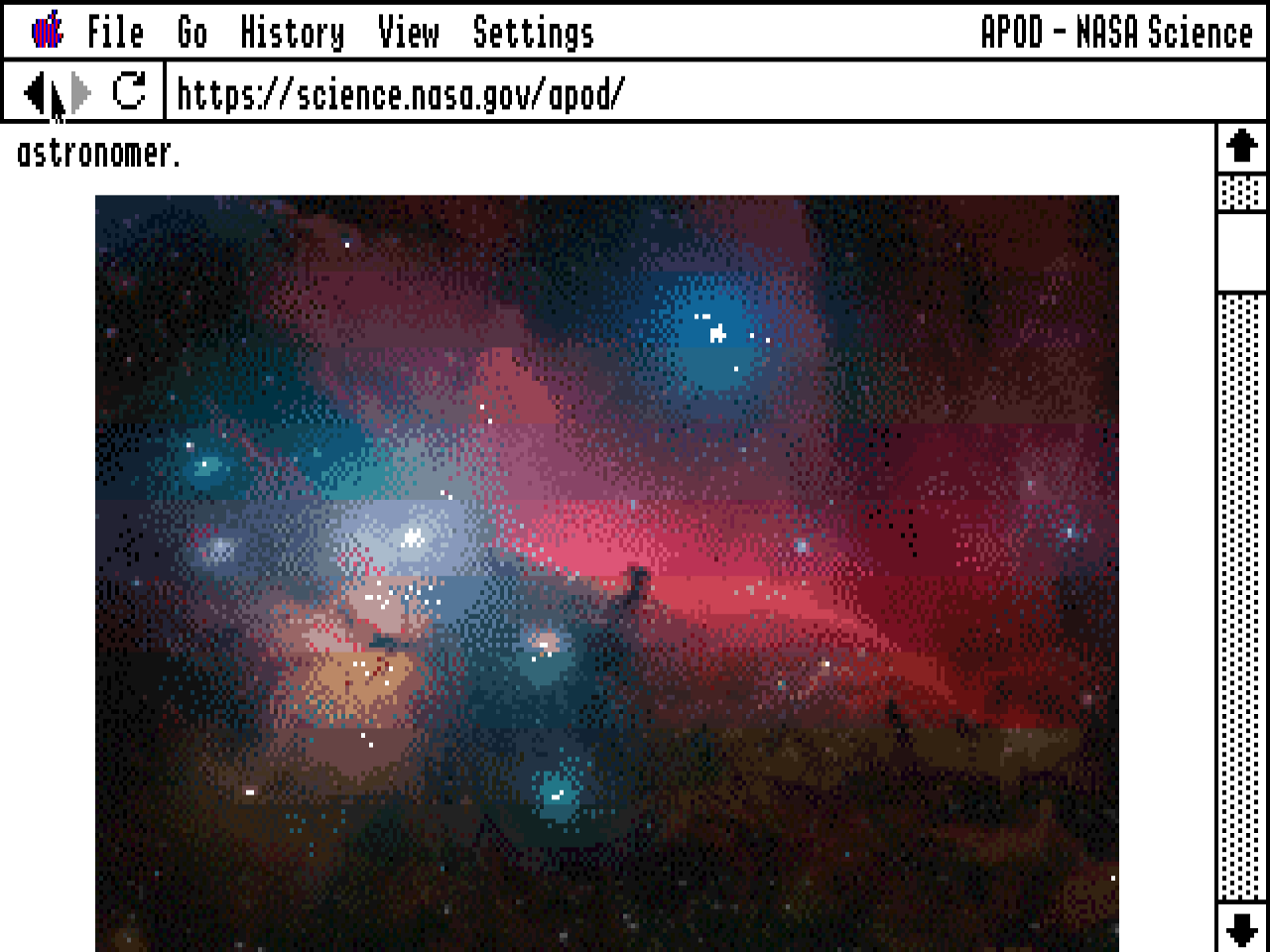
A picture file over 1 MB is left out when the page loads, with its size shown in its place. Press L to load the large pictures on the page.
SVG and WebP pictures are not shown. An animated GIF shows its first frame.
Downloading files
A link to something that is not a page (a zip, a disk image, a ShrinkIt archive) opens a page about the file with its name and size. The links on that page do the saving:
- Download the file as it is.
- For a zip, download one of the files in it, unzipped, or all of them into a new folder.
- For a ProDOS disk image (
.po,.2mg,.hdv), download the files on it into a new folder. They keep their types, dates and resource forks.
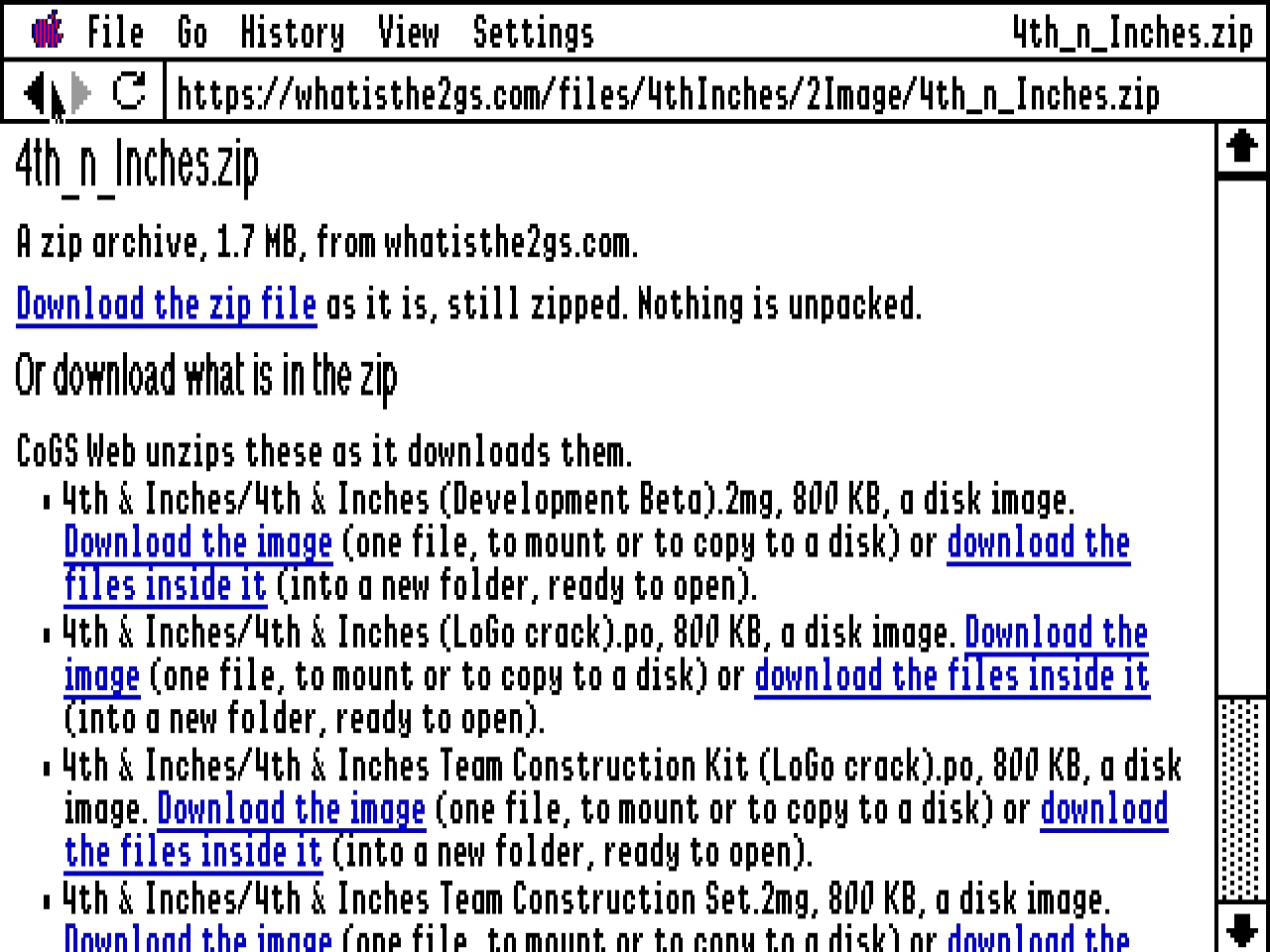
Each choice opens the standard GS/OS save dialog, so you can pick any disk GS/OS has mounted. Esc stops a save that is running.
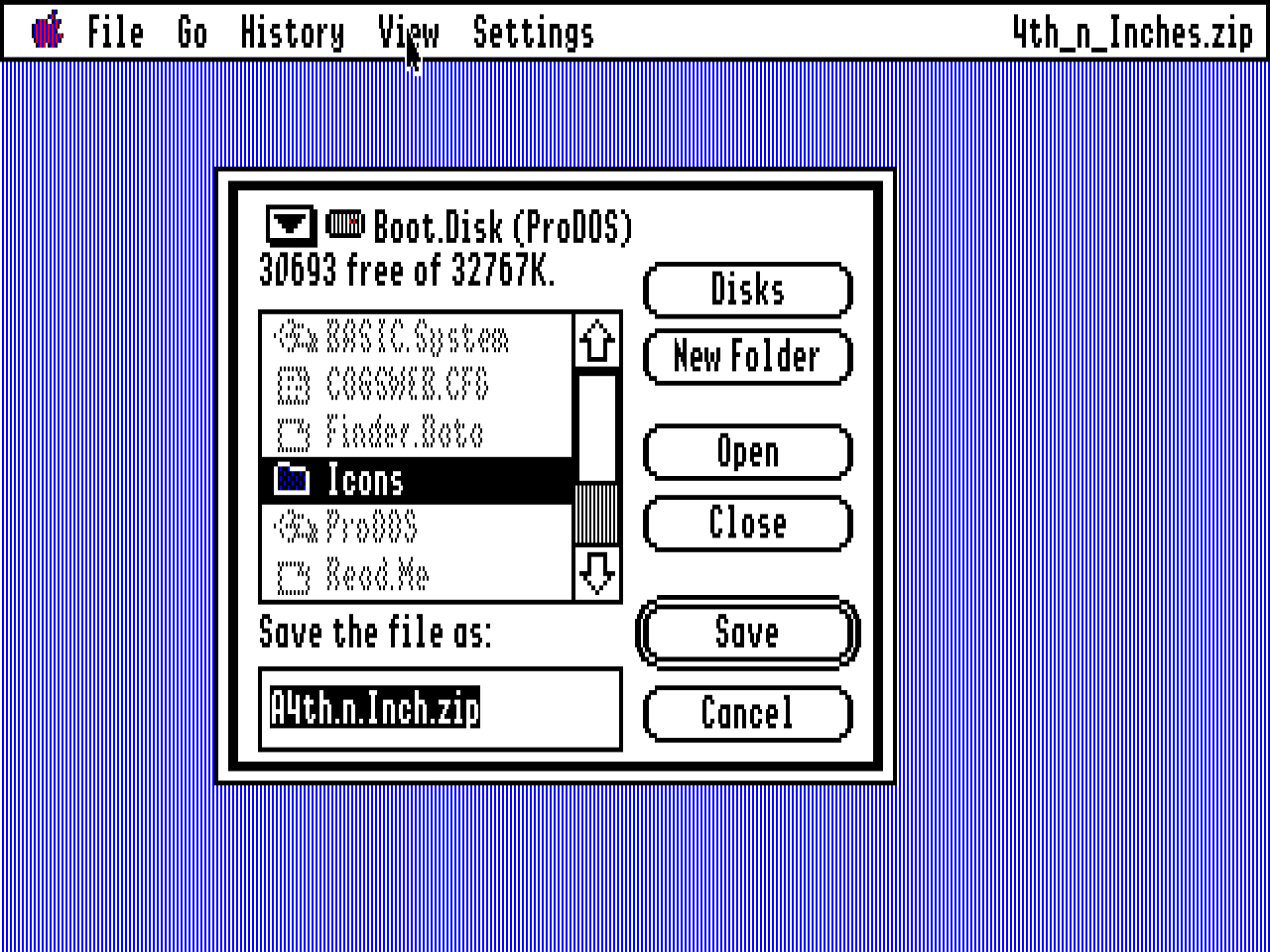
F opens the same page for the picked link, or for the page you are on. That is how you save a picture or a page's HTML.
Files get a ProDOS type from their name. A .shk is saved as a ShrinkIt archive, a .2mg as a disk image, a .txt as text.
Settings
The Settings menu has:
- Style Sheets turns a page's style sheets off when they hide what you want to read. It stays off until you turn it on again.
- Dark Mode shows white text on black.
- Set Home Page to This Page and Use Default Home Page do what they say.
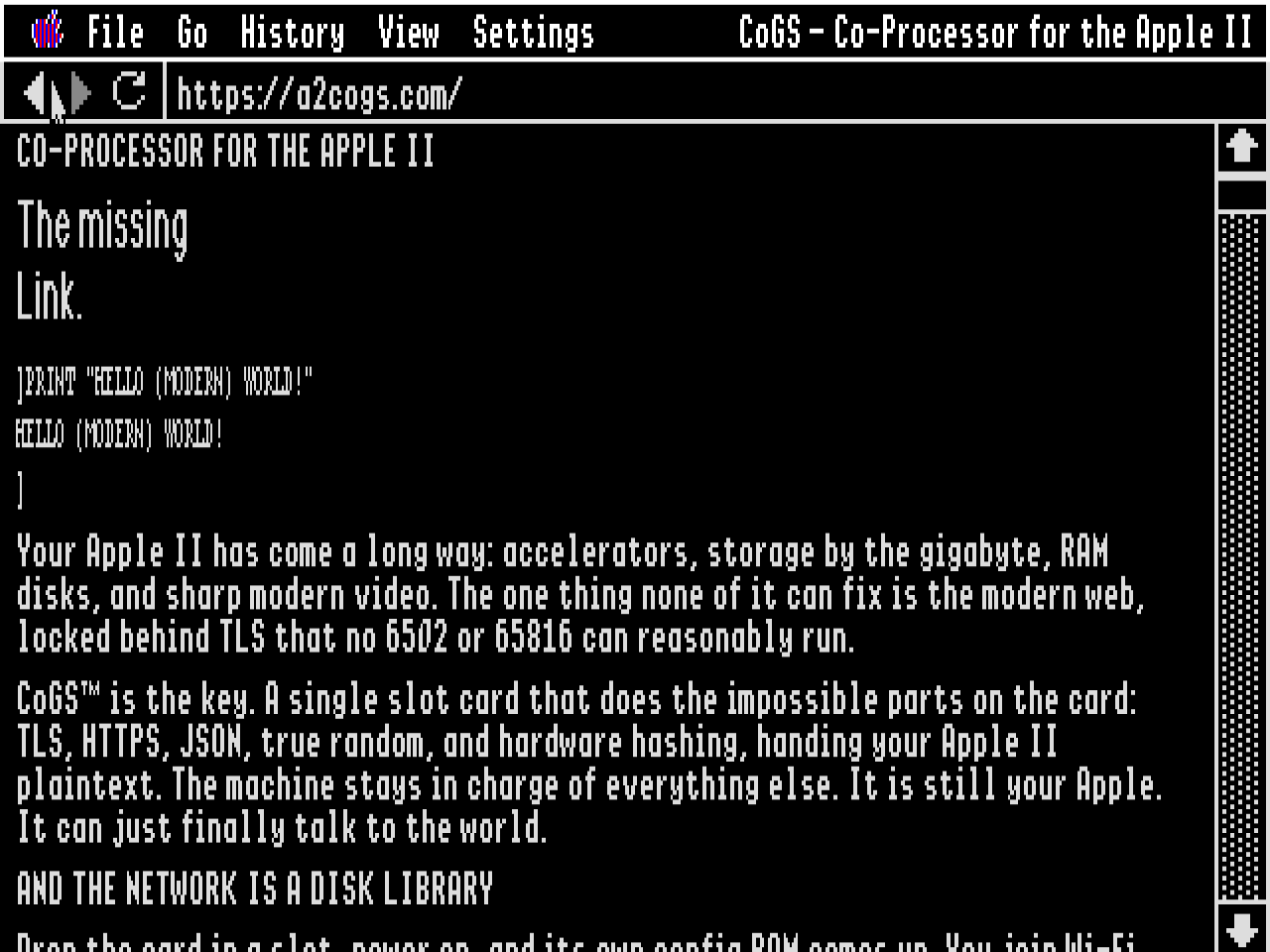
Settings are kept in a file named COGSWEB.CFG next to the program, and the History list in COGSWEB.HIST. On a disk that can't be written, such as one streamed from the CoGS catalog, they last until you quit and the browser tells you so.
AppleSqueezer GS Turbo
With an AppleSqueezer GS Turbo (core 27 or later) the View menu has three more screens, all on the Turbo's HDMI output:
- 640 x 400 has twice the rows of the normal screen.
- 640 x 480 fills the HDMI screen.
- 320 x 240 in 256 colors shows pictures in colors of their own.
T goes round them and back to 640 x 200. On a machine without a Turbo these three items are gray.
On an Apple IIe
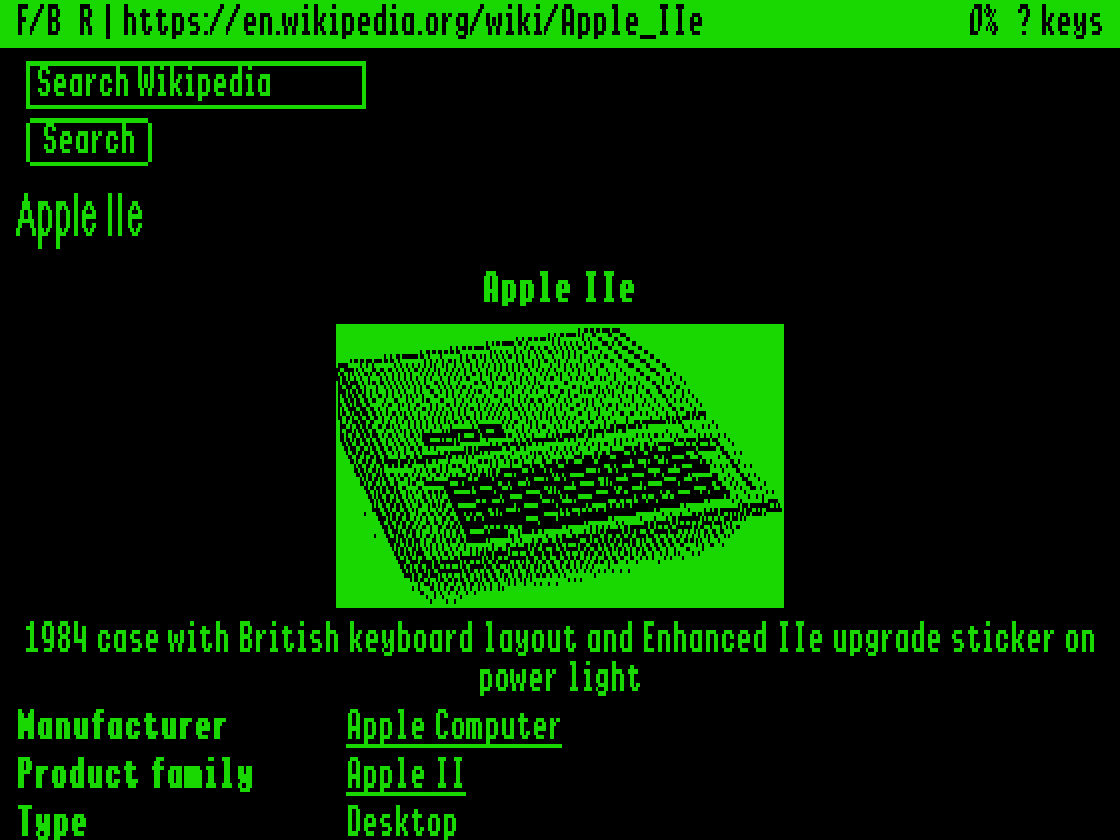
A second program runs on an Apple IIe. The card draws the same pages for the double hi-res screen and the IIe copies the rows it is sent. It has run on a real IIe with a composite color monitor, and on a IIGS.
What it needs:
- An Apple IIe with 128K, which means the extended 80-column card. It can be enhanced or not.
- A CoGS card with firmware 1.50 or later. The program looks for the card in every slot. On a real IIe it has run with the card in slot 7, and in the emulator in slots 1 to 5 and 7.
- The card joined to a network.
COGS.SYSTEMon the same disk is the card's console, and joining is done there.
The disk is CoGS Web IIe in the card's catalog, a 140K ProDOS disk that starts the browser when it boots. From another ProDOS disk, run COGSWEB.SYSTEM with the file COGSWEB beside it. A IIe with the card in slot 7 boots the disk straight from the card, with no floppy.
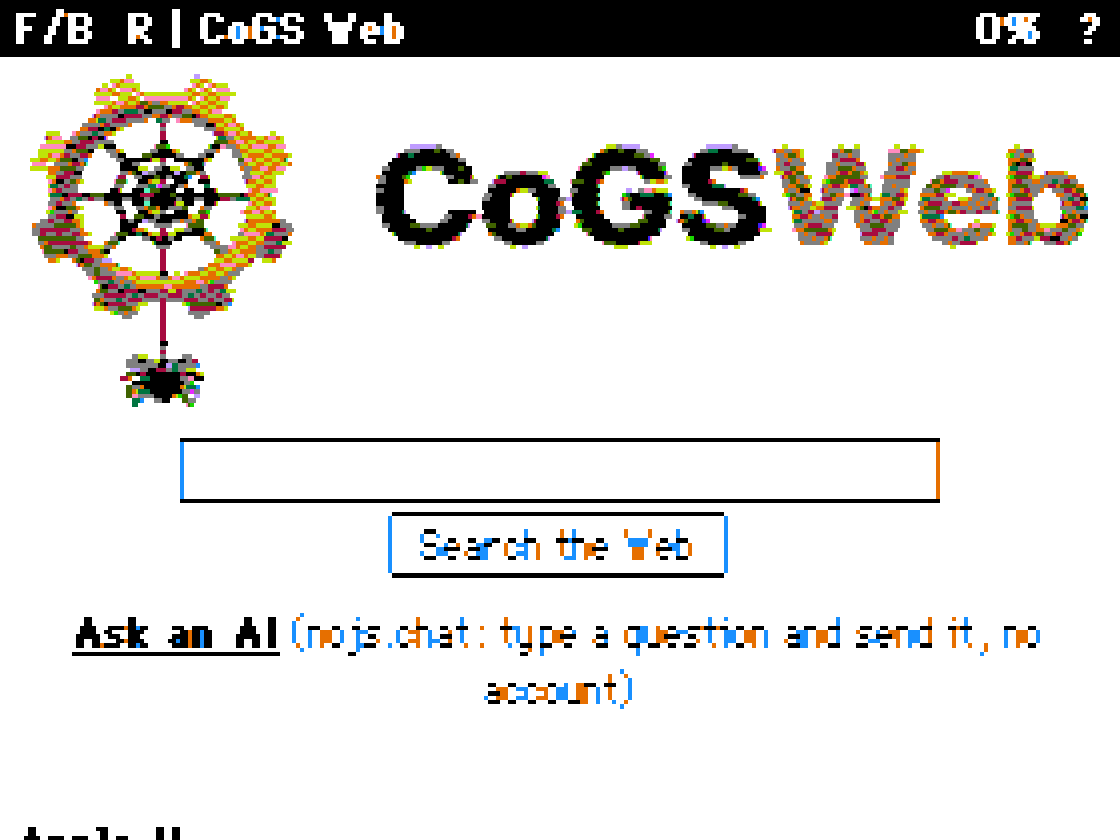
There are no menus and no mouse. The top line has the keys for forward, back and reload (F/B R), the page's address, how far down the page you are, and a ? as a reminder of the key that lists the keys. Messages, and anything you type, use four lines of text at the foot of the screen.
| Key | What it does |
|---|---|
| Space | The next screen |
| Delete or U | The screen before |
| Down, Up | A few lines down or up |
| Tab, N or Right | Pick the next link or form field |
| P | Pick the one before |
| Return | Follow the picked link, or work the picked field |
| G | Type an address, or words to search for |
| Left or B | Back |
| F or ] | Forward |
| H or Esc | Home page |
| R | Reload |
| L | Load the large pictures on this page |
| C | Style sheets off and on |
| I | About the file a link leads to |
| W | Wide text or small text |
| M | Pictures in color or in black and white |
| D | Dark page or light |
| ? | List the keys |
| Q | Quit |
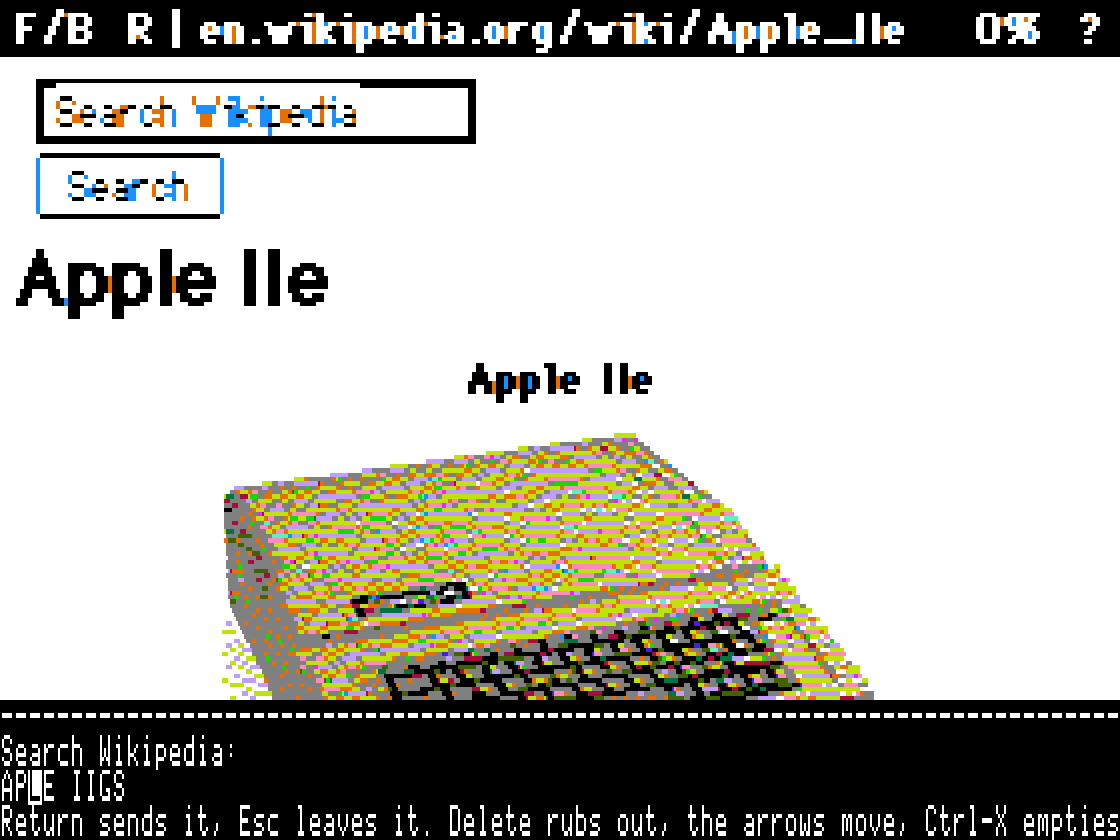
W is for the monitor you have. A color monitor turns single dots into colors, so the browser starts in wide text, about 40 columns, where every pixel is two dots. On a monochrome monitor press W for small text at 560 dots across, about 80 columns. D, the dark page, gives green or amber text on black there.
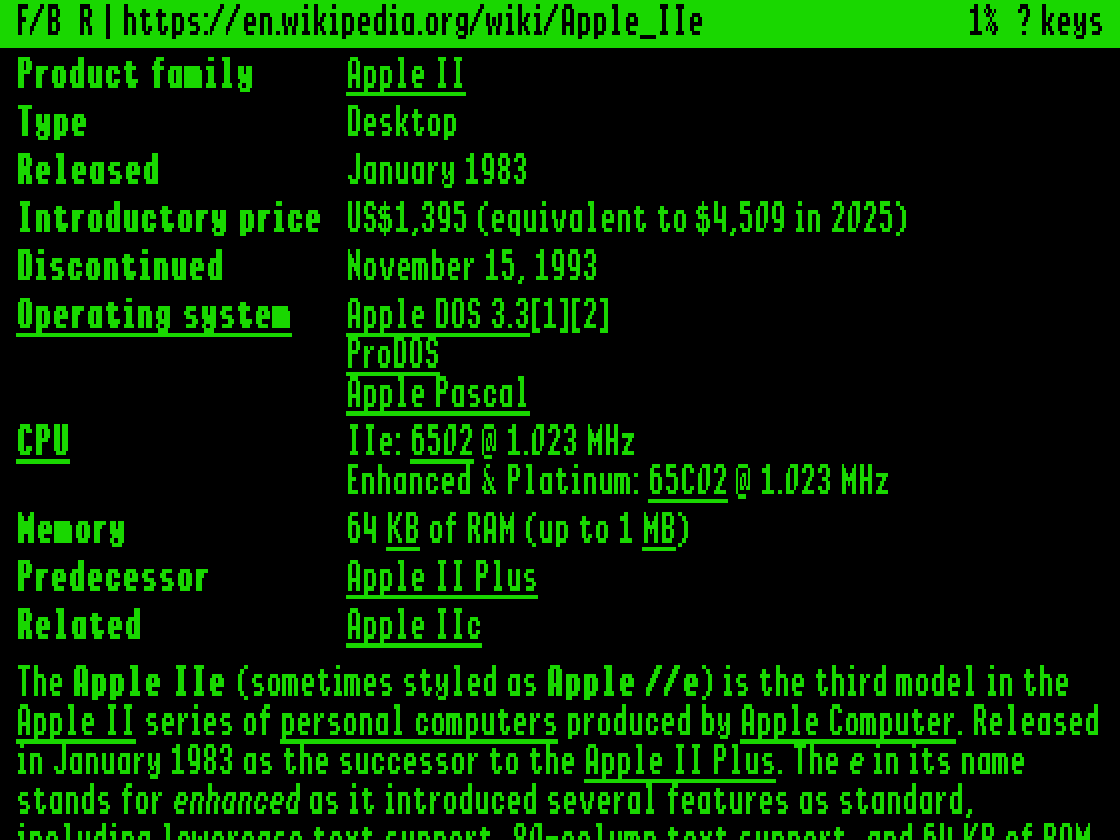
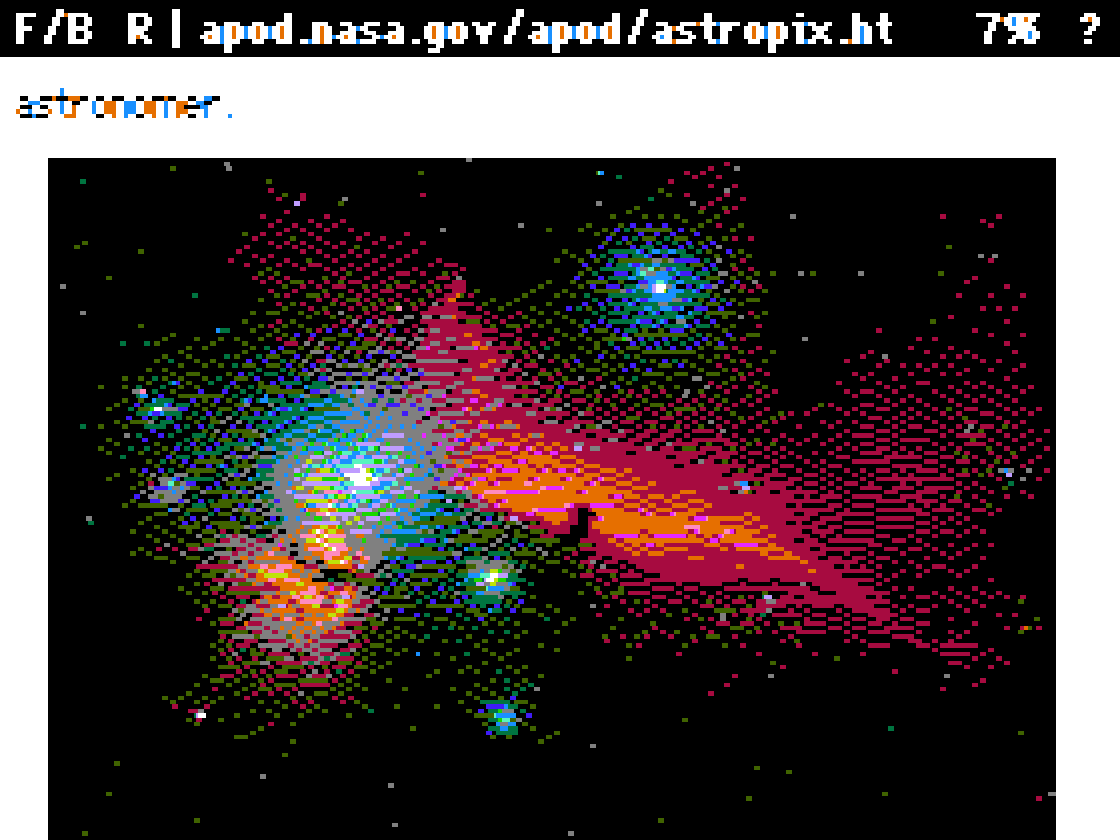
M changes how pictures are drawn. In color the card picks every dot for the color a composite monitor makes from it and the dots beside it. In black and white the dots are placed for brightness alone, which is the one to use on a monochrome monitor. A color picture takes the card a few seconds longer.
Return on a text box, or G, asks for a line at the foot of the screen. Return sends it and Esc leaves it. The Left and Right arrows move the cursor along the line, Up takes it to the start and Down to the end. Delete rubs out the character before the cursor, what you type goes in at the cursor, and Ctrl-X empties the line.
Saving a file to disk isn't in the IIe program yet. A link to a zip or a disk image opens the page about the file, and the browser says it can't save it.
The same disk runs on a IIGS in its 8-bit mode. There it starts in small text with pictures in dots, which the IIGS's RGB monitor shows cleanly, and M brings the color back.
Music
The CoGS card's radio and the browser both want the same memory on the card, so pages do not open while music is playing. The browser says so. Stop the music in CoGS Config, then open the page again.
What it can't do
- No JavaScript runs. A site that builds its page with scripts shows little or nothing, and the browser says the page has nothing on it until its scripts have run.
- The card speaks TLS 1.2. Most sites still accept it. One that accepts only TLS 1.3 will not open.
- There is no sound or video.
- Files can't be uploaded, and pages can't be printed.
- The IIe program has no menus, no mouse and no saving of files.
Style sheets are read for what this screen can show, such as what is hidden, bold and italic, and alignment. Colors, widths and positions from a style sheet are not used, so a page reads as a column of text and pictures and not as a copy of its desktop layout.
Messages
| The browser says | What to do |
|---|---|
| No CoGS card found in slots 1 to 7. | Check that the card's slot is set to Your Card in the Control Panel. |
| The card is not on a network. | Join one in CoGS Config, then press R. |
| This card's firmware has no CoGS Web. | Update the firmware from the card's About screen. |
| Music is playing. Stop the music, then open the page again. | Stop the radio in CoGS Config. |
| The page has nothing on it until its scripts have run. | The site needs JavaScript. Try a text or lite version of it. |
| The site answered 403 (or another number). | The site refused the request. Some sites turn away anything that is not a current desktop browser. |
| Done, but the disk would not take COGSWEB.CFG, so it lasts until Q. | The disk is locked or streamed. Copy the program to a disk you can write. |
| The Turbo pages need an AppleSqueezer GS Turbo (core 27). | T was pressed on a machine without one. |
| Waiting for the card... | Shown for a few seconds when the browser is the first program after a boot, while the card finishes installing CoGS Config. |
Sites that read well
The home page lists them. Text and "lite" editions are the fastest: text.npr.org, lite.cnn.com, cbc.ca/lite, plaintextsports.com. Wikipedia, Hacker News, the Apple II sites, NASA's picture pages and DuckDuckGo's HTML search all work. Large front pages such as cnn.com and nytimes.com open, and take longer because the card has to read several megabytes to find the text.