Installing and using the CoGS card in an Apple II
Describes firmware 1.39 (10/29/2026). Manual revision 33, built 2026-11-03.
This manual describes the CoGS card running firmware 1.39 (10/29/2026). It covers installing the card in an Apple II, joining a network, booting and browsing disk images, playing audio, viewing pictures, using the card from GS/OS, keeping the firmware current, and solving problems.
It is written for anyone who owns a CoGS card. No programming knowledge is needed. Programmers who want the register map, the protocol, and the firmware internals should read the companion book, the CoGS Technical Reference.
Chapter 1, Read This First, is two pages on what the card is and what you need. Chapter 2, Quick Start, gets a card from the box to a running disk image. The chapters after that cover one part of the card each, in the order you are likely to meet them. The last two chapters are Troubleshooting and Specifications.
Keys you press are written as they appear on the keyboard: Return,
Esc, the arrow keys, and combinations such as Ctrl-OpenApple-Esc. Menu
items, buttons, and screen names are in bold. Text you
type, file names, and anything the screen shows verbatim are in
monospace.
Note
A note gives information that helps but is not required to complete the task.
Tip
A tip is a shortcut or an easier way to do something.
Warning
A warning tells you about something that can lose data, damage the card or the computer, or is hard to undo.
| Revision | Firmware | Change |
|---|---|---|
| 1 | 1.03 | First draft chapters. |
| 5 | 1.14 | Launch edition. Menu keys, boot menu, late CDA, one disk image per drive, recent disks on Browse R and Disk Drives R, Image Manager, update, and troubleshooting filled against the shipping screens. |
| 7 | 1.14 | Recent list: TR and B come over with the title, X and A wait if the disk image is still mounted, Your Source rows refuse when the share is gone. |
| 8 | 1.20 | Shipping edition. Support Snapshot (About, D) and asking for help, WPA2/WPA3 wording, drive count by operating system, Ethernet on autoneg. |
| 9 | 1.21 | Card ID on About and the Support Snapshot; player footers. |
| 10 | 1.25 | Pre-production edition. Finder Eject unmounts the disk image, mount hint on Disk Drives, more free memory on a full desktop. |
| 30 | 1.36 | Production edition. Changing drives from the CDA on a live desktop, the lock badge follows the share’s Writable switch, a share that stops answering empties its drives. MC and HD bundle tags, MECC titles in Educate & learn. SoundSmith plays once in a queue. Marinetti on the wire with the GS’s own MAC, link layer 1.3 poll mode, NAT notes. Image Manager 1.6. Shut Down keeps the drives, Finder Eject still empties one, and CoGS Config is back in the menu after Shut Down + Restart. MECC menus jump by letter and search with L. Quick power cycle, boot hotkeys on 8-bit machines. Troubleshooting: why an 8-bit program built for the Uthernet does not see the card. The Game Room chapter (Doom, Milestones). |
| 31 | 1.38 | Link layer 1.4: streaming audio and a Marinetti connection at the same time no longer crash the GS; how to copy it onto your own disk. |
| 32 | 1.39 | AppleSqueezer with an SD card: slot 5 stays Smart Port, startup device by choice, ASSDDriver on the streamed disks and on cogsutil. CoGS Config and EasyAccess. |
| 33 | 1.39 | Games with their own servers (Independence, trail-net) and the FujiNet tables (5 Card Stud, Texas Hold’em, Fujitzee, Battleship, Fujirkle as CoGS builds) in the Game Room chapter. The files folder in Image Manager 1.8 and RetroWrite II’s CoGS Share (Chapter 10). |
The CoGS card is a network card and a co-processor for the Apple II family. It plugs into any slot of an Apple ][+, Apple //e, or Apple IIGS, connects to your network over Wi-Fi or a wired Ethernet cable, and gives the computer three things it did not have before.
A disk library on the network. The card appears to the Apple II as an ordinary disk drive. The disk it serves is a disk image file fetched over the network, one block at a time, from the a2cogs.com catalog of about 2,200 boot-tested titles or from a folder you share from your own computer. Your Apple II boots from it the way it boots from a floppy or hard disk. Nothing is installed on the Apple II and no storage card is needed.
Modern internet access. The card carries the parts of the modern internet that an Apple II cannot run itself. It performs TLS encryption, fetches pages and API responses over HTTPS, resolves names, and keeps the clock set from network time. Programs on the Apple II talk to it through a few slot registers and receive plain text.
Audio and pictures on the IIGS. On an Apple IIGS the card also plays music and internet radio through the Ensoniq sound chip and shows box art and title screens in Super Hi-Res, HGR, and double hi-res, all served from the network. This part is IIGS only, and it runs from the CoGS Config desk accessory once GS/OS is at the Finder. The startup menu and the 8-bit machines have disks and networking, not audio or pictures.
The card’s own screens live in the card. You do not install a program on a boot disk before you can use disks, Wi-Fi, or the card menu. On a IIGS the card also puts a desk accessory named CoGS Config on the machine after GS/OS reaches the Finder. Chapter 9 covers the optional Control Panel files and Marinetti.
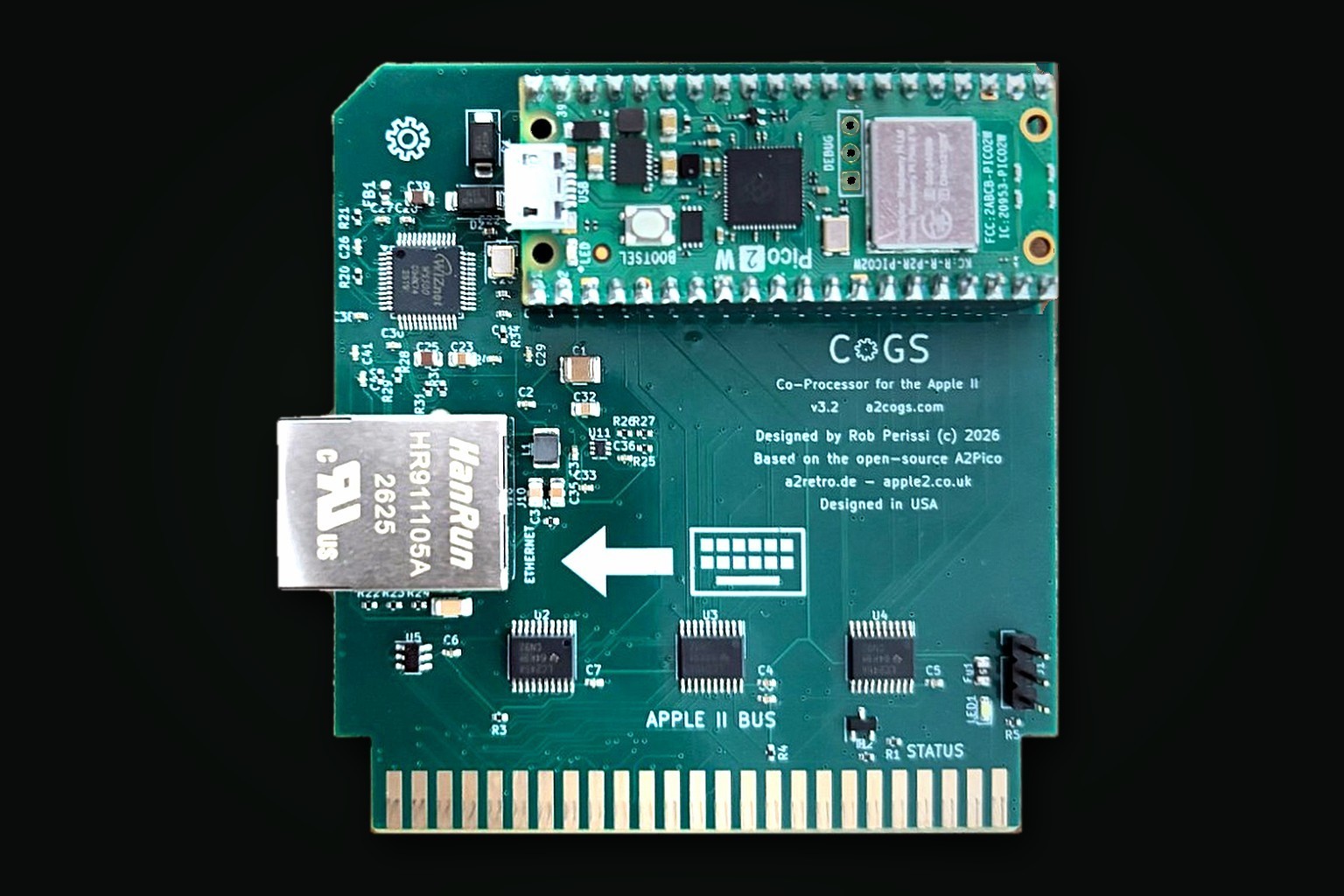
The board is a single slot card. The edge connector goes into the slot. The Raspberry Pi Pico 2 W sits on the card and is the processor and the Wi-Fi radio. The Ethernet jack is on the front edge, the end toward the keyboard. The large arrow printed on the card points at that edge; the small picture next to it is a keyboard, not a row of ports. The Pico’s USB connector is used only when you update the firmware from a computer. Do not press on the Pico or on the small parts around it.
You do not need a boot disk, a storage card, an SD card, or a second computer.
A finished card ships with firmware on it, and later versions arrive over the air from the CoGS menu. Chapter 11 covers updating, including the USB recovery flash.
Warning
Turn the computer off and unplug it before you open the lid or touch a slot. Installing a card with the power on can damage the card and the computer.
Check the orientation before you press the card in. The card fits the slot either way round, and it does not survive being powered up backwards. The Ethernet jack goes toward the keyboard. The arrow on the card points the same way.
Handle the card by its edges.
This chapter takes a new card from the box to a running disk image. It assumes an Apple IIGS. The differences on an Apple //e or ][+ are noted where they occur. Read Chapter 1 first if you have not.
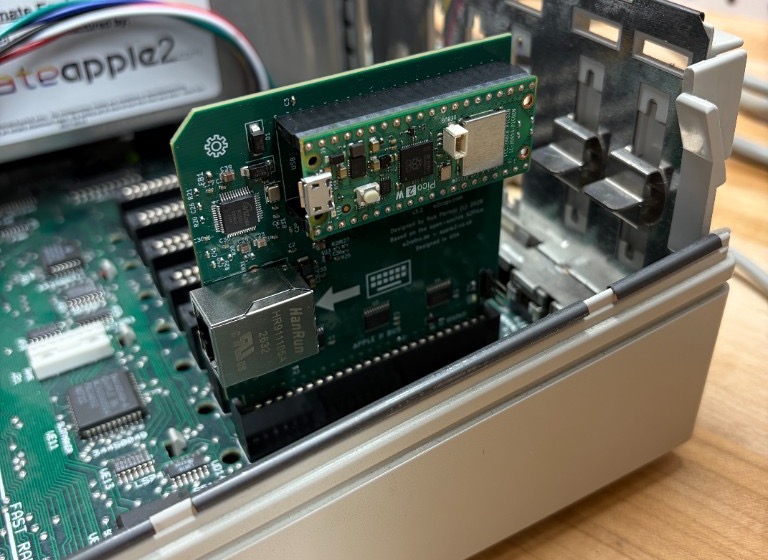
Warning
Turn the computer off and unplug it before you touch a slot, and look at the orientation again before you power up. A card installed backwards is damaged the moment the power comes on.
On a IIGS the slot has to be set to Your Card in the Control Panel before the card is visible. Skip this step on a //e or ][+.
When the computer starts from the card for the first time, the card has no network to join and no disk to boot, so it shows its own menu (Chapter 4 has a picture of it and covers every page).
If you plugged in an Ethernet cable, the card uses it in preference to Wi-Fi and no Wi-Fi setup is needed. Card Status (press 8) shows which connection is active.
Tip
If you missed the menu because a disk was already configured, hold M while the computer starts from the card. The menu opens before anything boots. C does the same, and leaves M free if a CFFA3000 is still in the machine.
That is the whole procedure. The disk image streams over the network as the program runs.
The disk you booted stays set as the boot disk. The next time the computer starts from the card it boots that disk without stopping at the menu. To boot something else, hold M as the computer starts, press 3, and pick again. Or hold the drive number 1 through 8 (1 through 4 on an 8-bit machine) through power-on to boot that drive.
Disk Drives (press 6) shows what is mounted in each drive. From there you can point any drive at a disk image, clear it, move it to another drive with that drive’s number, pick one from the last twelve you used (R) and put it on the selected drive, or turn on a short boot menu that lists the drives at power-on. Browse Disks has the same twelve under Featured (R), as a list like Featured. On that list, 0 unmounts, X drops one row, and A clears the list, after you unmount anything still on a drive.
The card fits any slot of an Apple ][+, Apple //e, or Apple IIGS. This chapter covers the physical installation in each machine, the Ethernet connection, the IIGS slot settings, and how to check that the computer sees the card.
Any slot from 1 to 7 works.
On a IIGS, slot 7 is the usual choice. Nothing built into the machine uses it, and it is easy to reach. Slot 5 is also common. Slot 3 works, but the card then presents four drives instead of eight, because slot 3 is the slot ProDOS treats as a four-drive card.
Some cards answer the bus for slots they are not plugged into, and CoGS cannot share a slot number with one of those. The A2FPGA (A2N20v2) HDMI card is the one we have met. Its standard firmware emulates a Super Serial Card in slot 2, a Mockingboard in slot 4, and a SuperSprite in slot 7, and it answers reads to all three from wherever it sits (slot 3 on a ROM 01). CoGS in slot 2, 4, or 7 then competes with it for every byte, and a GS/OS boot from the card restarts its progress bar over and over. With an A2FPGA in the machine, put CoGS in slot 5, 6, or 1, or flash the A2FPGA with one of its builds that leaves the slot free (MB4, SSC2, SSC2-MB4, or VIDEO-ONLY). Chapter 12 has the symptoms.
An AppleSqueezer with an SD card wants CoGS in any slot but 5. The IIGS’s ROM Disk is a unit on the built-in slot 5 SmartPort firmware, and the Squeezer’s SD boot rides on it. Setting slot 5 to Your Card switches that firmware off, so Startup = ROM Disk has nothing to boot, with CoGS in the slot or with the slot empty. Keep slot 5 on Smart Port, put CoGS in 7 (or 6, 4, 2, 1), and pick the startup device on purpose. Startup = Scan walks 7 down to 1 and finds the CoGS card before the SD, so set Startup = ROM Disk when the SD should boot and Startup = the CoGS slot when the card should. The SD partitions mount from a CoGS boot too; Chapter 12 has the driver note.
On a //e or ][+, slot 7 is again the usual choice. The Autostart ROM
looks for a bootable disk from slot 7 down to slot 1. If you want the
machine to boot from CoGS without typing a command, put the card in the
highest-numbered slot that has a disk controller. If another disk card
sits in a higher slot, that card wins the boot scan. You can still start
CoGS with PR#n from BASIC, where n is the slot number.
Do not put two cards in the same slot. Do not force the card. If it does not seat, pull it, check the connector, and try again.
Then set the slot in the IIGS Control Panel.
Warning
If the slot is not Your Card, the IIGS will not talk to the card. The boot menu will not appear, Browse will not run, and GS/OS will not see the drives. This is the first thing to check when a new install looks dead.
There is no Your Card setting on these machines. If
the card is the highest disk controller, the machine boots from it.
Otherwise type PR#n from BASIC, where n is the slot, or
hold C or M as the machine starts from the card to open the menu.
Audio and pictures are IIGS only. An 8-bit machine still gets disks, Wi-Fi, Ethernet, Browse, the clock, and firmware update.
The Ethernet jack is on the card’s front edge, facing the keyboard, so the cable enters at the back of the case and loops forward to the card.
Tip
If you expect to connect and disconnect the cable often, a short panel-mount Ethernet extension (Adafruit product 909 is one) puts a jack in a back-panel opening so the lid stays closed. On its own the panel mount sits in front of a slot. A DB25 back plate with a small opening (JCM sells one) mounts the jack over the power supply without covering any slot.
When both Ethernet and Wi-Fi are available the card uses Ethernet.
Card Status shows
Path: Ethernet (Wi-Fi is fallback). Unplug the cable and
the card falls back to the saved Wi-Fi network.
On a IIGS with Startup Slot set to the CoGS slot and no boot disk saved, the card menu appears as the machine starts. On a later visit, hold M through power-on to force the menu. C does the same.
On a //e or ][+, PR#n from BASIC opens the same menu if
the card is answering. With nothing to boot, the card does not stop the
Autostart scan on these machines; hold M through power-on for the menu
(firmware 1.32 or later).
Once you are in the menu, press 8 for Card Status. A live card shows the slot number, the firmware version on About / Update (press 0), and either a Wi-Fi or Ethernet address after you join a network.
If the menu never appears, work through Chapter 12, starting with the slot setting and the seating of the card.
Everything the card does is reached from its own menu, built into the card and shown on the Apple II’s text screen. This chapter covers every screen of the menu. The menu appears when the computer starts from the card’s slot and has nothing to boot, and at any time you hold M while it starts from the card. If the boot only passed through the card on its way down the slots (a IIGS with Startup Slot set to another card, or a //e or ][+ scanning from slot 7), the card stays quiet and lets the scan go on to the next slot; hold M for the menu there (firmware 1.32 or later). Esc on the main menu with nothing to boot also hands the boot to the next slot down. C opens the same menu. M is the CFFA3000 key, so it stays familiar if you move off that card. If you keep both, start from the CFFA and hold M for that menu. Start from CoGS and hold C, and M stays with the CFFA. On a IIGS the same pages are also in CoGS Config after the Finder is up (Chapter 9).
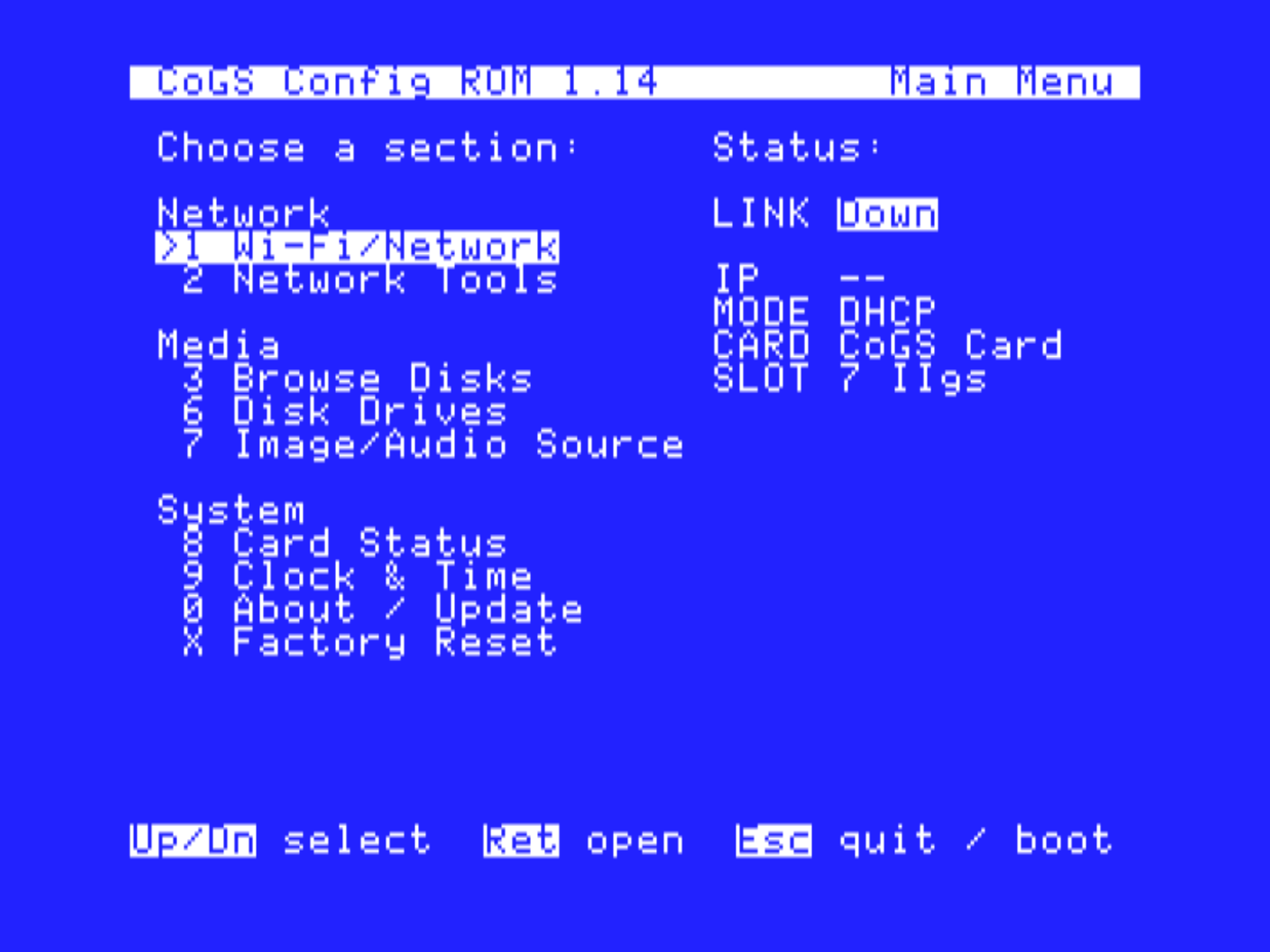
The menu is in three groups. Network holds Wi-Fi/Network and Network Tools. Media holds Browse Disks, Disk Drives, and Image/Audio Source, and on a IIGS under GS/OS also Browse Audio and Browse Pictures. System holds Card Status, Clock & Time, About / Update, and Factory Reset. The column on the right shows the link, the card’s address, and the slot.
The same menu comes up in two places, and they are not quite the same. The startup menu runs from the card’s ROM on any Apple II, before anything has booted. On a IIGS the menu is also the CoGS Config desk accessory, opened with Ctrl-OpenApple-Esc once GS/OS has reached the Finder. The desk accessory carries two rows the startup menu does not, 4 Browse Audio and 5 Browse Pictures. Audio and pictures run only there, and only on a IIGS. The startup menu cannot play or view, and an 8-bit machine has no sound chip or Super Hi-Res to use, so the rows do not appear in either case. The other items keep the same numbers everywhere.
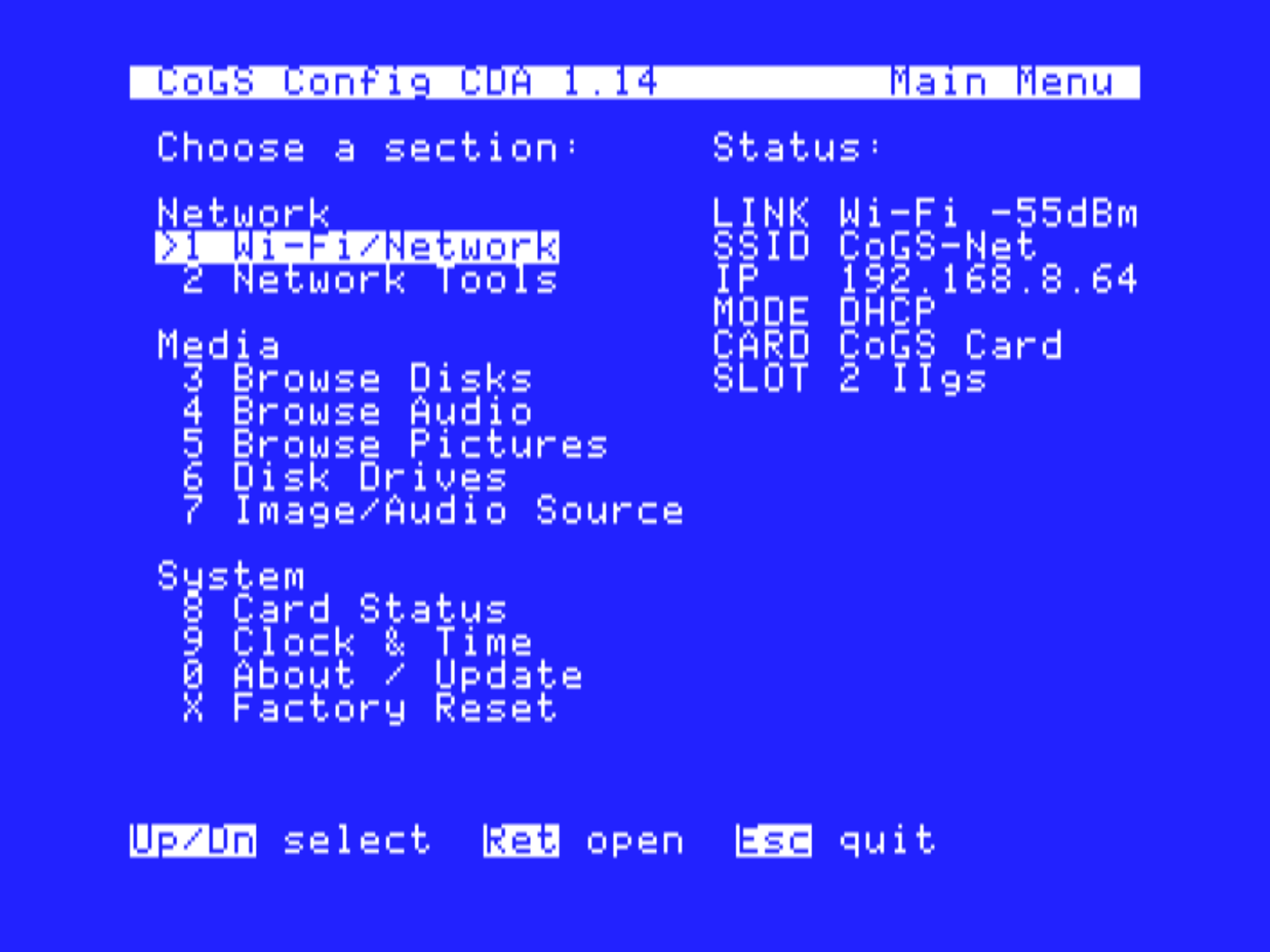
Press the item’s digit (or X for Factory Reset), or move with the Up and Down arrows and press Return. Esc leaves a page. From the main menu, Esc on a machine that was about to boot continues the boot.
| Key | Opens |
|---|---|
| 1 | Wi-Fi/Network |
| 2 | Network Tools |
| 3 | Browse Disks |
| 4 | Browse Audio (CoGS Config on a IIGS) |
| 5 | Browse Pictures (CoGS Config on a IIGS) |
| 6 | Disk Drives |
| 7 | Image/Audio Source |
| 8 | Card Status |
| 9 | Clock & Time |
| 0 | About / Update |
| X | Factory Reset |
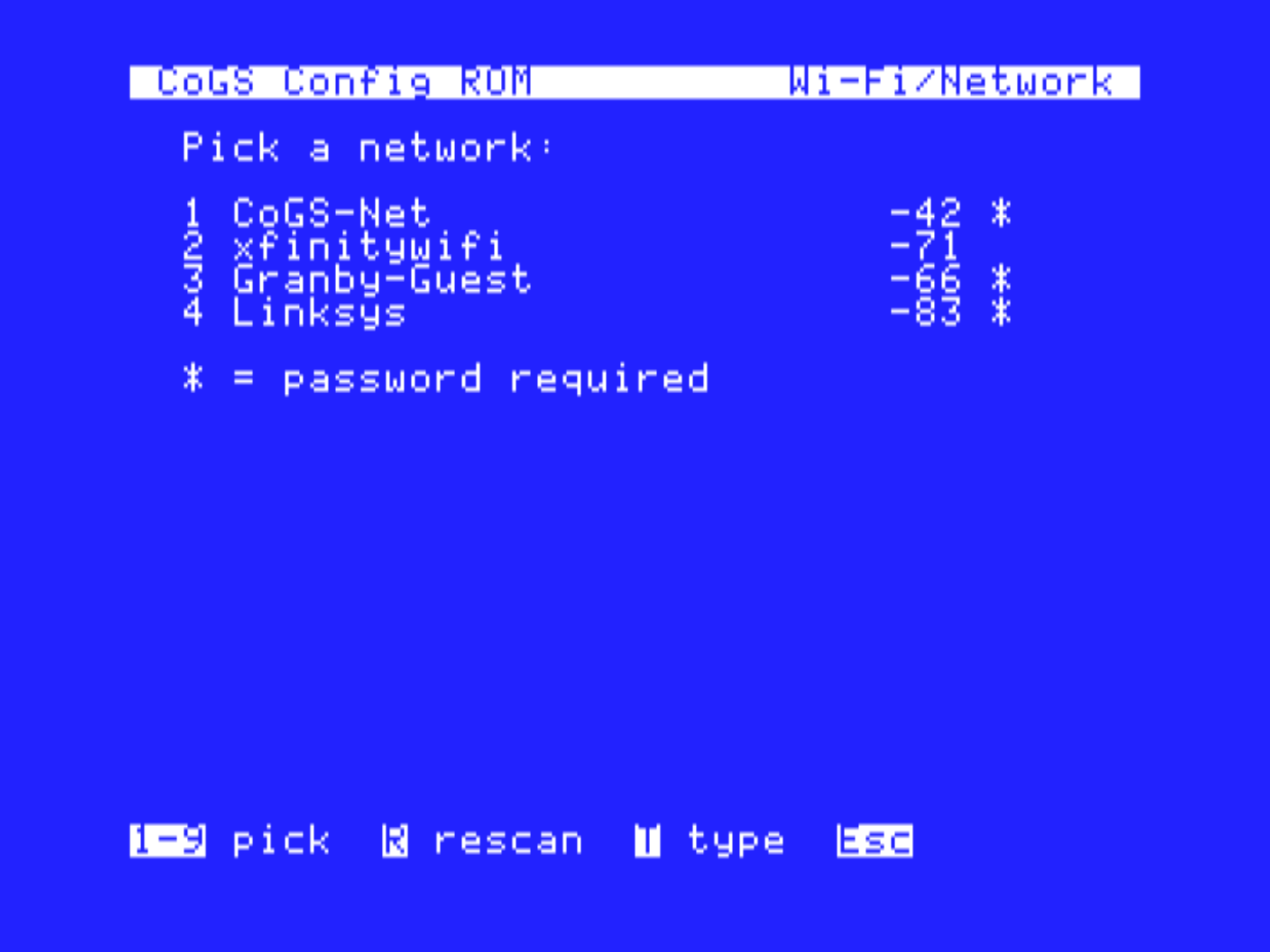
This page shows the network the card is on, or that it is not joined. Return starts a scan. The card lists the networks it hears, strongest first. Pick one, type the password (case sensitive), and Return. The card saves the network and rejoins it on every start.
F forgets the saved network. That does not erase mounts or the catalog source.
Press I for the Card IP page. That is the card’s own address, not the Apple’s. The top of the page shows the address, mask, gateway, and DNS the card holds right now and how it got them. The card takes an address from your router (DHCP) unless you set one here. M switches the mode between DHCP and Static. Rows 1 to 5 hold the IP, mask, gateway, and two DNS servers. Press the row number and type digits and dots. Return sets the row. Tab sets it and moves to the next row. DNS1 empty means the gateway answers DNS. DNS2 is an optional backup. S saves and applies. One static address covers both ways onto the network. Wi-Fi uses it, and if a cable is plugged into the wired port the wired port takes it over until the cable comes out.
Note
On a IIGS that also runs Marinetti, the GS has its own address (Chapter 9). Do not set that address to the same numbers as the card. Two stacks on one address break both.
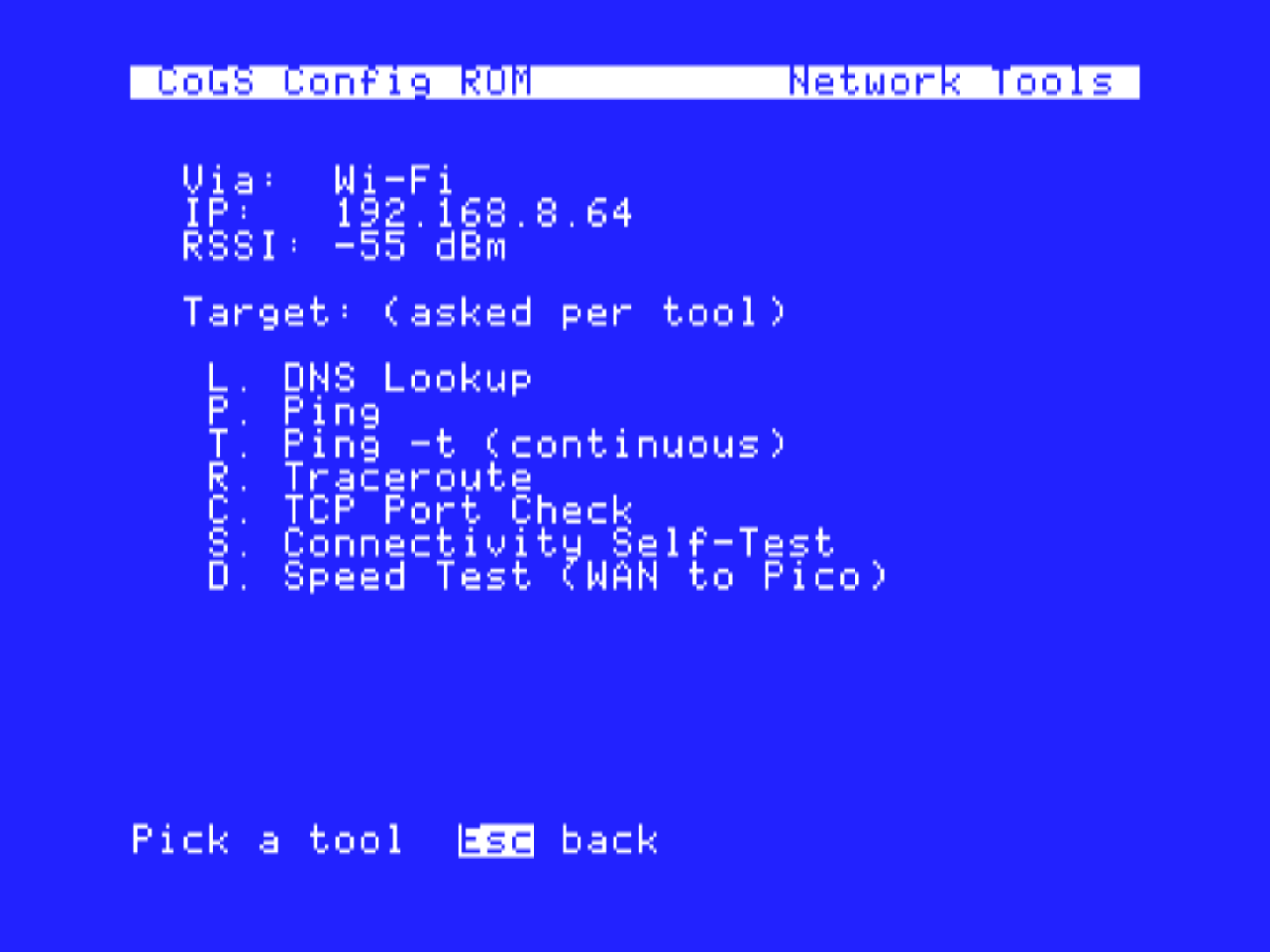
These tools run on the card. They need a live network (Wi-Fi joined or Ethernet with an address).
| Key | Tool |
|---|---|
| L | DNS Lookup |
| P | Ping (four echoes) |
| T | Ping, continuous, until Esc |
| R | Traceroute |
| C | TCP port check |
| S | Connectivity self-test (DNS, TCP, TLS) |
| D | Speed test, 256 KB HTTPS to the card. This is the card’s WAN path, not the Apple II bus. |
Each tool asks for a host name or address if it needs one. A good self-test ends with DNS, TCP, and TLS all working. Use these before you chase a Browse or boot failure that is really a network problem.
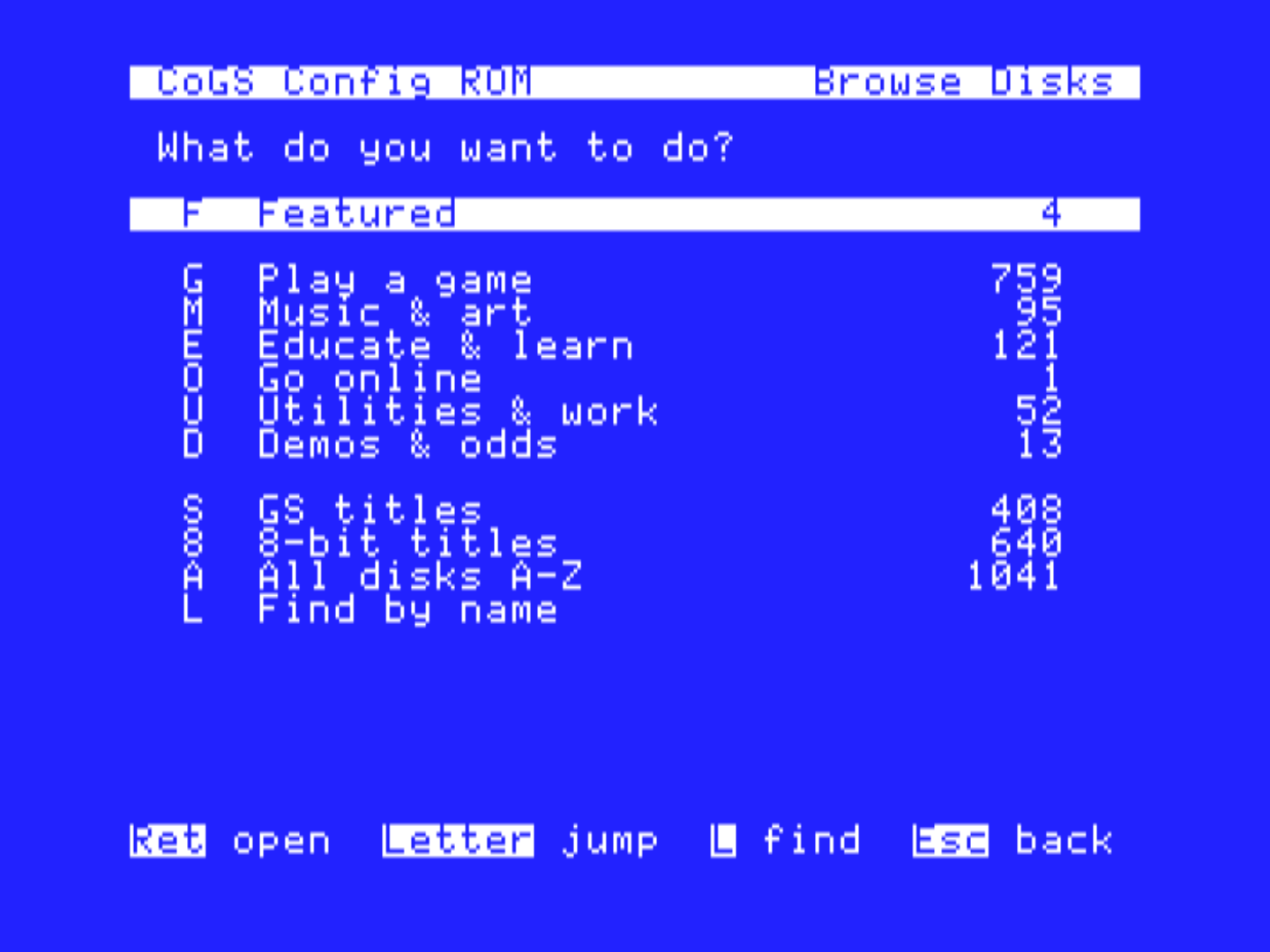
Browse Disks opens on What do you want to do? The first letters are the keys.
| Key | Shelf |
|---|---|
| F | Featured |
| R | Recent (the last twelve disks you mounted or booted). Return boots, 1-8 mounts, 0 unmounts. |
| G | Play a game |
| M | Music and art |
| E | Educate and learn |
| O | Go online |
| U | Utilities and work |
| D | Demos and odds |
| S | GS titles (IIGS only) |
| 8 | 8-bit titles (IIGS only) |
| A | All disks A to Z |
| L | Find by name (searches the a2cogs catalog) |
| Y | Your source, when you have saved one (Chapter 10) |
On an 8-bit machine the list is already limited to titles that machine can run, and the GS / 8-bit extra rows are omitted.
Y opens your share’s folders as categories when the share offers them (Image Manager does; Chapter 10), numbered 1 through 9, then 0, X, Z, with All A-Z and Find below. A share without folders opens as the plain A-Z list.
Inside a list, Up and Down move, N and P turn the page, G jumps to a page, L finds. Return on a B row makes it the boot disk. The footer says boot on those rows and mnt when the row has no B (Return still will not boot a data disk). A digit 1 through 8 (1 through 4 on an 8-bit host, or in slot 3) mounts that disk image on that drive without changing the boot disk. 0 unmounts the selected image from whichever drive it is on. V shows box art when the row has a V (IIGS).
Marks sit on the right of the row, in this order: size, then 8b or
Dn, then a bundle tag, then V, then B. A B means the disk image boots.
An 8b mark is 8-bit software. A Dn mark means that disk image is already
on drive n (it paints over 8b). The bundle tag says the title lives
inside a larger collection image: TR is a Total Replay title, MC a title
on one of the MECC volumes, HD a title inside some other collection (a
hard disk image of a series, a compilation). The mount is the parent
image, so Dn can appear on every row of one bundle at once. A row reads
800K 8b TR B, 32M D1 MC B, or
32M HD B. A standalone disk image has no tag. Chapter 5,
Reading the catalog, has the full table of marks and what
Return does on each kind of row.
When you pick a bundled title, the card mounts the parent and the
picked screen names it, then says Then pick from its menu:
with the title, because the collection’s own menu is where you start the
program.
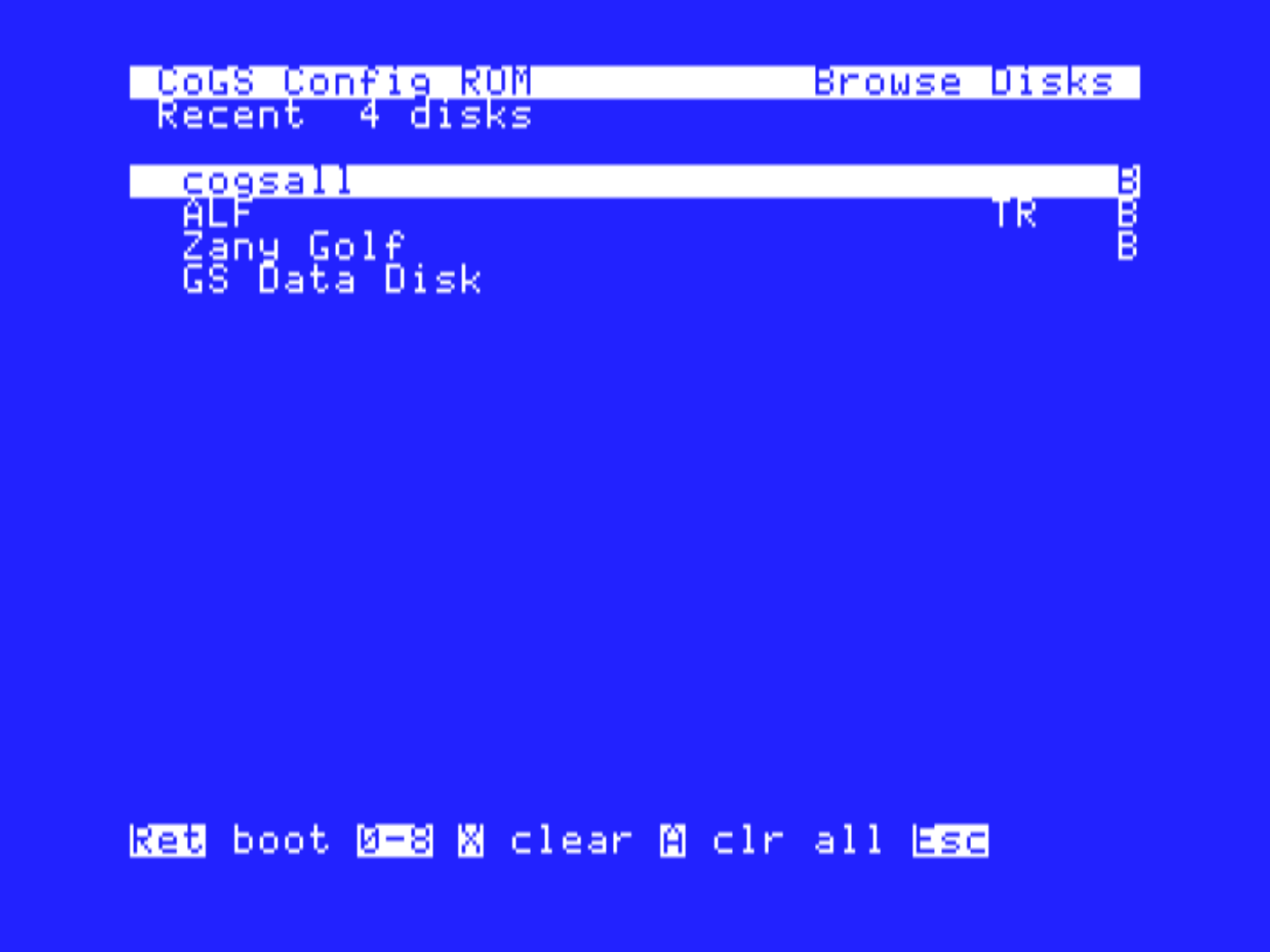
On Recent, the title you picked comes over (ALF, not
Total Replay), and so do the bundle tag (TR, MC, or HD) and B. X drops
that row. A clears the list. Neither key works while that disk image
(or, for A, any disk image on the list) is still mounted. Unmount with 0
first. A disk image you mounted from Your Source is on this list too. If
that share is no longer the saved Image Source, Return and 1-8 say
Your source changed or no longer available. and do not
mount it.
Note
The card will not put the same disk image on two drives. GS/OS cannot hold one volume twice. If you try, the card leaves the first mount alone and tells you which drive already has it.
Chapter 5 covers sources, several drives, and writing.
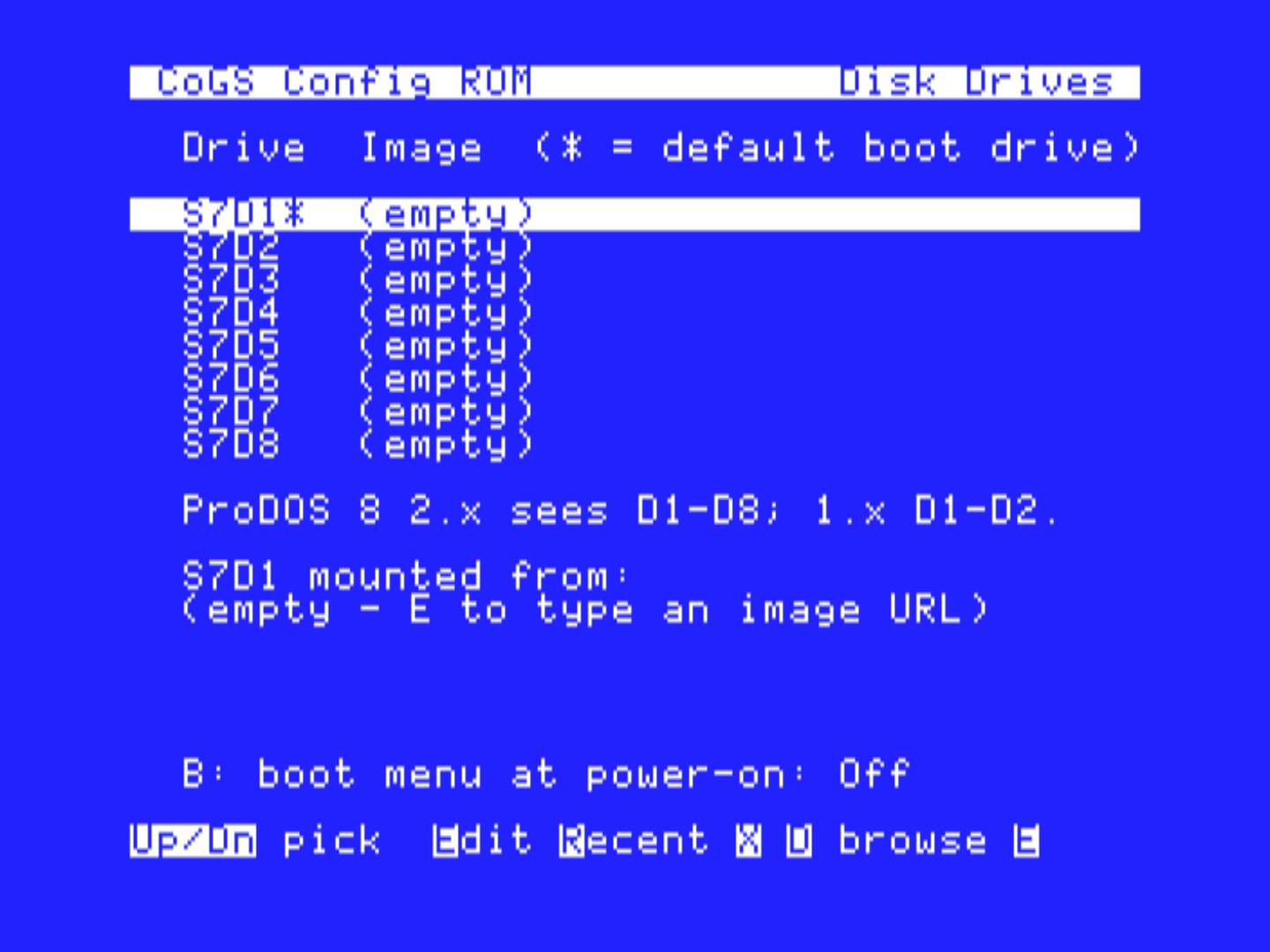
This page is the table of drives the card is presenting. Eight drives in most slots, four in slot 3. Under ProDOS 8 1.x only the first two are reachable; the page says so.
The boot drive is drive 1. Return on a later drive that has a disk
image swaps it with drive 1 so that disk image becomes the boot disk. A
digit moves the selected disk image to that drive, the same keys the
Browse lists use. If the other drive already holds an image the two
trade places. 0 unmounts it, the same as X. The digit of the drive it is
already on does nothing, and digits do nothing on an empty drive. The
cursor follows the image, and the line under the list says what happened
(Moved S7D2 to S7D3, Swapped S7D1 and S7D3). E
edits the URL on the selected drive. R opens the last twelve disks you
mounted or booted and puts the one you pick on the selected drive. X
clears the drive. D jumps to Browse Disks. Firmware 1.32 or later;
before that a digit only moved the cursor.
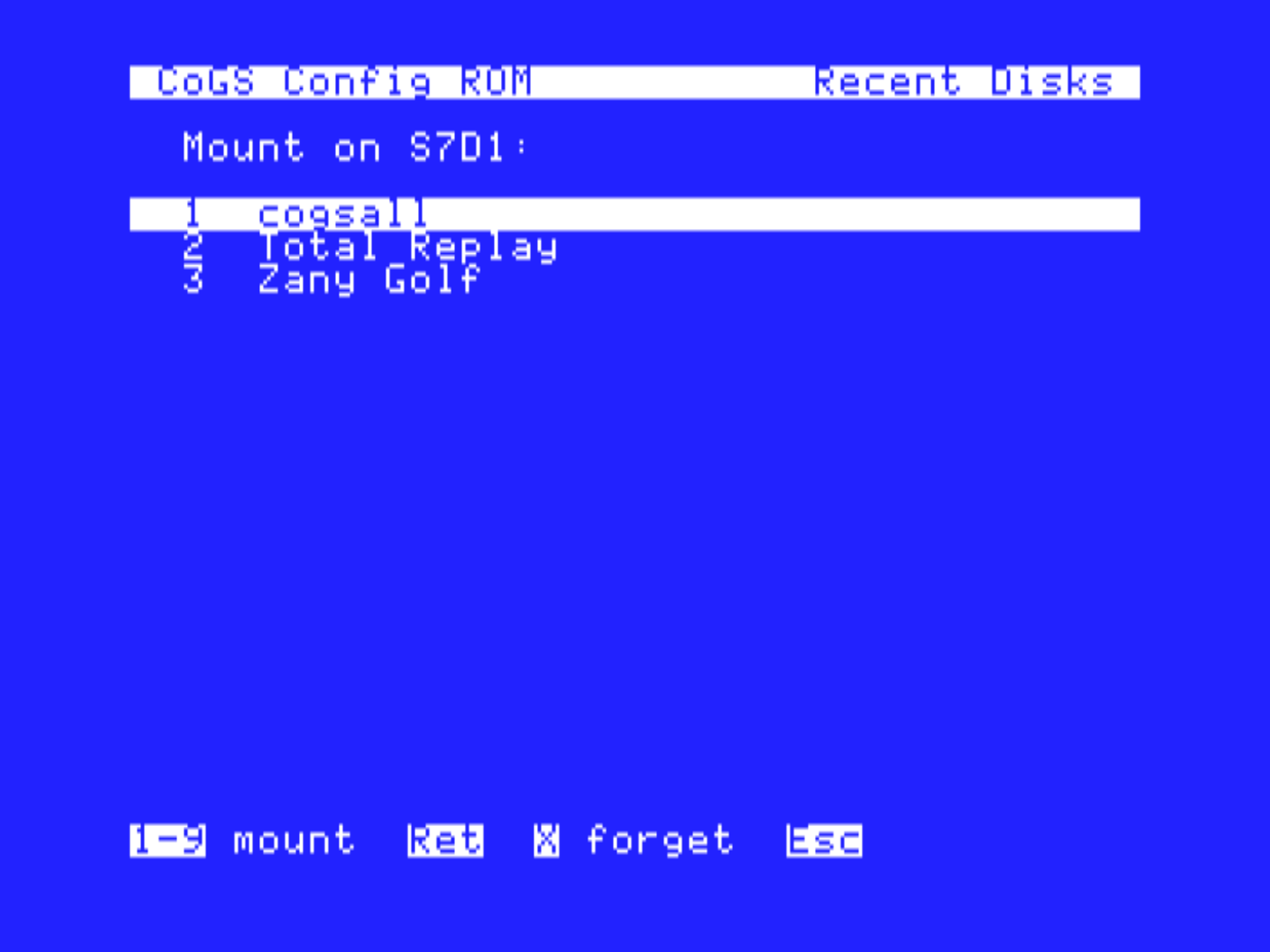
The recent list is newest first. A name comes from Browse when the
card had one, otherwise from the filename in the URL. Press 1 through 9
(0, A, B if there are more) or Return to mount. X forgets that row
unless it is still mounted. Esc goes back. A Your Source row that no
longer matches the saved Image Source is refused with
Your source changed or no longer available. Factory Reset
clears the list.
B turns the power-on Boot Menu on or off. Off (the default) boots drive 1 at once. On, the card shows CoGS Boot Menu for 5, 10, or 15 seconds (B cycles those times). Press 1 through 8, or move and press Return, to boot that drive. M opens the full CoGS menu. Up and Down pause the countdown so a cursor move cannot boot drive 1 under you. Holding a drive number through power-on still works when the countdown is off.
A change to a mount is live for GS/OS. ProDOS 8 needs a restart from the CoGS slot before it sees a new drive.
The catalog you see in Browse comes from a2cogs.com unless you point a source at your own share. This page has three slots: disks, audio, and pictures. Each is a base URL. One Image Manager folder can fill all three. S scans the LAN for Image Manager shares and fills the slots from the one you pick. D, A, and P edit a slot by hand; C clears all three. Save a slot empty to remove Your source for it. When a share is saved, Browse grows a Y row for it, and Y opens on the share’s folders when it has them.
Chapter 10 lists the file types Image Manager accepts and what it converts (MP3 to PCM, JPEG to SHR, disks as-is).
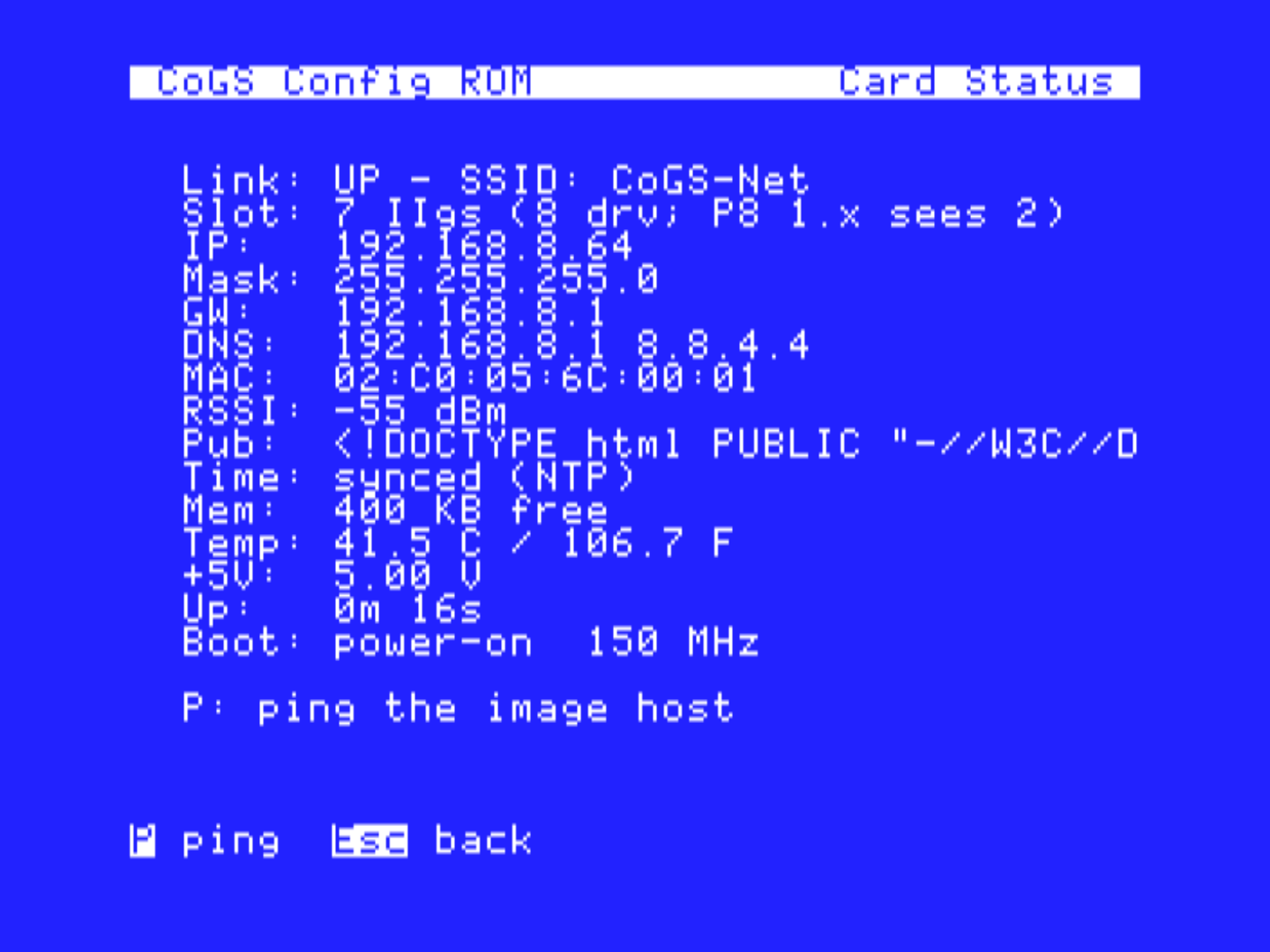
Read-only. The top row has the firmware version and the card’s ID
(the same ID XXXX-XXXX as About / Update). Below it, link,
address, mask, gateway, DNS, MAC, and whether the path is Ethernet or
Wi-Fi. Public address if the lookup works. Clock sync (HTTPS waits on
it). If Marinetti is up, a line for the GS address. The lower block is
the card itself, free memory, temperature, the +5V rail (an estimate
from the card’s own sensor, shown with a ~; a meter on the slot will
read within a few hundredths of it), uptime, and how it last booted.
Come here first when something looks offline.
The card block and the ID show before any network exists, so a card fresh out of the box can be looked over here before you join Wi-Fi or plug in a cable. With no connection the page says so and points at Wi-Fi Setup, and the address rows stay empty until there is one.
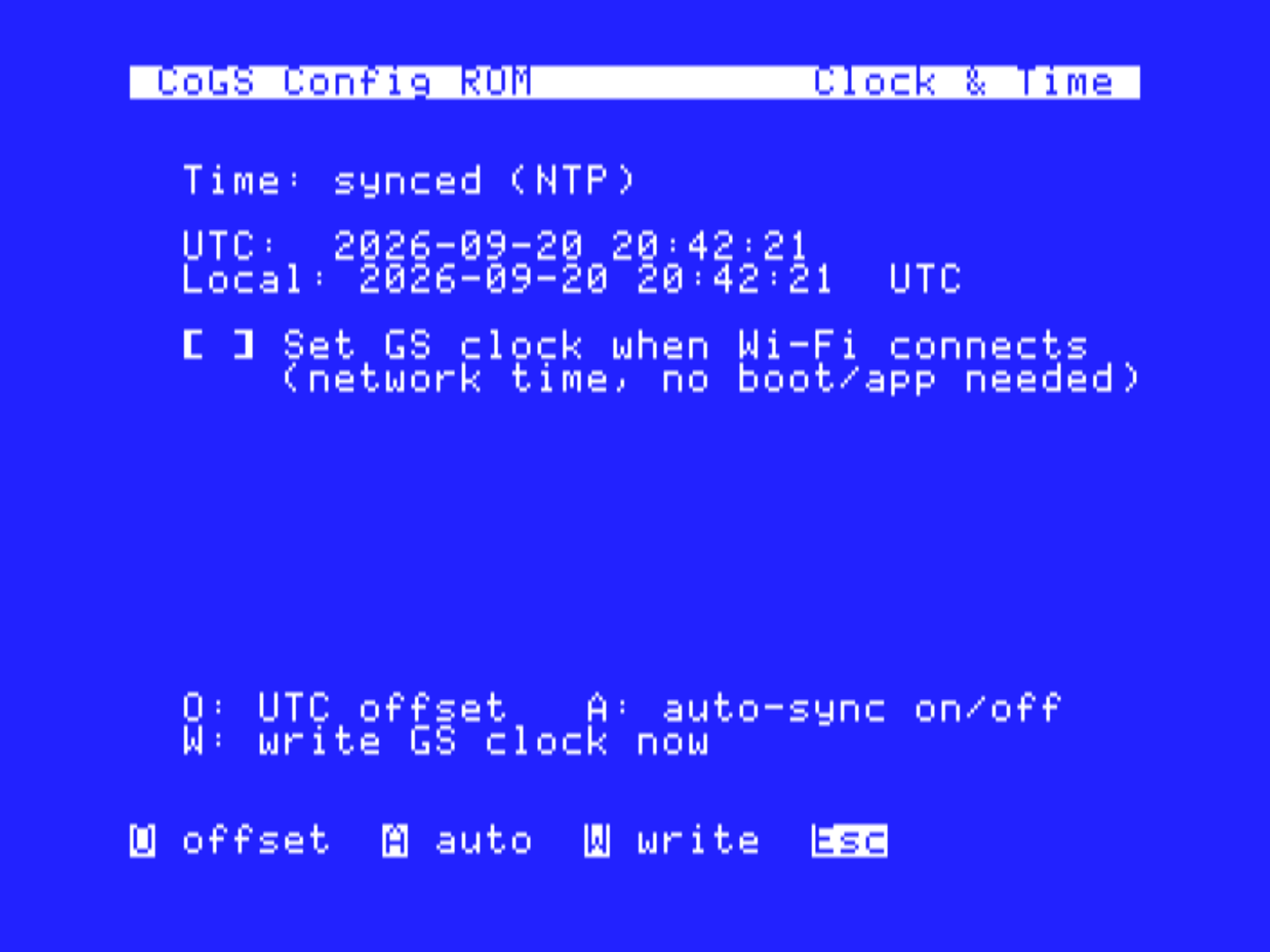
The card gets time from the network (NTP, or HTTP if NTP is blocked). TLS and HTTPS wait until that clock is set, so a Browse failure right after join can be “time not synced yet” rather than a bad catalog.
O sets the offset from UTC (-5, +1,
+9:30). A turns auto-write of the Apple clock on or off
when Wi-Fi connects. W writes the network time to the IIGS clock now (Y
to confirm). On a machine with no clock the page still keeps the offset
for the Local line.
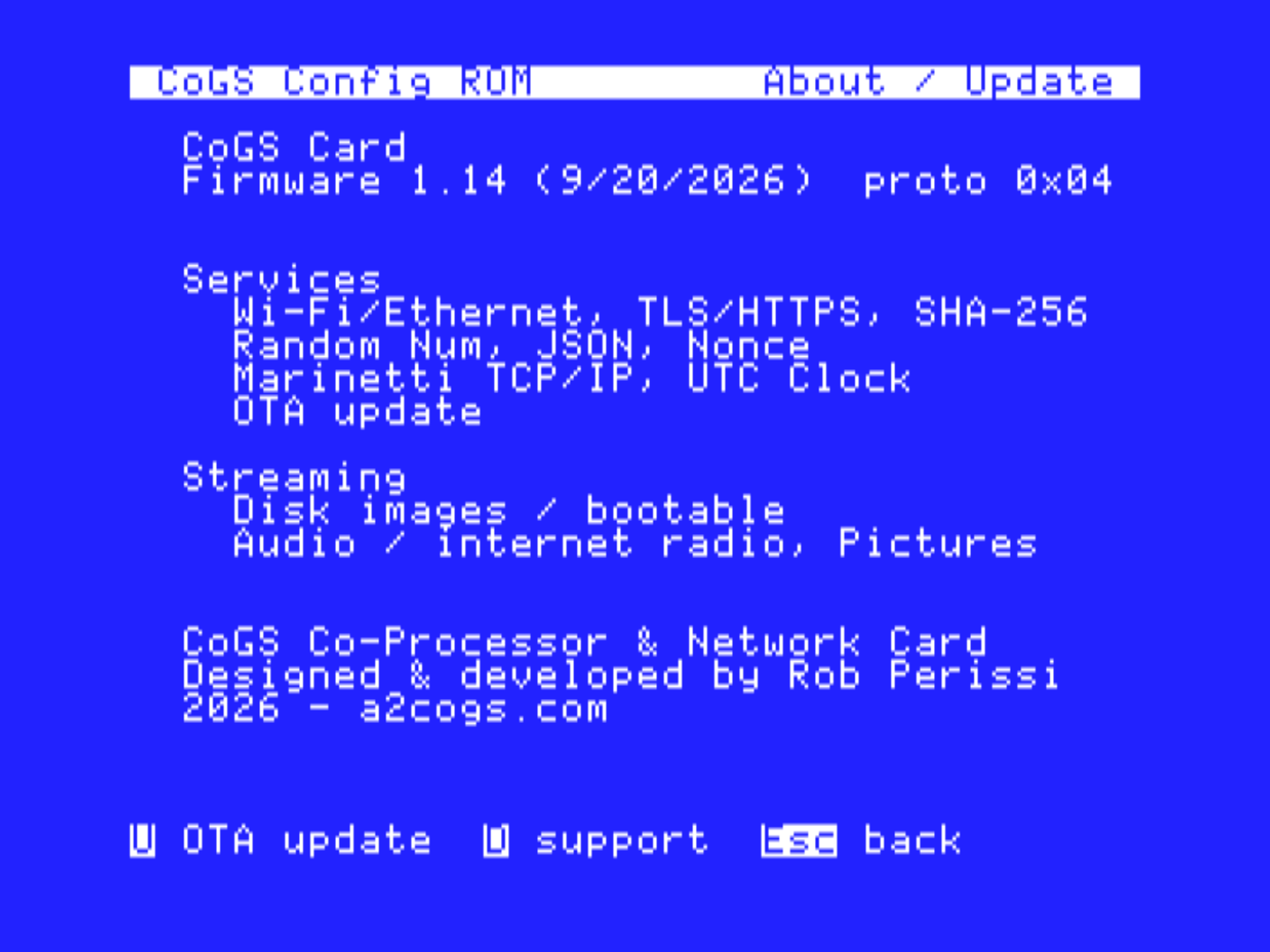
Firmware version and date, the services this card has, and the streaming faces. U opens the updater (Chapter 11). D opens the Support Snapshot, one screen with everything a support question needs: slot, host, firmware, the card’s ID, link and address, clock source, uptime, memory (total free and the largest single block), pool and connection counts, and an Errs line that only appears when something has failed and names the cause. Take a photo of it and send it to [email protected], or post it in #cogs on the Apple2Infinitum Slack.
The top line of the About page shows the card’s ID, eight characters derived from the chip inside the card. It identifies this card if you ever write in for help, and the card sends it along with its firmware version when it talks to a2cogs.com so we can see how many cards are in use and which versions are out there. Nothing else is sent, and there is no account to create.
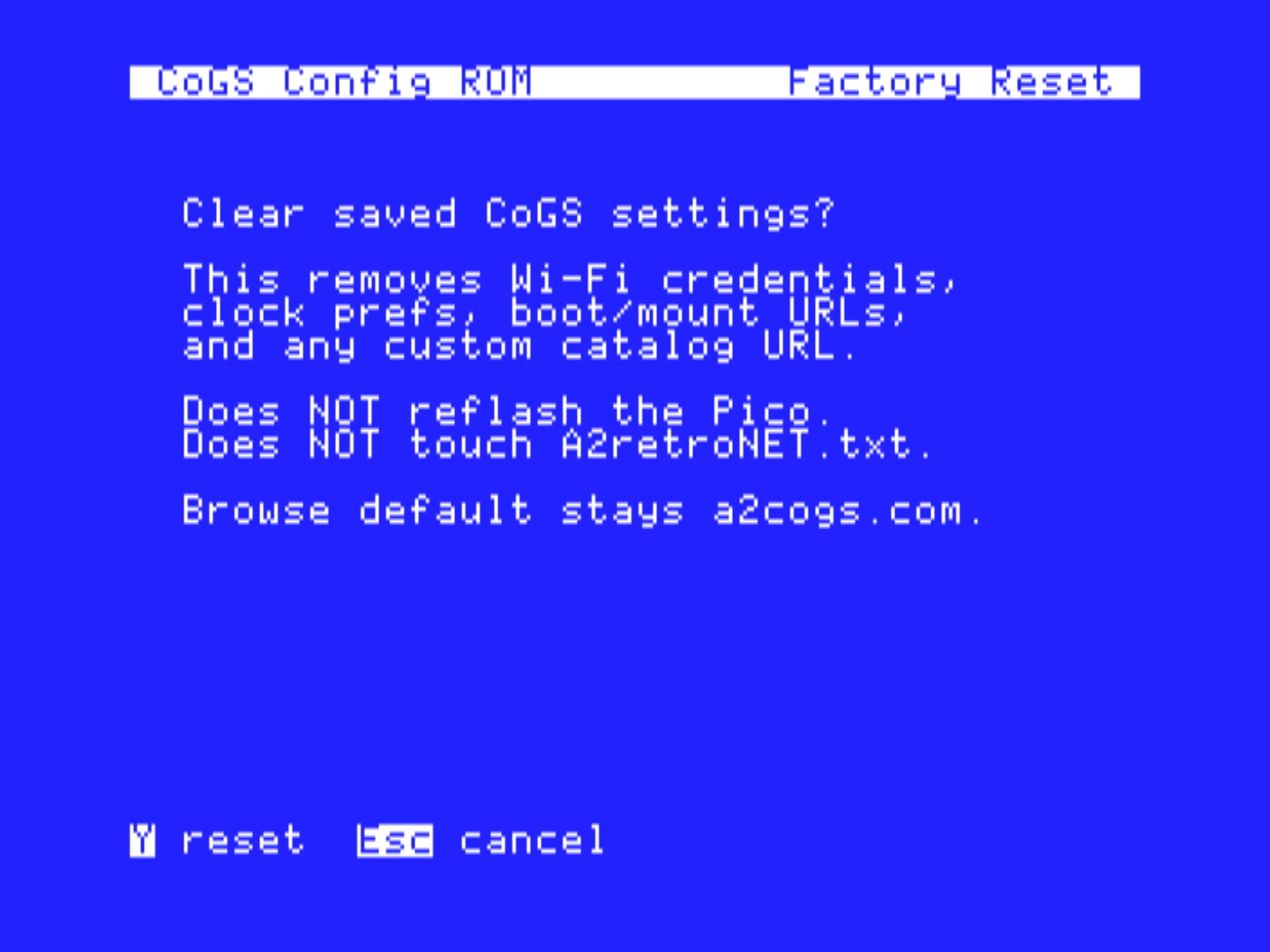
X from the main menu, then Y to confirm. This clears saved Wi-Fi, clock prefs, boot and mount URLs, the recent-disk list, and any custom catalog URL. Browse goes back to a2cogs.com. It does not reflash the Pico and it does not change the firmware. There is no undo other than joining the network and mounting disks again.
The card presents itself to the Apple II as a disk controller with several drives. Each drive holds a disk image that the card fetches over the network, block by block, as the computer reads it. This chapter covers where disk images come from, how to mount and boot them, how several drives work at once, and how writing to a disk works.
Two places, both HTTP or HTTPS with range requests.
The a2cogs.com catalog. Read-only, boot-tested, about 2,200 titles. Browse Disks opens on it unless you have replaced the disk source. About half the rows are disk images of their own; the other half are programs that live inside a larger collection image and are listed by name so you can find them. The marks on each row (B, 8b, TR, MC, HD) tell you which is which and what Return will do. They are explained in Reading the catalog below. The catalog itself and about three quarters of its disk images are served from a2cogs.com. The rest fetch from where they are published: the Total Replay rows from its GitHub releases, and a few dozen from the Asimov mirror. Those titles need a path to that host as well, which on a home connection is not a distinction you will notice.
Your own share. A folder on a Mac running CoGS Image Manager (Chapter 10), or any web server that can serve the disk image files and a small catalog. Those disk images appear under Your source (Y), sorted into your own folders when the share offers them. They can be writable.
The card does not keep a copy of the whole disk image. It fetches the blocks the Apple II asks for and remembers recent ones so a warm boot of the same disk image is fast.
From the card menu press 3, or open CoGS Config and choose Browse Disks. The hub and list keys are in Chapter 4.
L finds by name. Type part of a title. The list is the matches, same Return and digit keys as the A to Z list.
If the hub cannot be fetched (no path to a2cogs.com), Browse falls back for that session. With Your source saved it opens on your folders, or on the plain A to Z list of the share when the share has no folders to offer.
Every row in Browse is a name on the left and a few marks on the right. The marks answer three questions: can this row boot, is it 8-bit or IIGS software, and is it a disk of its own or a program inside a bigger disk.
| Mark | Meaning |
|---|---|
| B | The image boots. Return makes it the boot disk and starts the machine from it. No B means a data disk: Return will not boot it, a digit key mounts it on that drive. |
| 8b | 8-bit software (Apple II, II Plus, //e). Shown on a IIGS, where both kinds are listed. A //e or II Plus never sees IIGS-only rows, so the mark is not shown there. |
| Dn | Already mounted on drive n. Paints over 8b. |
| TR | A game inside Total Replay. |
| MC | A product inside one of the two MECC volumes. |
| HD | A program inside some other collection image (a 32 MB hard disk image from the What is the Apple IIGS? collection). |
| V | Box art or a title screen to view (IIGS, CoGS Config only). |
| letter | The category, on the A to Z, GS, 8-bit and Find lists. G game, C music and art, E educate and learn, T go online, S utilities and work, D demos. |
A row with no TR, MC or HD is a disk image of its own: an 800K game, a ProDOS floppy, a 32 MB hard disk volume. Return boots it if it has a B; a digit mounts it.
Two-disk games (firmware 1.33 or later). A GS game
that came on two 800K disks is one row, named
... (2 disks): Deja Vu, Deja Vu II, Uninvited, Shadowgate,
Keef the Thief, Silpheed, Chessmaster 2100, The Third Courier. Return
boots disk 1 and puts disk 2 on D2 at the same time, so the game finds
its second disk without a swap prompt. A digit puts disk 1 on that drive
and disk 2 on the next one up. The picked page says where each disk went
(Disk 1 on D1, disk 2 on D2.). If the next drive already
holds something else, the card asks before replacing it: Y replaces it,
N keeps that drive and tries the next, Esc leaves the other drives as
they were (disk 1 is mounted either way). A disk 2 that is already on
some drive stays there; the page says
Disk 1 on D1; disk 2 already online. Recent remembers disk
1 only, so a set picked from Recent mounts disk 1 and the page says
Disk 1 only; Browse mounts the set.; pick the row in Browse
to get both. On older firmware these rows mount disk 1 only; put disk 2
on D2 yourself from Browse with a digit.
A row with TR, MC or HD is a program that lives inside a collection image. There is no separate disk for it. Return or a digit mounts the whole collection, and because one image holds many titles, every row from that collection shows Dn at once. After the mount you start the program from inside the collection. How depends on the kind:
| Collection | Tag | Return, then what |
|---|---|---|
| Total Replay | TR | Boots Total Replay (8-bit). Find the game in Total Replay’s own menu, or type its name there. |
| MECC Vol1, MECC Vol2 | MC | Boots the MECC volume (ProDOS, any Apple II). A letter jumps to that letter, L searches, or use the arrows. |
| 8-bit Games, System 6.0.4 and Free Games, Communications | HD | Boots the volume into GS/OS (IIGS only: these have a GS/OS SYSTEM folder). Open the volume in the Finder and double-click the program (on 8-bit Games, the game’s folder under GAMES, PRODOSHACKGAMES or DISKBASEDGAMES). Communications has the CoGS link layer installed and already selected; Connect in the TCP/IP control panel and the comms programs go online through the card (Chapter 9). |
| 8-bit Eduware, 8-bit Creative | HD | Boots the volume (ProDOS, any Apple II). Pick from the launcher menu on the volume. |
| Odds and Ends, Audio and Utilities, Productivity and Graphics, Sports and Unreleased Games, Hardware Apps, Reading Writing and Maths, Social History and Computers, Board Games and RPGs, Adventure and Sim Games, Graphics & Animation, Action Games, Games with Path Mods, HyperCard | HD, no B | Nothing boots; the card says
Not a bootable image and tells you to mount it with a
digit. Boot GS/OS from another drive (System 6.0.4 from the catalog, or
your own), press the digit on the row to put the collection on D2
through D8, and open the program’s folder in the Finder. |
The picked screen repeats this: after a TR or MC row it says
Then pick from its menu: with the title you chose, so you
know what to look for once the collection is up.
Names are the program’s real title, not the folder on the disk. Defender of the Crown is listed as Defender of the Crown even though its folder is DOTC. Search (L) matches the title, not the folder name.
Some collection images stay single rows on purpose. Fonts, Music Library, Clip Art n Sounds and System Addons are libraries of files, not programs; mount them as a data disk and browse them in the Finder. Hyperstudio and the System Taifun boot volume are complete environments and are listed once.
GS titles and 8-bit titles. The hub’s two machine rows split the catalog by what can run it. 8-bit titles (890) run on any Apple II, including a IIGS. GS titles (1,310) need a IIGS. An Apple II Plus or //e lists only the 8-bit half, so a MECC product or a Total Replay game shows there and the GS/OS collections do not. On a IIGS everything is listed and 8b marks the 8-bit rows. The 8-bit Games collection is GS-only despite its name: the games on it are 8-bit, but the volume itself boots GS/OS, so a //e cannot start it. Total Replay is the 8-bit copy of those games.
Read-only. Every catalog image is served read-only. Programs run, saves do not stick. A game that insists on writing a high score or a save file to its own disk needs a writable copy on your own share (Chapter 10). The MECC volumes on the catalog carry a one-byte patch to MECC’s menu so its products start from the read-only mount. On that menu a letter jumps to the first title starting with it, the same letter again goes to the next, and L searches. Saving student records or a top-ten list still needs your own copy.
Return on a Browse row does three things. It mounts the disk image on drive 1, it marks that mount as the boot disk, and it starts the computer from it.
The first time after you pick a new boot disk, the card may spend a few seconds opening the disk image while Wi-Fi finishes joining. If you just powered on, wait for Card Status to show an address before you decide the catalog is empty.
Holding a drive number through power-on boots that drive. If that drive is empty, nothing boots and the card menu opens instead, so a wrong digit costs you nothing. Holding M opens the menu. Both work the same on a //e and a ][+ as on a IIGS. The optional Boot Menu on Disk Drives (Chapter 4) lists the drives for a few seconds so you can pick without holding a key.
Most slots present eight drives, D1 through D8. Slot 3 presents four. GS/OS and ProDOS 8 2.x (2.0.3 and later, including 2.4) see all eight on any Apple II. ProDOS 8 1.x sees D1 and D2.
The eight belong to the card, not the computer. Other disk devices (a CFFA in another slot set to Your Card, a Floppy Emu on the disk port, the built-in drives) add their own drives on top, and GS/OS mounts them all. ProDOS 8 is the tighter one. It holds fourteen devices in total, two per slot, and places a card’s third and later drives into slots that have no disk device of their own, so with several cards full of images a ProDOS 8 program may not reach every drive that GS/OS shows.
D1 is the boot disk when the computer starts from the card. D2 through D8 are extra volumes. On a IIGS they show up on the Finder desktop once GS/OS has seen them. Mount a data disk from Browse with a digit, type a URL on Disk Drives with E, or press R on Browse (under Featured) or on Disk Drives for the last twelve disks you used. A Your Source pick lands on that list. If you later change or drop the share, picking it from Recent does not mount it. The card says the source changed or is no longer available.
One disk image, one drive. The card refuses a second mount of the same URL. To move an image, select its drive on Disk Drives and press the number of the drive you want it on (firmware 1.32 or later). If that drive is taken, the two images trade places. On older firmware, eject or clear the first drive and mount it again on the other.
Eject in the Finder (drag the disk to the trash, or Eject on the Disk menu) unmounts the disk image from the card. The drive goes empty on Disk Drives and in Image Manager and stays empty across a reboot, the same as pressing X on its row.
Shut Down does not. GS/OS’s Shut Down ejects every removable disk on its way out, the card’s drives included, and firmware before 1.29 took that as eight Finder Ejects and emptied the drives, so the next power-on landed in the CoGS menu with nothing to boot. From 1.30 the card waits to see what follows an eject. After a Finder Eject the GS looks at the drive again straight away and the mount is removed; after a Shut Down the next thing the card hears from the GS is the next boot, and the drives come back as they were. The power switch, Control-Reset and the Restart button on the “You may now switch off” screen all count as that boot, in any slot. Requires firmware 1.30 or later; the fix is partly in the card’s slot ROM, so an update from About / Update brings it with it.
The Restart button had a second problem, fixed in 1.31: after Shut Down + Restart the Desk Accessories menu had no CoGS Config until the next power cycle. That Restart does not reset the cards, so the card still believed its desk accessory was installed. From 1.31 the card sees GS/OS start up again and installs it into the new session, and it does this only for a GS/OS start, so launching a ProDOS 8 program from the Finder and coming back does not give you two copies in the menu.
You can change drives from CoGS Config while the desktop is up: open the CDA, press X on a drive, mount something else on it, and Esc back to the Finder. GS/OS first sees the old disk leave the drive and takes it off the desktop, then sees the new disk and puts it on. That holds for any number of drives changed in one visit, so you can empty several and refill them in a different order without the Finder asking you to rename a disk. A drive that stays empty shows no icon. Requires firmware 1.26 or later.
A disk image from your own share also follows the share. If the share turns its Writable switch off, the disk’s lock badge appears on the desktop within a few seconds of the desk being idle, and clears the same way when the switch comes back on. If the share stops answering (Stop Sharing, the Mac asleep, Image Manager quit), the card empties that drive after about fifteen seconds and the Finder dims the icon like an ejected floppy. Drag the dim icon to the Trash to clear it. Starting the share again does not put the disk back; mount it again from Recent or Your source.
The Finder reads every mounted volume’s Icons folder when it starts. On a IIGS with the standard 1.25 MB, several volumes with large icon files (some hobbyist collections carry one) can be more than the Finder has room for, and the last volumes to arrive show generic icons or the Finder reports it is out of memory. Mount fewer of those at once, or take the icon file off your own copy of the image; GS/OS falls back to its built-in icons.
Some images boot but do not mount on the GS/OS desktop: 5.25 game
disks with their own loader, DOS 3.3 disks, anything that is not a
ProDOS or HFS volume. After you mount one, Disk Drives says so
(Not ProDOS/HFS. GS/OS can't mount it; or
DOS 3.3 disk. GS/OS can't mount it;) and tells you to boot
it instead: Return on its row makes it D1, then restart. GS/OS’s own
reaction to such a disk is the “not a recognized disk” dialog; Eject
there unmounts it from the card too.
Tip
A title that wants a data disk in drive 2 is a Browse pick on the program, Return, then Browse again and press 2 on the data disk image.
Share a folder with CoGS Image Manager and save that URL as the disk
source (Chapter 10). Browse then has a Y row. Those disk images boot the
same way catalog disk images do. Image Manager does not convert disk
files. Drop .2mg, .po, or
.hdv.
Saves, high scores, and GS/OS desktop files land in the disk image file on your computer when the share is writable. Keep a copy of anything you care about. The card does not grow a disk image and does not create a new file. It only writes blocks inside a disk image that already exists.
Catalog disk images from a2cogs.com are read-only. The Finder may try to write a desktop database. That write does not stick, and it is harmless.
A writable share accepts those writes. If you replace a disk image
file on the share with another file of the same size and the same name,
the card may keep serving the old blocks until you wipe its cache from
the USB console (the w key) or power the card off long
enough to lose that cache. Prefer a new name, or a new size, when you
replace a file.
The card serves ProDOS-order disk images.
| Kind | Typical name | Notes |
|---|---|---|
| 2MG | .2mg |
Header plus ProDOS blocks. Usual GS/OS size. |
| PO | .po |
Raw ProDOS order. |
| HDV | .hdv |
Same as PO under another name. |
Volume size is up to 32 MB per disk image. DOS 3.3 and nibble disk images are not supported. A file that is not a ProDOS volume will not show a B and will not boot.
On an Apple IIGS the card plays music and internet radio through the computer’s Ensoniq sound chip. The player is part of CoGS Config and works from the GS/OS desktop or from any program that allows the Desk Accessories menu. This chapter covers the audio catalog, the player controls, internet radio, and background play.
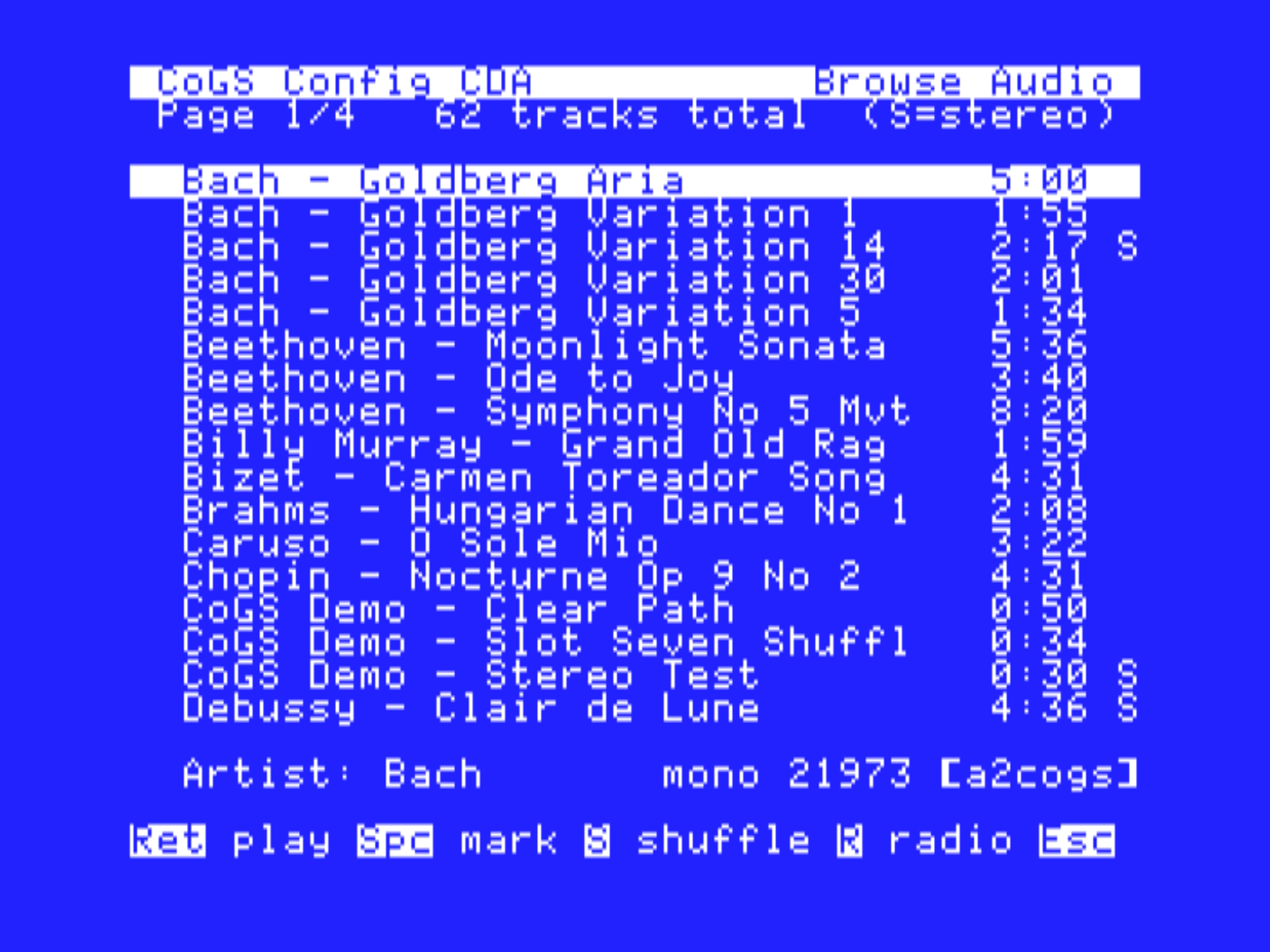
Audio is IIGS only and needs GS/OS and the desk accessory. The Browse Audio row is not on the card’s startup menu, and an 8-bit machine never shows it; it appears in CoGS Config after the Finder is up. Wait about ten seconds after the desktop appears, then open the Desk Accessories menu.
You do not put Tool 226 or Tool 219 in System:Tools. The
card supplies them when play needs them. They stay loaded until you
restart.
Browse Audio opens on What do you want to hear?
| Key | Shelf |
|---|---|
| S | SoundSmith misc |
| D | Demos and scene |
| P | Pop covers |
| H | Holiday |
| M | PCM songs |
| A | All tracks A to Z |
| L | Find by name (searches the a2cogs catalog) |
| Y | Your source, when you have saved an audio URL |
| R | Internet radio |
Y opens on the share’s folders that hold audio, then All tracks A-Z and Find (Chapter 10).
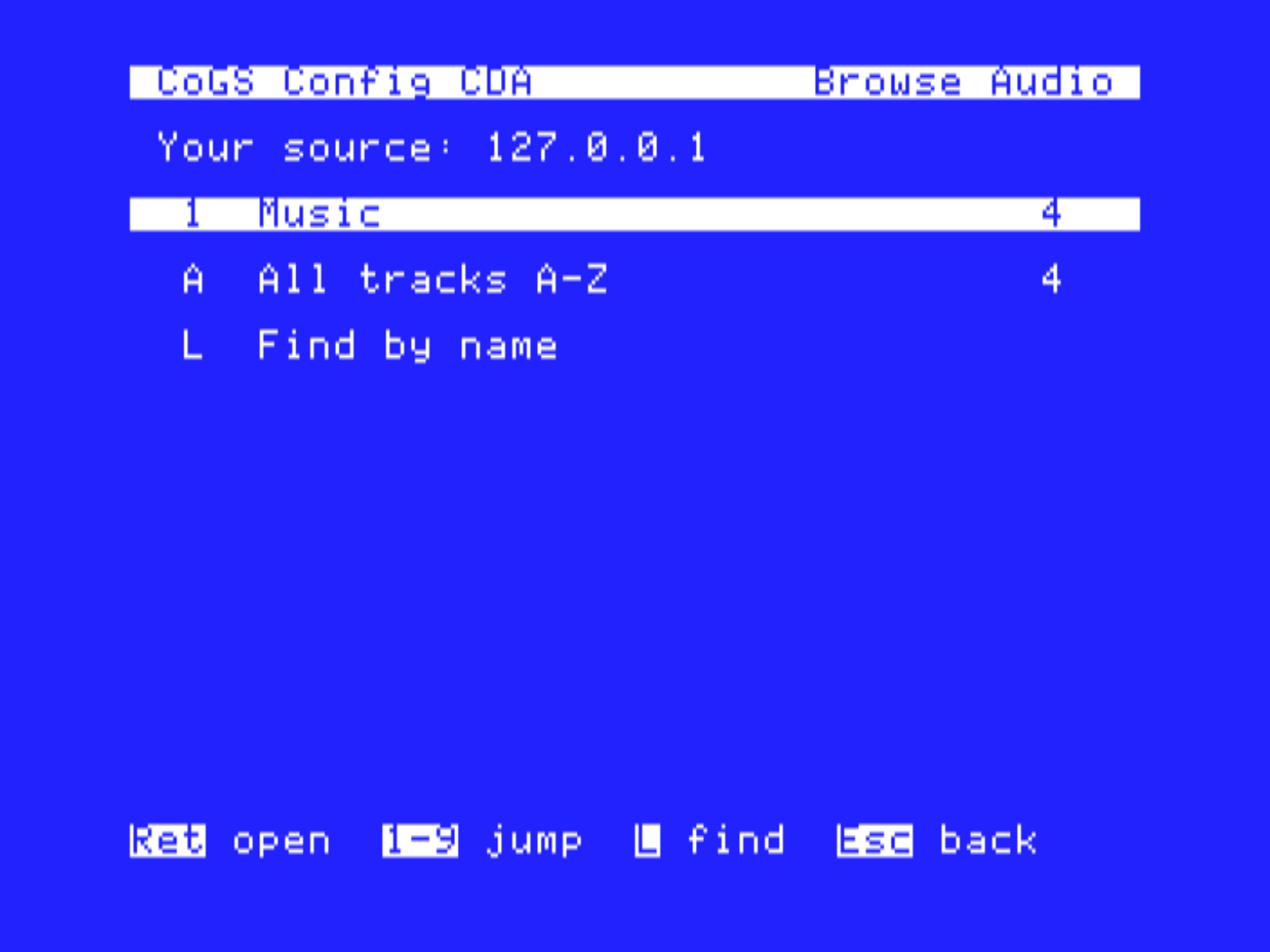
PCM tracks and SoundSmith songs both just play. You do not pick an engine. The list footer tells you PCM is streamed audio and SoundSmith is DOC.
Your own folder uses the same Image Manager share as disks (Chapter 10). Drop an MP3, WAV, or the other formats that chapter lists. Image Manager converts each one to the PCM the player wants. If those files are skipped, open Conversion tools… in Image Manager and Copy the ffmpeg line. Save the share URL on the Audio slot of Image/Audio Source.
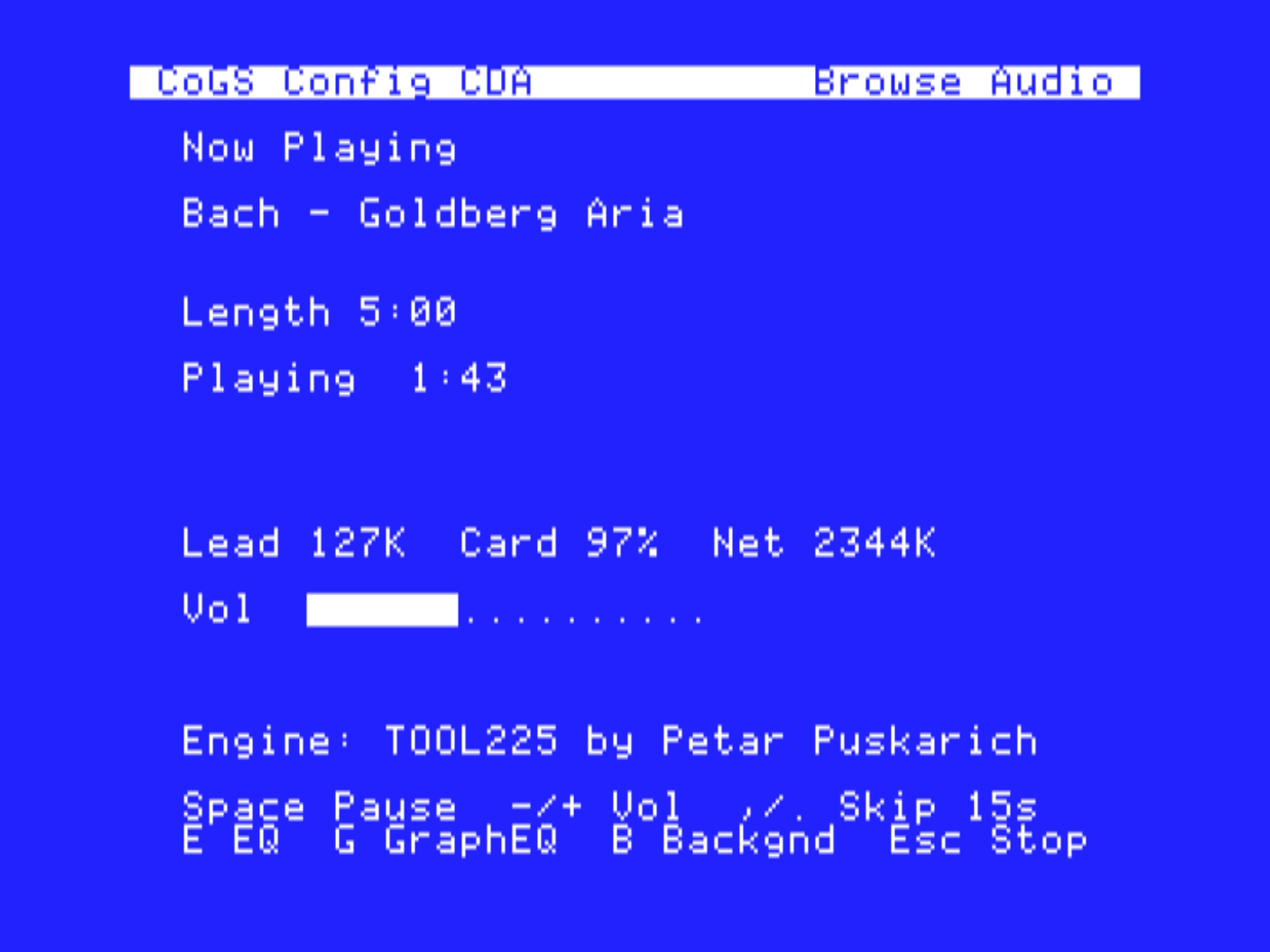
Return on a track starts it. The Now Playing page shows the title, time, and volume bar.
| Key | Action |
|---|---|
| Space | Pause and resume |
| Esc | Stop |
| Plus or minus | Volume, the IIGS system volume |
| N / P | Next or previous in the list or playlist |
| . / , | Skip about 15 seconds, catalog tracks |
| B | Keep playing after you leave the desk accessory |
| E | Bass and treble |
| G | Graphic equalizer |
Mark tracks in the list and press Return to play the marked set in list order, or S to shuffle that set.
A SoundSmith song picked on its own loops, the way a SoundSmith
player does. In a shuffled or marked queue it plays once and the queue
moves on. The player shows Length m:ss once on that row
while it plays. A PCM track ends when the file ends in either case.
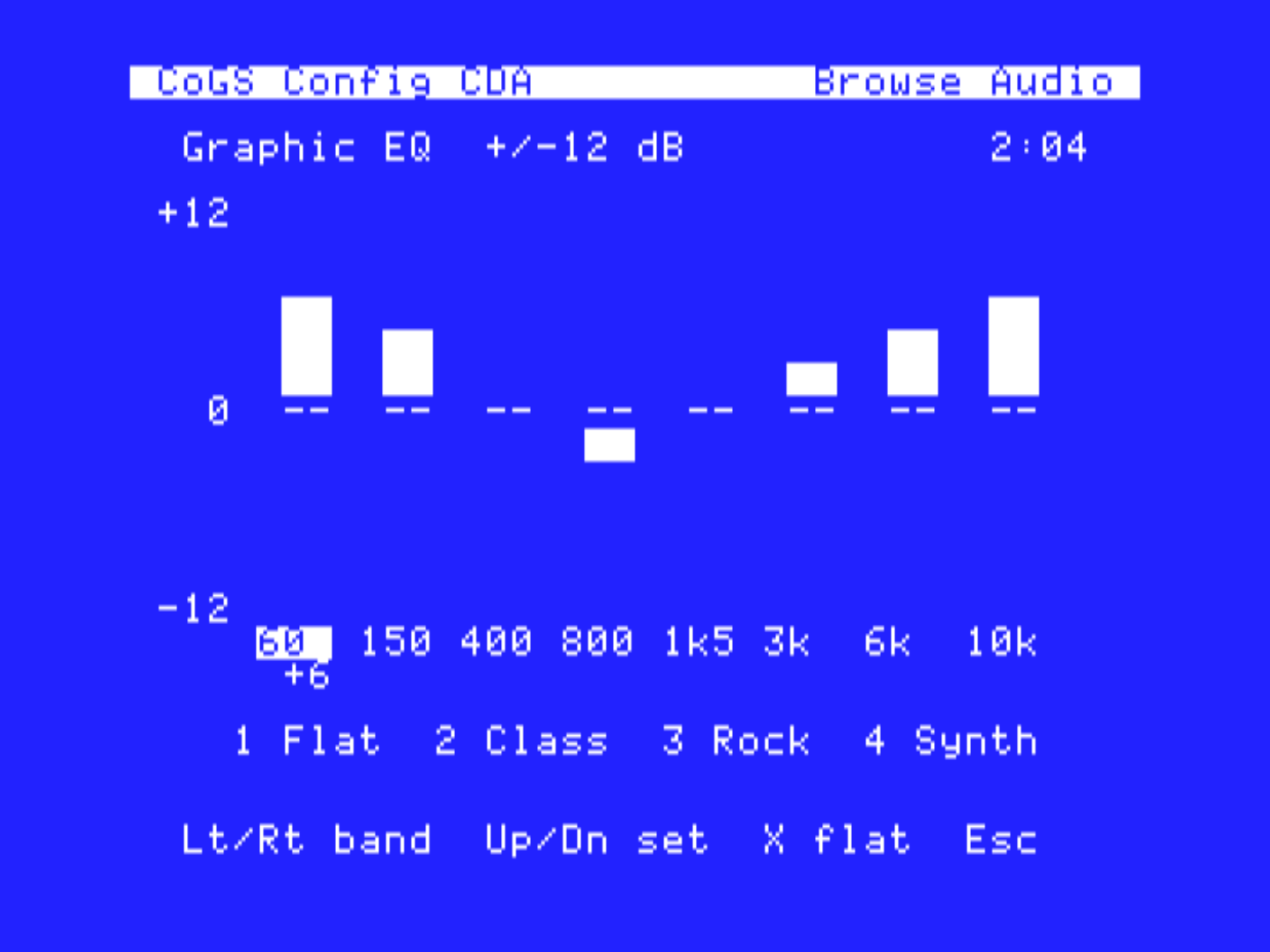
The card’s + and - keys are the same volume the IIGS Control Panel uses. A change you make here is the system volume.
E opens bass and treble. G opens eight bands from 60 Hz to 10 kHz, each in 2 dB steps. Esc leaves the equalizer and keeps the settings for the session.
Play forces the IIGS to Fast for the session and puts your System Speed back when you stop. Leave System Speed on Fast if you want the rest of the machine that way too.
Stereo tracks play in stereo when a stereo card is present and the machine is fast enough. On a stock IIGS, high-rate stereo is mixed down to mono so it does not drop out. An accelerator keeps real stereo.
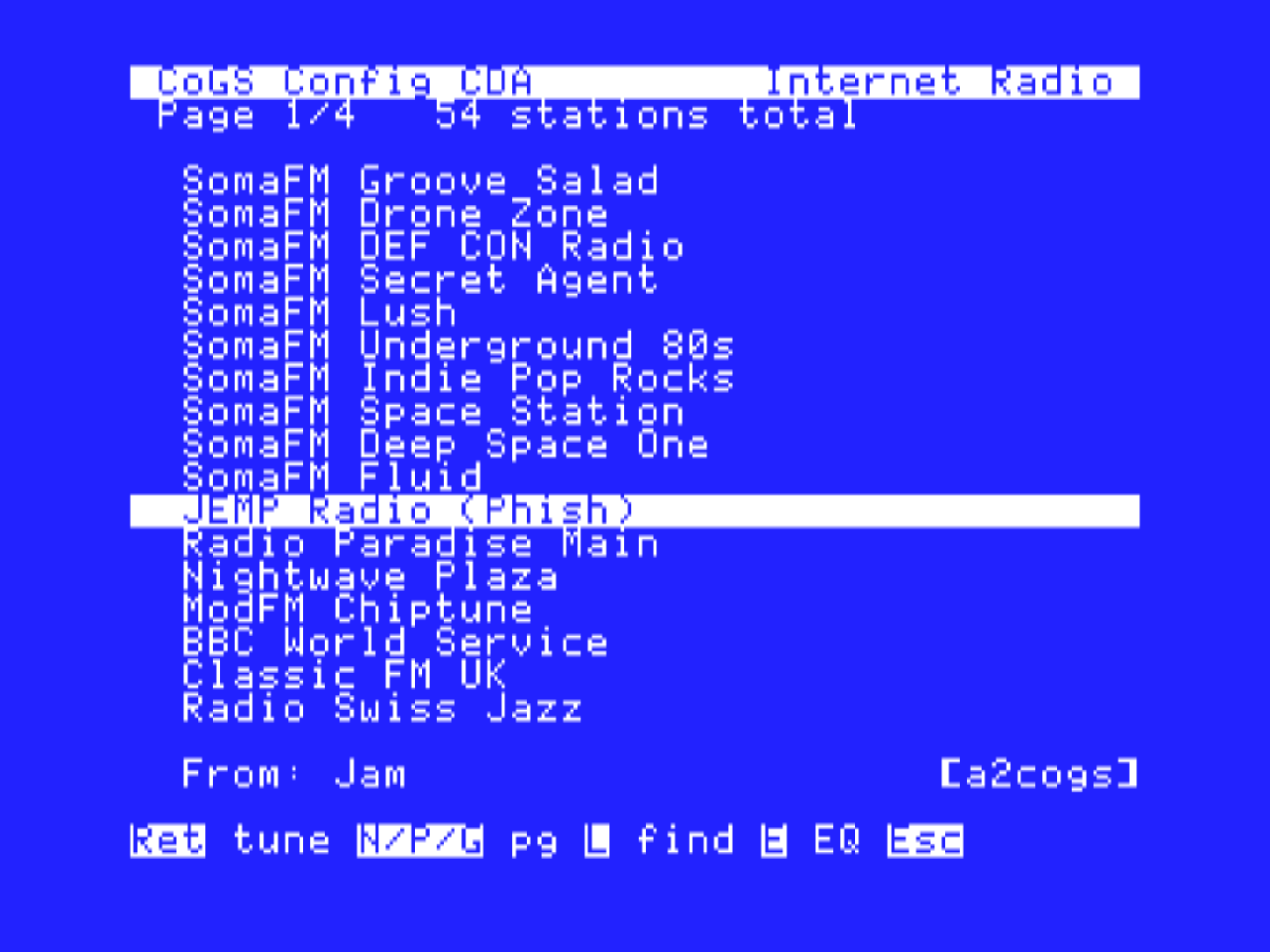
R on the audio hub opens the station list. Search from that list. Play is the same Now Playing page. The card decodes the stream. Buffering shows as the load bar filling before sound starts.
B from Now Playing leaves CoGS Config and keeps the music going. Open CoGS Config again and you land on Now Playing, not the hub. S stops. Esc goes to the main menu with the music still playing (firmware 1.32 or later), so Browse Disks, Disk Drives, Clock and Card Status work while you listen; the Browse Audio row reads Now Playing and brings the player page back. Q leaves the music playing and closes CoGS Config. Browse Pictures and box art work while the music plays (firmware 1.32 or later); the card fetches the still over a second connection and keeps the stream going. Firmware updates still wait until the music stops. A program that takes the sound chip for itself will interrupt playback. Stop from the player before you launch something that needs the Ensoniq.
Stop the player before you launch a ProDOS 8 program from the Finder, too. Background play runs on the toolbox, and switching to ProDOS 8 shuts the toolbox down. With the player running, that switch fails with a system error ($0201) and the computer has to be restarted. GS/OS programs are not affected. Total Replay is a ProDOS 8 program.
Programs that call Tool 226 (PCM) or Tool 219 (SoundSmith) work on a boot disk that does not have those files, once the card has loaded them. They stay in memory until restart. You do not copy them onto every boot volume.
The card serves box art and title screens for the disks in the catalog and shows them on the IIGS in Super Hi-Res, HGR, and double hi-res. This chapter covers viewing the picture for a disk, browsing the picture catalog, and running a slideshow.
Pictures, like audio, are IIGS only and run from CoGS Config after the Finder is up. The Browse Pictures row is not on the card’s startup menu. Wait about ten seconds, then Ctrl-OpenApple-Esc and choose CoGS Config. Press 5 for Browse Pictures.
From Browse Disks, press V on a row that shows a V. The still opens in the viewer. Esc or Return leaves it and you are still in Browse Disks.
That is the fast way to see whether a title is the one you meant, without leaving the disk list.
Browse Pictures opens on What do you want to see?
| Key | Shelf |
|---|---|
| B | Box art |
| T | Title screens |
| S | SHR 320 by 200 |
| H | HGR 280 by 192 |
| D | DHGR 560 by 192 |
| A | All pictures A to Z |
| L | Find by name (searches the a2cogs catalog) |
| Y | Your source, when you have saved a pictures URL |
| M | Misc scanned images, by week |
Y opens on the share’s folders that hold pictures, then All pictures A-Z and Find (Chapter 10).
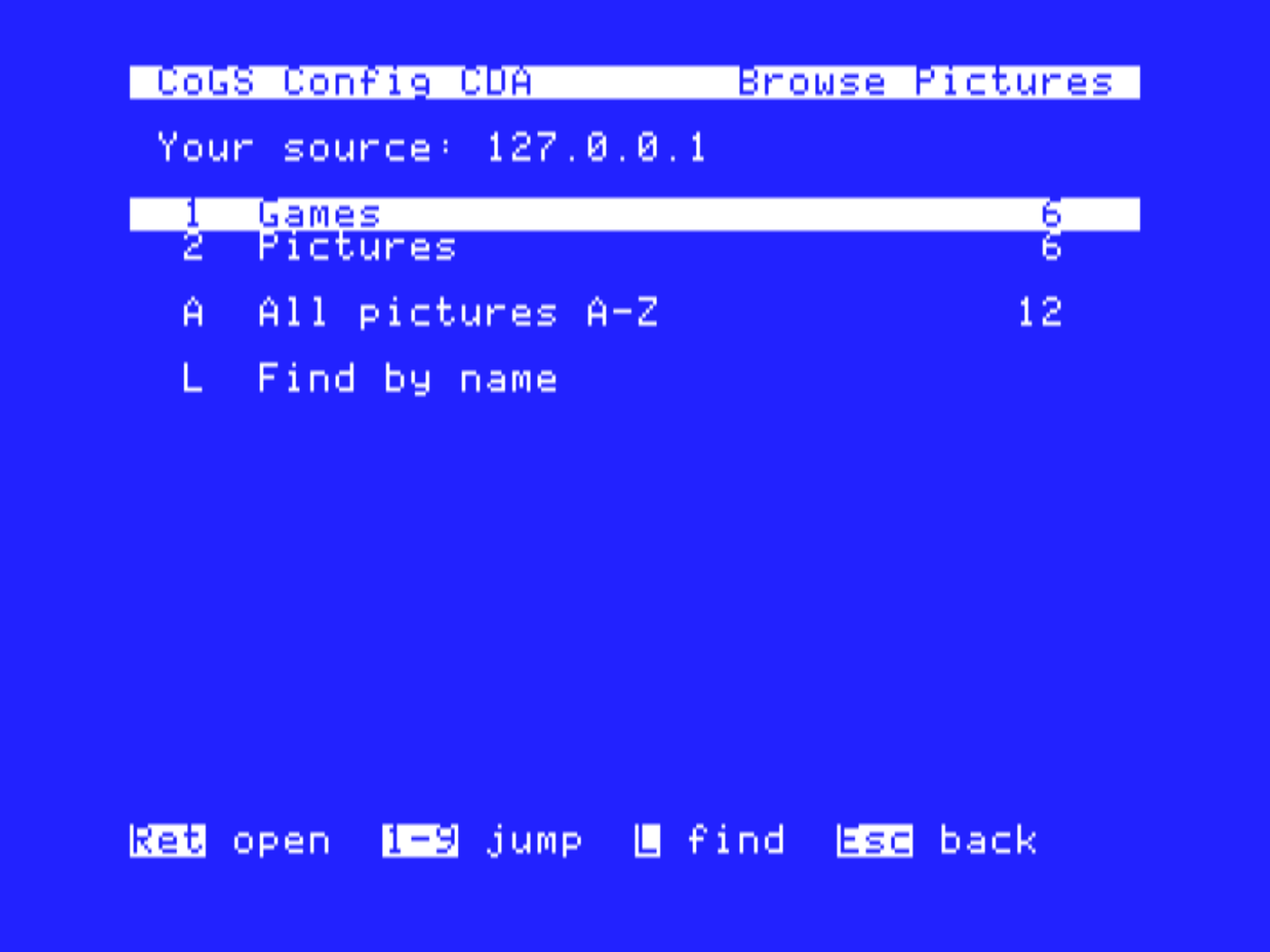
Return or V opens the still. N and P walk the list. Esc returns to the list.
M is its own store (scanned pictures grouped by week), not part of Find or the A to Z index. Open a week, then N or P to the next week. L from the week list searches every week.
S on a list starts a show. With nothing marked it runs the whole folder from the row you are on to the last picture, fetching the later pages as it goes, so the full A to Z plays through without stopping at a page edge. Inside a week of scanned images the show keeps going into the next week when the current one ends, so S on week 01 runs every scanned image the card knows about (the prompt gives the count). Mark stills with Space first and the show walks the marks instead. The prompt before the show says which it will do. Esc stops it and puts you back on the list, on the page the show reached.
The viewer speaks SHR, HGR, and DHGR. Those are the three format rows on the hub. 3200-color stills are not shown. An 8-bit machine does not have this menu.
Your own stills use the same Image Manager share (Chapter 10). Drop a
JPEG, PNG, or the other formats that chapter lists. Image Manager
converts each one to a 320 by 200 SHR. If those files are skipped, open
Conversion tools… in Image Manager and Copy the python3
line. Save the share URL on the Pictures slot of Image/Audio
Source. Native .shr files go through as-is.
The Game Room is a lobby at lobby.a2cogs.com that pairs
two players of the same game and carries their moves between them. With
a CoGS card in each machine, two Apple II owners anywhere play each
other head to head. This chapter covers what the lobby does, how to
start a network game, room codes, the leaderboard, and the two games
that use it: a card game that takes turns, and Doom.
Requires firmware 1.34 or later. Doom requires 1.36 or later.
A game that supports the Game Room has a network play option in its own menu. When you choose it, the game asks the card to join the lobby under your name. The lobby holds you in a queue until a second player of the same game arrives, then seats you both at a table. From that point the two copies of the game run in step. Each move you make goes through the card to the lobby and on to the other machine, and theirs come back the same way. When the match ends, or either player leaves, the table closes.
A turn-based game sends a line per move. A real-time game such as Doom keeps one connection open for the whole match and sends every player’s controls many times a second; the card carries that too, and the game runs at the pace of the slower machine.
Nothing is installed on the Apple II for this, and nothing runs on a Mac or PC. There are no accounts. The card does the HTTPS; the game talks to the card through its slot.
Each player sees only their own screen. In a card game your hand is on your machine and theirs is on theirs; the lobby carries moves, not hands.
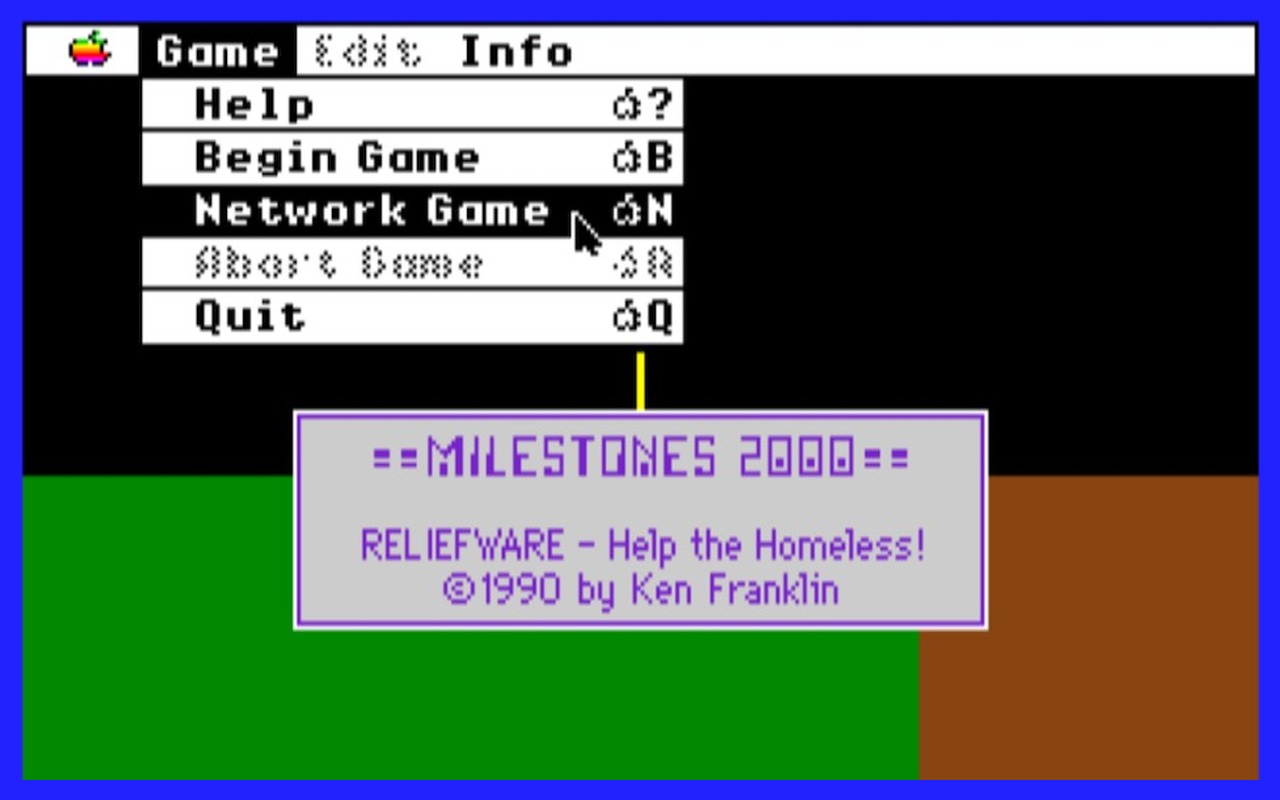
The exact menu item is the game’s. In Milestones 2000 it is Network Game on the Game menu.
The lobby page at https://lobby.a2cogs.com/ shows who is
waiting and who is playing, per game. Open it in any browser to see
whether someone is at the table before you boot.
Without a code you are in the public queue for your game and play the next person who shows up. To play a particular person, agree on a room code (letters and digits, up to 16) and both enter it. Players with the same code match only each other.
How you enter the code is up to the game. Milestones 2000 needs no
code and no file to play the public queue. To play a friend, you each
create a text file named MSNET in the same folder as the
game, with one line, the word code followed by a space and
the code you agreed on, for example code ROB-JOE. Any
letters and digits work. The catalog copy is read-only, so make the file
on your own copy of the game. A game may ask for the code in a dialog
instead.
A game can send results to the lobby when a match ends. Milestones
2000 sends your rally score and, if you won, a win. The lobby keeps the
best score per name and adds up the wins. The lobby page links each game
to its leaderboard; Milestones’ is at
https://lobby.a2cogs.com/top?g=milestones.
Names are whatever players type, so two people with the same name share a row. Pick something distinctive if that matters to you.
Ken Franklin’s Milestones 2000 (1990), the Mille Bornes card game for the IIGS, is the first game on the Game Room. It is in the disk catalog as Milestones 2000 Network Version, a 32 MB hard drive image that boots GS/OS straight into the game. Boot it from Browse Disks (Chapter 5), then Game, Network Game.
The rules are the original game’s. Drive to the checkpoint (1500 km, or 2000 if you choose to extend when you reach 1500), hand out flat tires and speed limits, play a safety as a coup fourre when it answers a hazard just played on you. A rally runs to 5000 points over several hands. Your opponent’s name shows in the hazard messages (“Rob has a flat tire”) and on the score sheet in place of the computer’s.
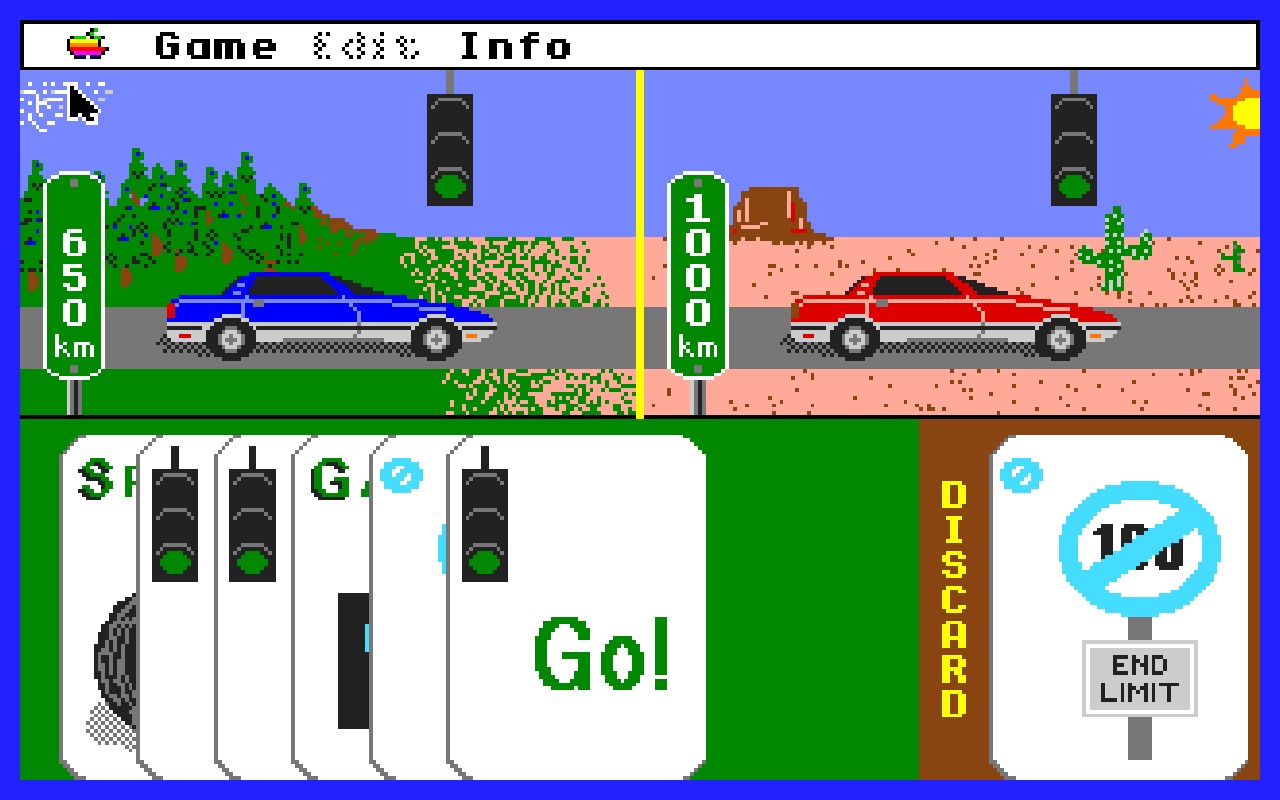
Without a card, or when nobody comes to the table, the game plays against the computer as it always did.
Note
The catalog copy of the game is served read-only, like every catalog disk (Chapter 5). The Hall of Fame and the saved game do not persist between boots, and the game asks your name each time it starts. Copy the game to a writable volume if you want those kept.
Doom for the IIGS is Webifi’s port of id Software’s game to an accelerated IIGS. The Game Room version is in the disk catalog as Doom CoGS Deathmatch, a bootable hard drive image. It needs an accelerator (a TransWarp GS, a ZipGS or an AppleSqueezer) and a card on firmware 1.36 or later. Boot it from Browse Disks, open the menu with Esc, and pick Network Game.
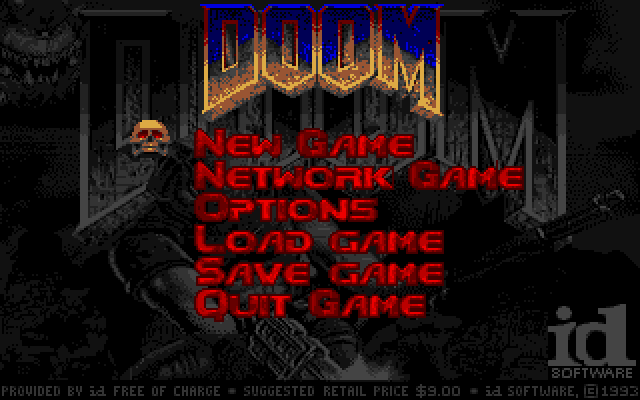
The Network Game page is in Doom’s own menu style. Left and right change a row, up and down move the skull, Return on FIND PLAYERS starts the join.
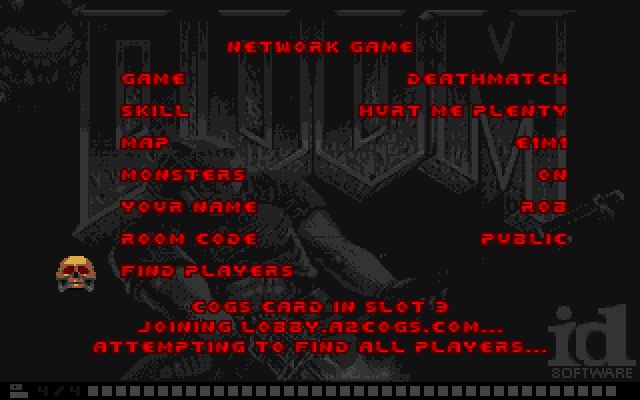
The join reports under the page: the slot the card is in, joining the
lobby, ATTEMPTING TO FIND ALL PLAYERS..., then
FOUND ALL PLAYERS. and the level loads on both machines at
once. Esc backs out at any point. The first player’s choices are the
game both machines play, whatever the second player’s page said.
In a deathmatch the status bar counts frags where the ARMS box was,
and the intermission at the end of the level is Doom’s deathmatch one, a
row per player under the names you typed. Both machines post frags and
the win to the leaderboard at
https://lobby.a2cogs.com/top?g=doom. In a cooperative game
the two of you start side by side and the bar is the usual one.
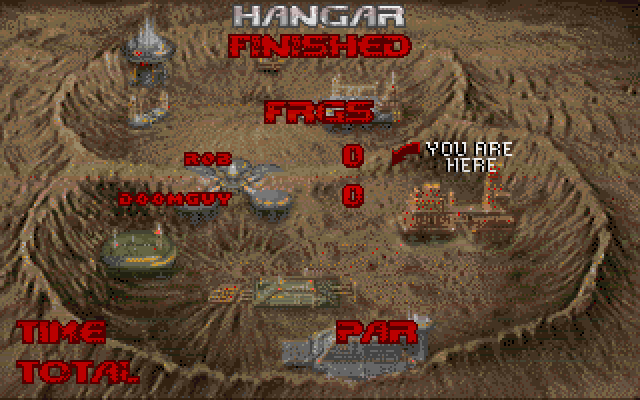
END GAME in the menu leaves the match and returns to Doom’s title; the other player sees “the other player left the game” and returns to the title on a key. QUIT does the same and exits Doom. If the other machine’s moves stop arriving for 30 seconds, or a move cannot be recovered, the game ends with a message rather than hanging.
Both machines run at the pace of the slower one. The game is
Webifi’s; the second player and the network are described, with the
source, at https://github.com/rperissi/iigs-doom.
Not every network game goes through the lobby. Some authors run a server of their own and use the card only for the connection, the way a program on a modern machine opens a socket. The card does the DNS lookup and the TCP connection on the game’s behalf, so the game needs no TCP/IP stack and no driver of its own.
Independence (Scott Whitney, Whitney Design Labs, 2026) is the first of these in the catalog. It is a graphic text adventure for a 128K Apple IIe or a IIGS, one 800K bootable image under Games in Browse Disks. Boot it from the card and the game finds the card in its slot by itself. Parties that set out east sign a register wall on the author’s server with their names, their route (river or road) and their days, notes can be left in a room for the next player, and the game shows a count of who has gone before. Without a network the game is single-player and complete. The game writes saved games to its own disk, so a saved game needs a writable copy of the image on your share (chapter 10, Image Manager); the catalog copy is read-only.
The author’s server, trail-net, is a small plaintext protocol on TCP
port 6502 and is published under the MIT licence at
github.com/WhitneyDesignLabs/trail-net, with the Apple II
drivers for the CoGS card, an Uthernet II and a Super Serial Card relay.
The lobby page at https://lobby.a2cogs.com shows the wall’s
count beside the lobby games.
The FujiNet community has a lobby of its own at
lobby.fujinet.online, with multiplayer games for the Apple
II played against Eric Carr’s servers. Five of them are in the disk
catalog as CoGS builds: 5 Card Stud (FujiNet),
Texas Hold’em (FujiNet), Fujitzee
(FujiNet) (a dice game in the Yahtzee family),
Battleship (FujiNet) and Fujirkle
(FujiNet) (Rich Stephens’ Farkle). Type FujiNet in
the catalog search to list the set. Each is a 140K ProDOS disk that
boots on a //e or a IIGS from Browse Disks and needs nothing else.
The game programs are the FujiNet community’s, unchanged. They are written against fujinet-lib, the library FujiNet programs use to talk to their device, and these copies were built with a version of that library that talks to a CoGS card instead. The card does the HTTPS and the JSON; the game sees the same answers it would from a FujiNet. A CoGS owner and a FujiNet owner at the same table are playing the same game.
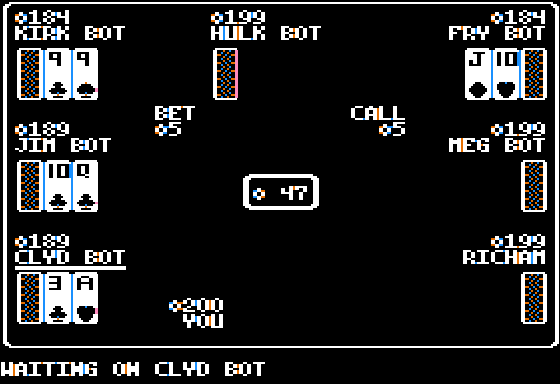
Boot the disk, type a name when asked (it is shown to the other players), and pick a table. Each game has AI rooms, where bots fill the other seats and a hand starts as soon as you sit, and open tables for people. The table screen refreshes itself; the keys are on the screen.
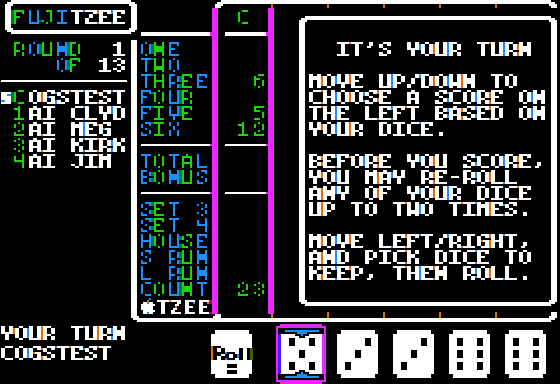
The games keep your name (and their own settings) in a FujiNet “app
key”, which these builds store as a small file on the game’s own disk.
The catalog copy is read-only, so from the catalog the name is asked at
every boot. For a copy that remembers you, download the disk from
https://a2cogs.com/download/ and put it on a writable
volume, a CIM or a share (chapter 10, Image Manager), and boot it from
there. The games’ FujiNet-only extras (a server address handed over by
their lobby program) are not used; pick the table from the game’s own
list.
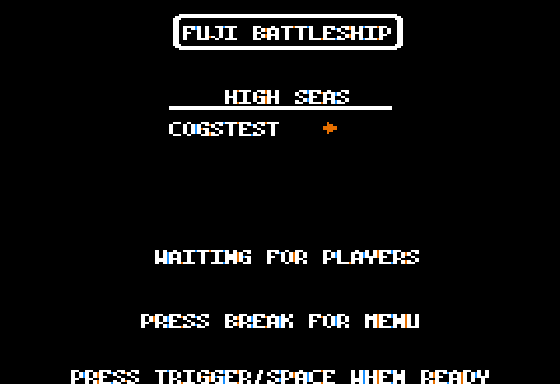
Two more FujiNet games, Royal Game of Ur and Syn-Ack Wire, talk to their servers over a raw TCP socket rather than HTTPS and are not in the catalog yet.
The lobby does not know the rules of any game, so any two-player game
can use it once its author adds network play: card games, board games,
word games and turn-based strategy on the IIGS or an 8-bit Apple II over
the turn-based tier, and lockstep action games over the real-time one
Doom uses. Games appear in the catalog and on the lobby page as they
arrive. The Technical Reference describes the lobby for developers, and
the developer kit at github.com/rperissi/cogs-gameroom has
the Milestones network code as a worked example.
On an Apple IIGS running GS/OS the card is also present on the desktop. This chapter covers CoGS Config, the CoGS device in the Control Panels window, the CoGS Status desk accessory, and using the card as the network interface for Marinetti.
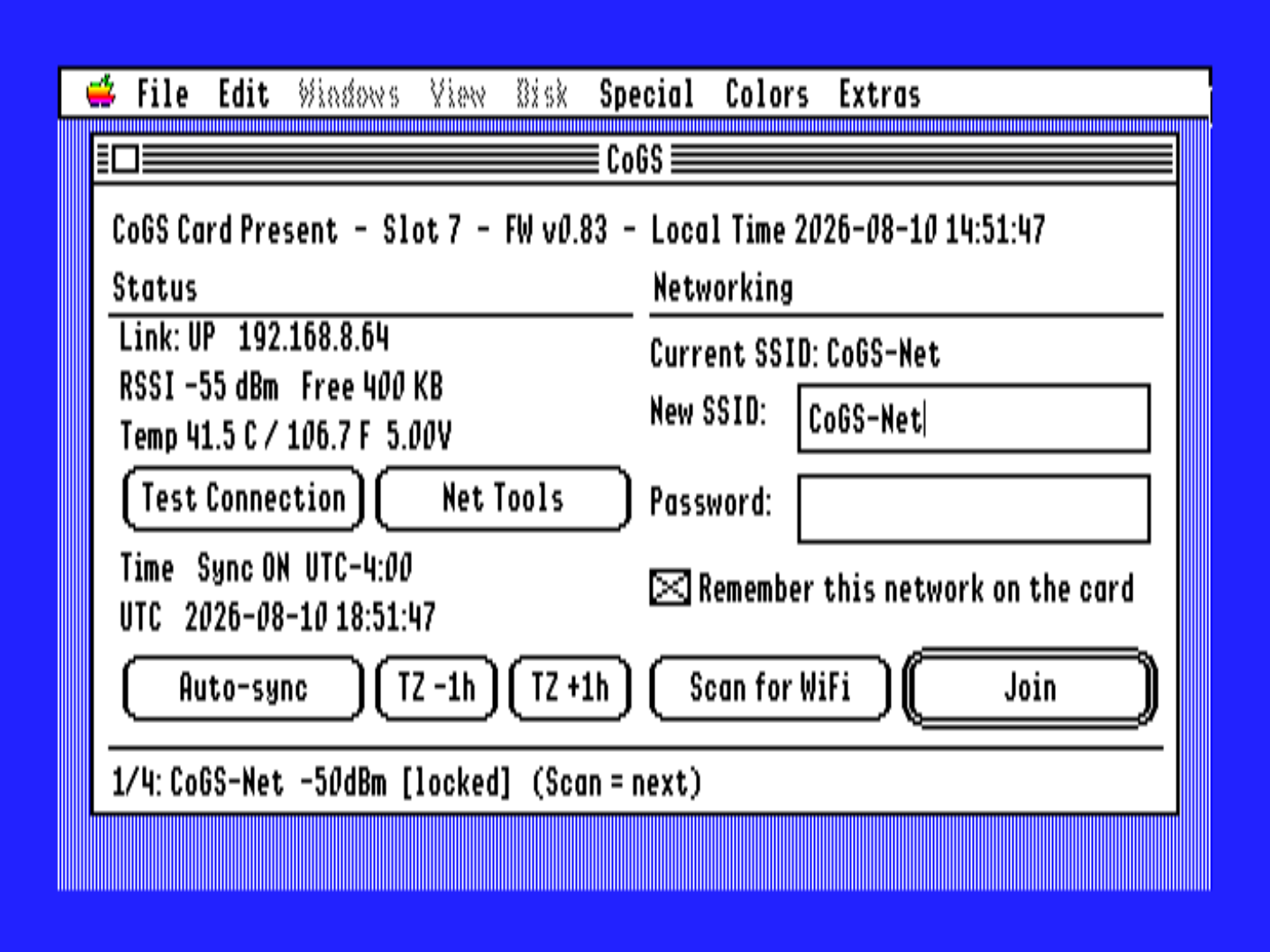
The card installs a classic desk accessory named CoGS Config. It is not a file on the boot disk. About ten seconds after the Finder desktop settles, it appears in the Desk Accessories menu (Ctrl-OpenApple-Esc).
If you open that menu too early, CoGS Config is not there yet. Leave the menu, wait at the desktop, and open it again. Sitting in the Desk Accessories list will not install it. The card needs the machine to be polling the slot, and the list is a modal that stops that.
The pages inside CoGS Config are the same card menu as Chapter 4, plus play for audio and pictures. Use this face for Browse Audio, Browse Pictures, Network Tools, and everyday disk work while GS/OS is up.
Warning
An older file named COGS.CDA (“CoGS Config Console”) in
System:Desk.Accs predates the card-installed accessory.
Delete it. Two CoGS entries in the menu fight each other, and the file
one is the obsolete face.
The CoGS CDev lives in System:CDevs on
a boot volume. It is a file. The ready-to-boot disk
cogsall.2mg already has it. The install kit
cogsutil.2mg has it for copying onto your own boot disk.
Read.Me on the kit lists the destinations. The kit’s
Drivers folder holds ASSDDriver for an
AppleSqueezer SD card (Chapter 12).
Open Control Panels from the Apple menu and choose CoGS. The panel is the GS/OS home for status and a few settings. You do not need it for the card to work. CoGS Config is enough for disks, audio, and Wi-Fi.
CoGS Status is a new desk accessory in the Apple
menu, file type for System:Desk.Accs. It is a small
live-status window (link, address, clock) over whatever you are running.
Config stays in CoGS Config or the CDev.
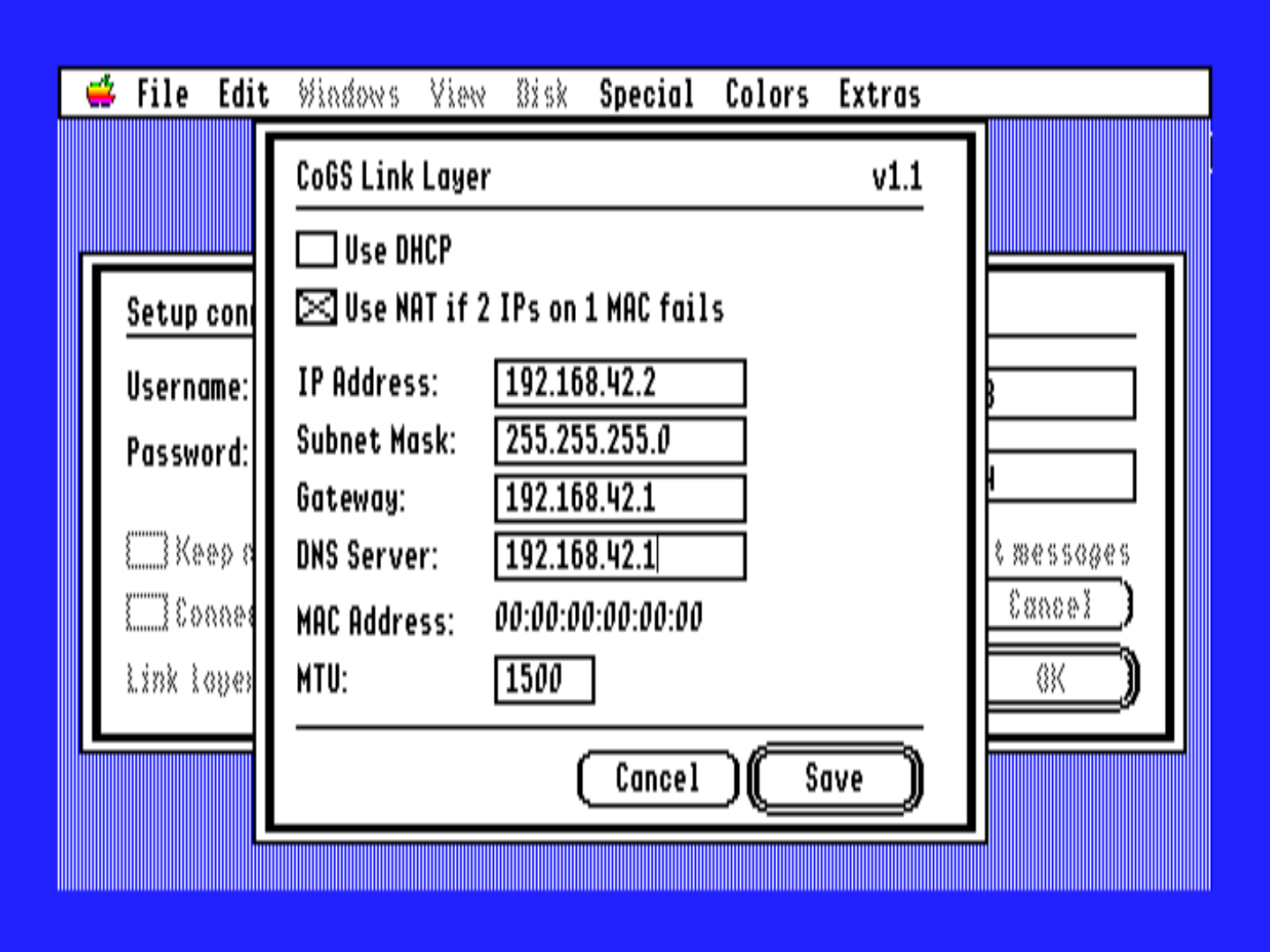
The card is a slot-native alternative to an Uthernet II for the Marinetti TCP/IP stack. Existing Marinetti programs then run over the card.
System:TCPIP from
cogsall.2mg or the install kit.The IIGS gets its own address on the LAN (the card is a second host). Card Status shows an LL line with that address when the link layer is up.
The link layer rides whichever connection the card is using. With the
Ethernet cable in and an address on it, Marinetti’s frames go out the
wire and the GS shows up on your router as its own device with its own
MAC address (06:A2:...). On Wi-Fi the GS shares the card’s
radio address and the router tells the two hosts apart by IP. The choice
is made when Marinetti connects; plugging or unplugging the cable
mid-session is a disconnect to the GS stack, so Disconnect and Connect
again.
Warning
Give the GS a different address from the card. If both use the same numbers, each stack resets the other’s connections. DHCP on both, or a static on the GS that is not the card’s static, is fine.
Spectrum, browsers, mail, and other Marinetti programs then use the card. They do not need a change.
The streamed GS/OS volumes that carry Marinetti also carry the CoGS
link layer, the CDev, and the status desk accessory:
cogsall.2mg, the Communications collection, the Demoscene
GS/OS volume, and the GS FLY disk. They come up with CoGS already chosen
as the link layer and DHCP on, so after booting one from the catalog you
open the TCP/IP control panel and click Connect. On the Communications
volume the Comms folder (Spectrum, SAFE2, SAM2, SNAP, VNCview) then goes
straight online. The catalog is read-only, so anything you change in
TCP/IP lasts until the next restart, when the volume’s own defaults come
back. The CoGS Boot Disk family (cogsall, cogsasq, GS FLY) has a Read.Me
at the root that lists what is on the volume; Teach is there too, so it
opens with a double-click.
Link layer 1.4 (on cogsall.2mg and the util kit) pairs
with firmware 1.26 or later. Inbound frames wait on the card until the
link layer asks for them, so a busy desktop (Finder polling the drives,
a disk streaming) can no longer lose them. Telnet bursts and FTP
directory listings that used to time out arrive. An older card still
works with 1.4 (it falls back to the old path), and an older link layer
still works on 1.26.
1.4 also fixes a crash with 1.3 when streaming audio from CoGS Config
and a Marinetti connection were up at the same time; the two shared the
card and stepped on each other. If you copied the 1.3 link layer onto
your own GS/OS disk, copy TCPIP/COGS from the util kit over
System:TCPIP:CoGS and reboot. The TCP/IP control panel’s
Link Layer menu shows the version. Nothing on the card changes for
this.
The link layer’s NAT option puts the GS behind the card’s own address instead of giving it a LAN address. Use it when your router will not hand out a second lease to the card. Programs that tell the other end their own address (an FTP client in active mode, for example) will not work through NAT; use passive mode where the program offers it.
cogsall.2mg from the Downloads page is a GS/OS volume
with the CDev, the Status NDA, and the Marinetti link layer already in
place. Boot it from the card (Browse, or a saved boot disk). The card
still installs CoGS Config itself. You do not add a CDA
file to that disk.
It is a lean System 6.0.4 (fewer inits, fonts and desk accessories
than a full install, so it boots quickly through the slot), but its
System:Tools folder is complete. That is deliberate. The
volume streams read-only, so you cannot drop a missing tool onto it the
way you would on your own disk. Boot cogsall, mount another volume from
Browse or Disk Drives, and a program on that volume
finds the tool it asks for.
| On cogsall | Tool sets |
|---|---|
| Apple System 6.0.4, every set | 014 to 023, 025 Note Synthesizer, 026 Note Sequencer, 027, 028, 029 ACE, 032 MIDI, 033 Video Overlay, 034 TextEdit, 035 MIDI Synth, 038 Media Control |
| Networking | 054 Marinetti 3.0, 056 Time Zone, 128 HashTool, 130 HTML Tool, 131 FTPTool, 132 Undo Manager |
| Music players | 219 SoundSmith, 220 NoiseTracker, 221 NinjaTracker, 222 NinjaTrackerPlus |
GS/OS reads a tool file only when a program asks for that tool, so the full folder costs nothing at boot. Tool226, the CoGS stream tool, is not a file on the disk; the card installs it when you play. A program that asks for a tool that is not in this list (a 1987 speech tool a particular game shipped with, for instance) still needs that tool on a volume you can write to. Mount the game’s own volume, or build a disk of your own with Image Manager and boot that instead.
The CoGS Image Manager is a program for your Mac that shares one folder, subfolders included, with the card over your local network. The folder can hold three kinds of files: disk images, audio, and pictures. Image Manager converts the modern audio and picture files so CoGS Config can play and show them. Disks appear under Browse Disks, tracks under Browse Audio, stills under Browse Pictures, all as Your source.
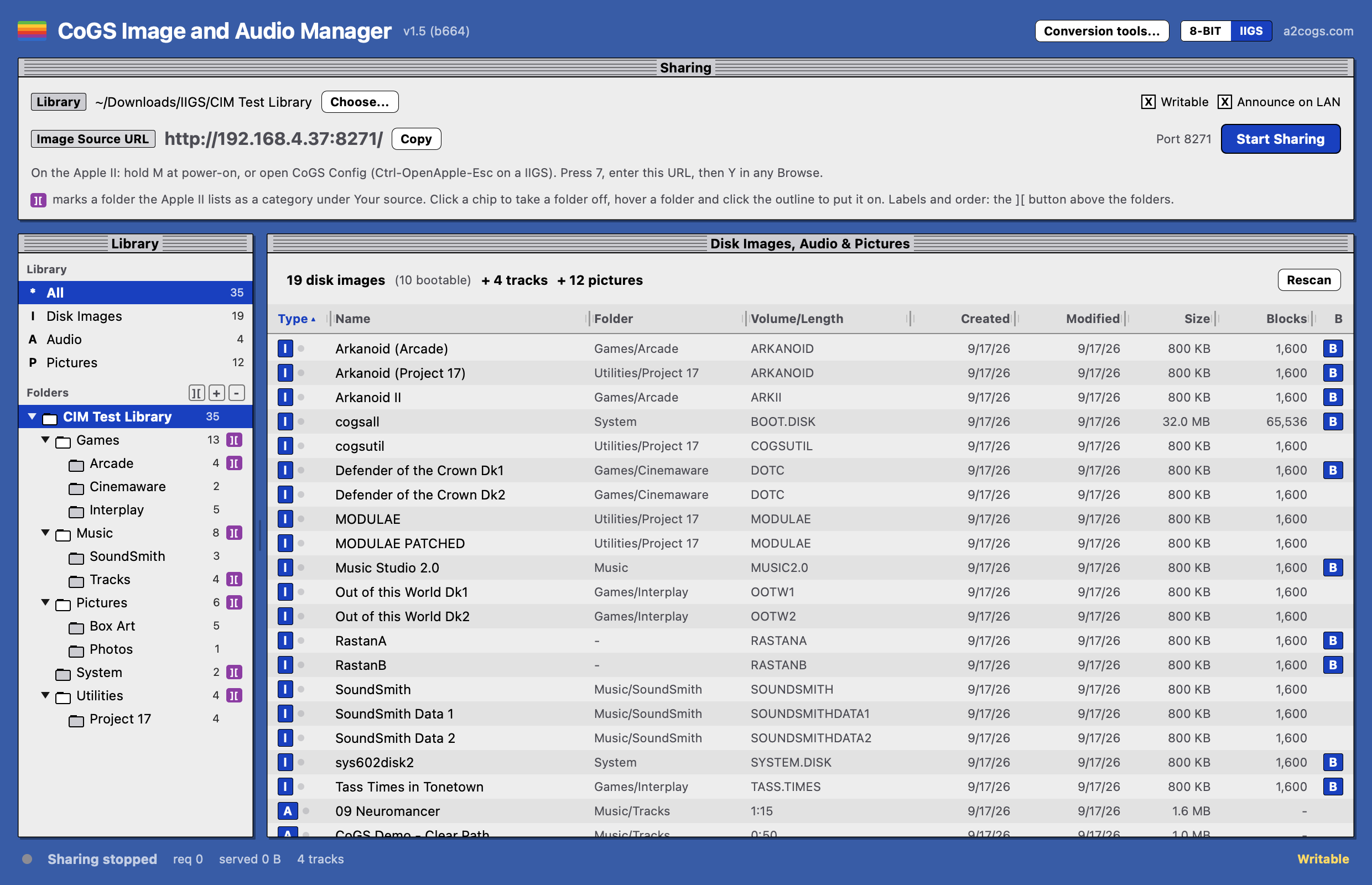
Download CoGS Image Manager from a2cogs.com (the
Downloads page points at the current build). Open the .app.
There is no installer and nothing is copied into
/Applications unless you drag it there yourself.
The first time macOS may refuse an unidentified developer. Control-click the app, choose Open, then Open again.
The window has two looks, switched with the 8-BIT and IIGS buttons in the title bar. IIGS is the platinum Finder look; 8-bit is green phosphor text on black, in the style of a II+ or IIe screen. The choice is appearance only and is remembered between launches. Nothing about what is shared or how the card sees it changes.
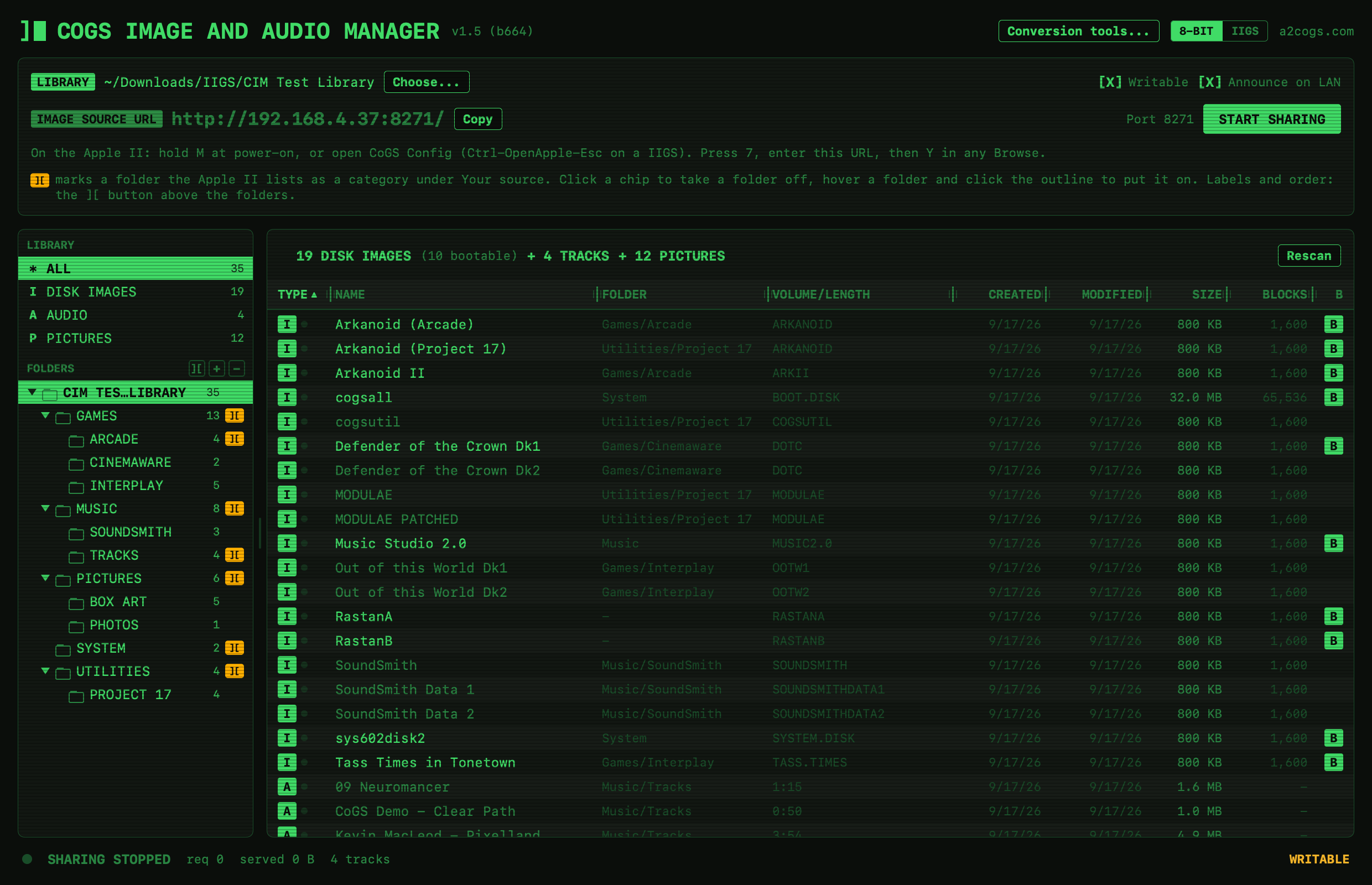
Disk images work with no extra software. Audio and picture conversion use tools on the Mac. Image Manager does not install those for you. It shows a Conversion tools sheet with the commands and a Copy button.
Open Conversion tools… in the title bar, or Help > Conversion Tools. The sheet also opens the first time you launch Image Manager if ffmpeg or the picture converter is missing. Yellow skip lines in the file list open the same sheet.
Each row is Ready or Need. Copy the Need line, paste it in Terminal, wait until that command finishes, then click Recheck. You do not have to quit Image Manager. Disks stay Ready with nothing extra.
Image Manager looks in /opt/homebrew/bin and
/usr/local/bin first, so Homebrew’s copies are the ones it
will see. Apple’s /usr/bin/python3 is skipped. It is often
a stub that asks for Xcode.
The sheet copies this:
/bin/bash -c "$(curl -fsSL https://raw.githubusercontent.com/Homebrew/install/HEAD/install.sh)"When it finishes, follow the “Next steps” it prints so
brew is on your PATH (on Apple silicon that is usually two
lines that add /opt/homebrew/bin to
~/.zprofile). Open a new Terminal window, then Recheck.
brew install ffmpegRecheck. The yellow line for skipped mp3/wav should be gone, and those files convert to PCM.
brew install python3 && python3 -m pip install numpy PillowRecheck. The yellow line for skipped jpg/png should be gone, and those files convert to SHR.
Tip
The sheet also has one line for both conversions after Homebrew is installed:
brew install ffmpeg python3 && python3 -m pip install numpy PillowThen Recheck.
Without ffmpeg, only .pcm audio is shared. Without
python3 plus numpy and Pillow, only .shr pictures are
shared. Disks are not affected.
http://192.168.1.50:8271/.The program builds the catalogs the card already understands. Bootable disks get a B in Browse. Writes go back into existing disk images only. Writable is a switch; turn it off if you do not want that.
The sidebar lists the library by kind (All, Disk Images, Audio, Pictures) and then your folders, as they are on disk. Click one to see only that part; the card always gets the whole library as one A-Z list per kind. If two disk images in different folders would show the same name, the one in the subfolder gets the folder in parentheses on the Apple II, so “Work Disk” and “Work Disk (Project 17)” stay apart. Find on the card matches folder names too.
Your folders can be categories on the Apple II. Press Y on any Browse
hub and Your source opens on them, one row per folder with a count, then
All A-Z and Find by name. Rows are
numbered 1 through 9, then 0, X, Z; the number opens the row, Return
opens the highlighted one. A folder lists everything in it and below it,
flattened, so Utilities/Project 17/Disk 1 sits under
Utilities. Only folders that hold that kind of file appear, so a folder
of pictures is on the Pictures hub and not the Disks hub. Esc from a
list returns to your folders; Esc again returns to the a2cogs.com
hub.
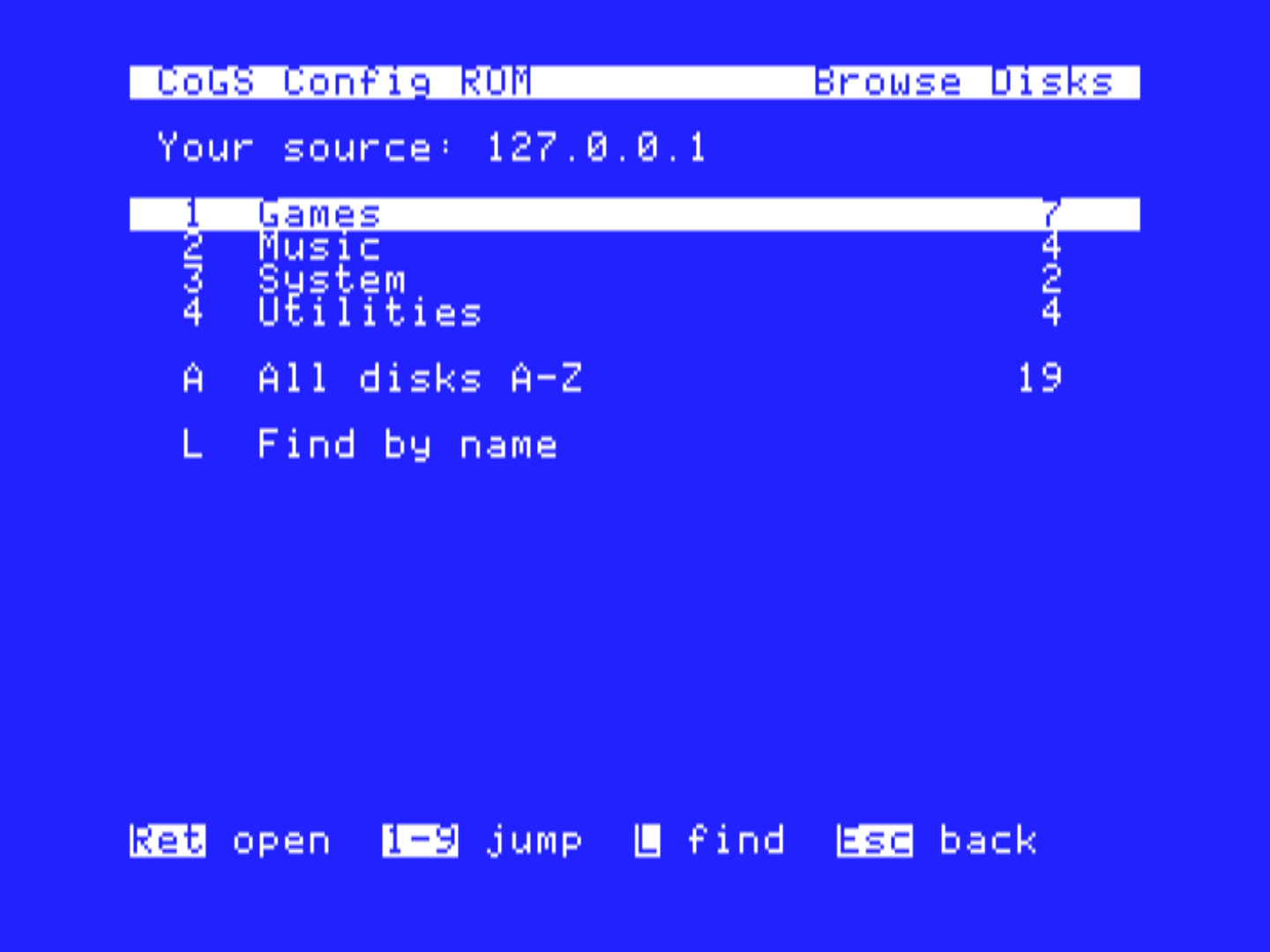
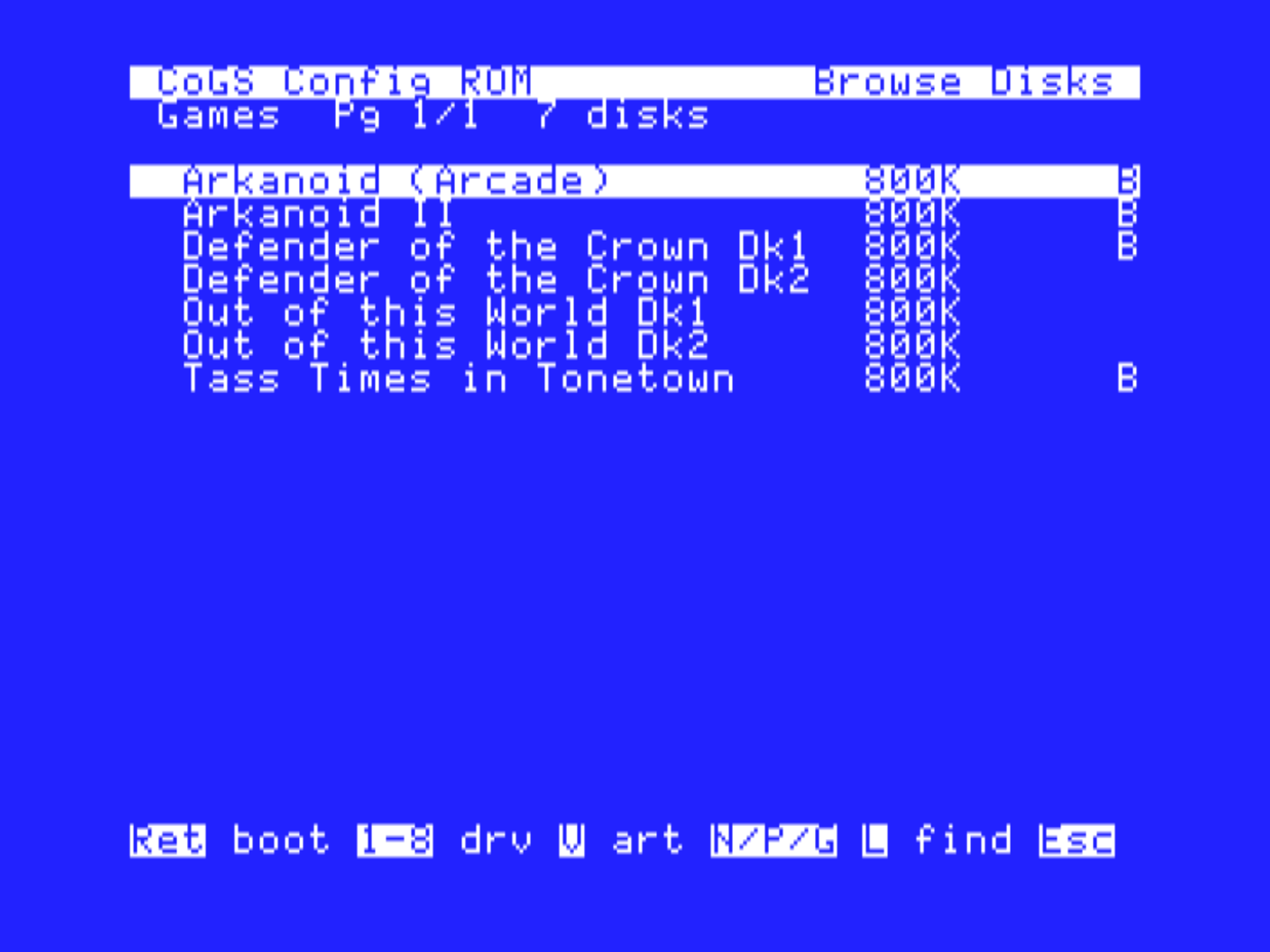
Out of the box every top-level folder is a category and deeper
folders are not. The purple ][ chip in the sidebar marks
the folders the card will show. Click a chip to take that folder off;
hover a folder without one and click the outline to put it on.
Right-click a folder for the same switch.
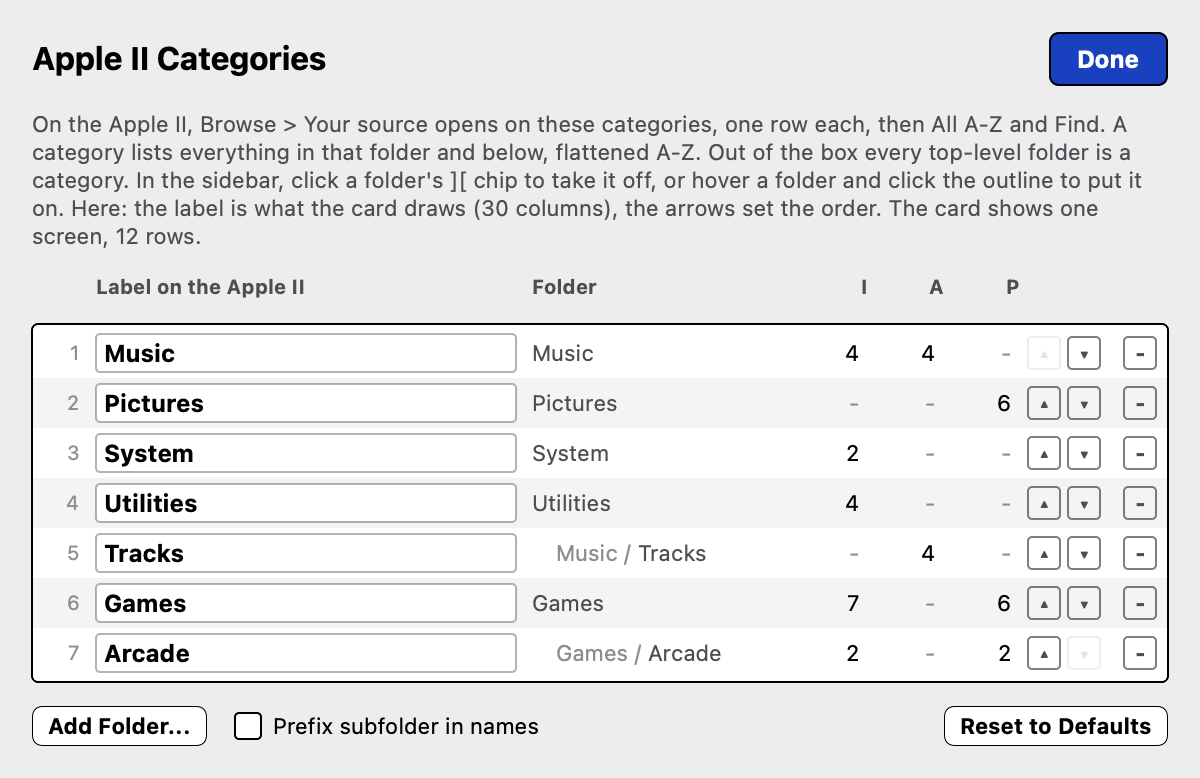
Apple II Categories (the ][ button
above the folder list, or Help > Apple II Categories) is the full
list. Each row has the label the card draws, prefilled with the folder
name, so type over it to rename (“Project 17” can read “Work”). A
renamed folder shows its label in quotes beside the folder name in the
sidebar. The up and down buttons set the order the card shows,
Add Folder brings in a nested folder, and
Prefix subfolder in names makes items below a category
carry their subfolder (“Project 17: Disk 1”). The card shows twelve
rows, so keep the list to what you reach for; the sheet dims rows past
that. Reset to Defaults goes back to the top-level
folders.
Requires firmware 1.13 or later. Older firmware ignores the categories and Y opens the plain A-Z list.
Right-click a disk image for Show in Finder and Snapshot. Snapshot copies the disk image next to itself with the date and time in the name, a cheap save point before you try something on the Apple II. The small light beside each row is the drive LED: green while the card reads that file, amber while it writes.
If your router renumbers the Mac, the URL the card saved stops answering. The card notices on the first fetch: it looks for the share on the LAN while it waits, and when the share turns up at a new address the page says so and Return re-points every saved slot at it. If nothing turns up (Image Manager not running, or the LAN blocks Bonjour), press S on that page to open Image/Audio Source and scan again. A DHCP reservation for the Mac avoids the question. On the Source page, D, A, and P edit the disk, audio, and picture URLs by hand, and C clears all three.
Note
The share is for your LAN. It is not an internet server. Keep the a2cogs.com catalog for anything you want reachable off your own network.
The card never sees an MP3 or a JPEG. Image Manager turns those into the formats CoGS Config already plays and blits. Conversion happens once on the Mac. The original file stays in your folder. Change the original and Image Manager converts it again.
| You drop in | The card gets |
|---|---|
.2mg |
That disk image, block by block |
.po |
That disk image |
.hdv |
That disk image (same as
.po) |
ProDOS-order images only, up to 32 MB. Image Manager does not translate DOS 3.3 or nibble files. A volume that actually boots gets a B in Browse.
The player wants unsigned 8-bit mono PCM at 21973 Hz, the rate Tool
226 uses. A .pcm file that is already that format is served
as-is.
| You drop in | The card gets |
|---|---|
.mp3 |
PCM, same title |
.m4a |
PCM |
.wav |
PCM |
.aif or
.aiff |
PCM |
.flac |
PCM |
.ogg |
PCM |
.pcm |
Served as-is |
Browse Audio lists the track. Return plays it like a catalog PCM. Stereo sources become mono. The length you see is the PCM length.
The viewer blits a 32712-byte Super Hi-Res still (320 by 200, sixteen
palettes). A .shr file that is already that blob is served
as-is. Everything else is converted to that SHR.
| You drop in | The card gets |
|---|---|
.jpg or
.jpeg |
SHR 320 by 200 |
.png |
SHR |
.gif |
SHR |
.webp |
SHR |
.bmp |
SHR |
.tif or
.tiff |
SHR |
.shr |
Served as-is |
Browse Pictures lists the still. Return or V opens it like catalog box art. The conversion fits the picture into 320 by 200 and reduces it to the IIGS palette. You can tweak saturation, contrast, and dither in Image Manager and reconvert one still without leaving the app.
Image Manager’s share is SHR. HGR and DHGR stills in the a2cogs.com catalog are a different source. Drop those native files on a2cogs, not in this folder, if you want those formats.
The card remembers the sources across restarts. Save a row empty to remove Your source for that kind and go back to a2cogs.com only. A disk image you mounted from Y stays on Recent. After you change or clear the share, that row will not mount again until the same host is the disk source.
With writes allowed, Finder copies, preference files, and game saves land in the disk image on the Mac. Image Manager will not grow a file and will not create one. If a program needs more blocks than the disk image has, use a larger disk image.
The Writable switch works while disks are mounted. Turn it off and every mounted disk from the share shows the lock badge on the GS/OS desktop within a few seconds of the desktop being idle; turn it back on and the lock clears. The card checks the share every five seconds while a mounted disk is not being read, so a switch you flip mid-copy shows up after the copy. Requires firmware 1.26 or later.
Stop Sharing takes the disks away. About fifteen seconds after the share stops answering, the card empties every drive that came from it, and the Finder dims those icons the way it dims an ejected floppy. Drag a dim icon to the Trash to clear it. Start Sharing does not bring them back: open CoGS Config and mount the disk again from Recent or Your source. The same happens when the Mac sleeps or Image Manager quits with disks mounted, so stop sharing before you close the lid.
Audio and pictures on the share are not written back. Only disk images accept PUTs.
Back up the folder. A share is as easy to overwrite as a floppy.
A folder named files inside your library is for single
documents, not disk images. An Apple II program that moves one file at a
time uses it. RetroWrite II’s CoGS Share (the “RetroWrite II (CoGS
Share)” disk in the Browse Disks catalog) is the first: Send puts the
document you just saved into the folder, where the Mac sees a normal
.odt to double-click in Pages, Word, or LibreOffice; Open
lists the .odt files there, downloads one and opens it on
the Apple II. Sending needs Writable on. The status strip shows how many
files the folder holds. Files you drop there are documents, not share
items, so a .txt or a JPEG in files does not
appear in Browse. Image Manager 1.8 or later.
Any HTTP or HTTPS server that supports range requests can host files the card already understands (the disk images, the PCM, the SHR). The catalog shape is in the CoGS Technical Reference. For a folder of MP3s and JPEGs on a Mac, Image Manager is the path that does the conversion so you do not have to.
The card’s firmware can be updated from the card’s own menu over the network, or by copying a file to the card over USB. This chapter covers both, and how to see which version is installed.
Settings survive an update. The saved network, disk image and media sources, boot volume, and extra mounts stay.
From the card menu or CoGS Config, press 0 for About / Update. The first status line is the firmware version and its date.
You need a live network.
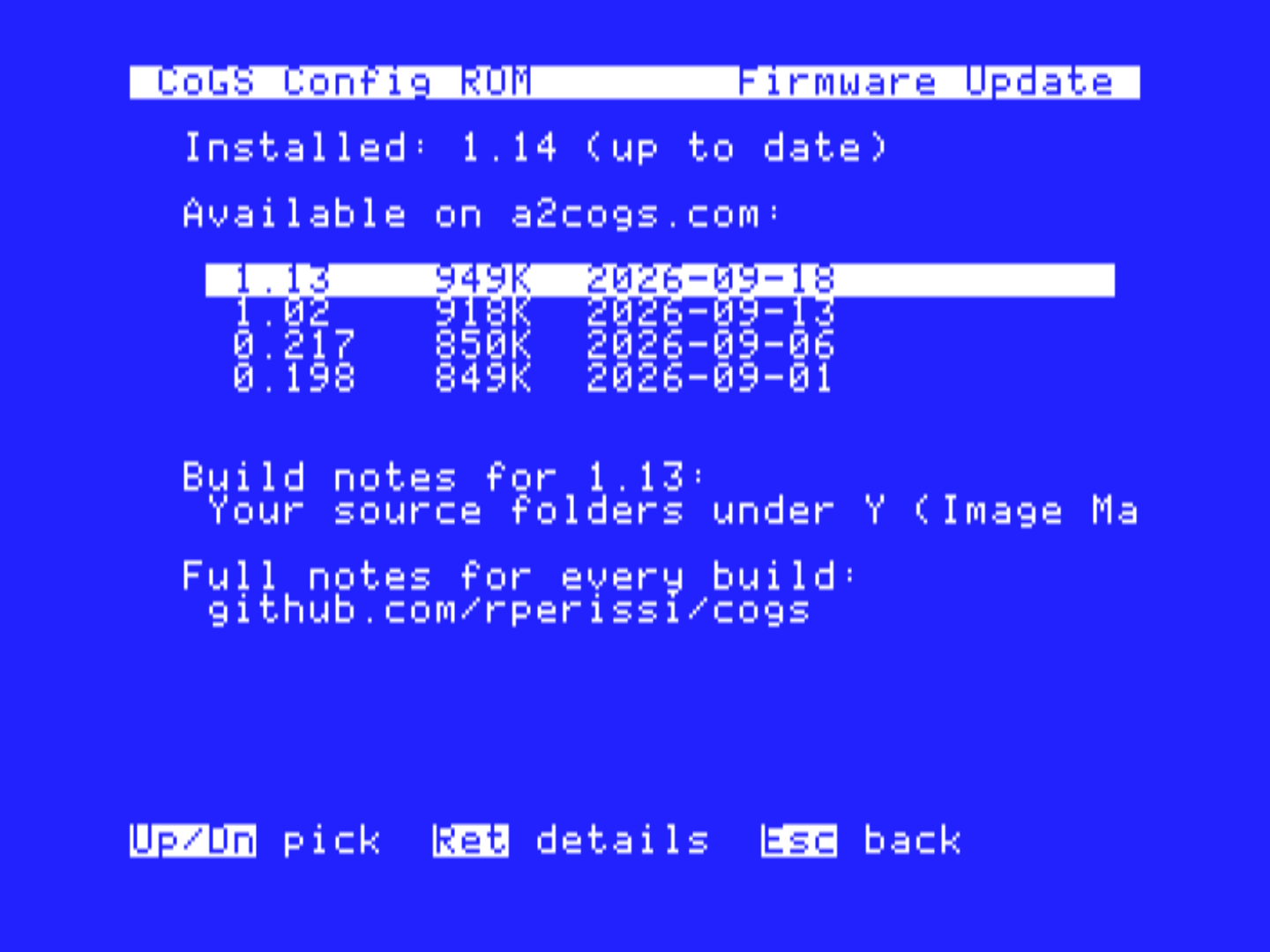
Stay on that page until it tells you to restart the Apple II. A typical update is a few seconds of download and a short write. Esc cancels before the write starts.
The in-menu list is the published builds. A bench build that is not on a2cogs.com will not appear here. Use USB for those.
cogs-<version>.uf2. When firmware files are
released they will be on the download page at a2cogs.com; until then,
write to [email protected] for a recovery file. Use the file that matches
this card (the shipping card is the Pico 2 W radio build).RP2350 appears. Copy the UF2 onto
it. The drive closes and the card restarts.Warning
Flash the radio build on this card. A Lite or USB-bridge UF2 uses a different bus map and the Apple II will not see the card.
The card is still the previous firmware if the write never started. Try the menu updater once more after a power cycle.
If the card no longer answers the Apple II after a write, recover with USB and BOOTSEL. Copy a known-good UF2 (see step 1 above for where to get one). Settings in flash usually survive. If they do not, join Wi-Fi and mount disks again (Chapter 2).
A failed download (network drop) does not reflash. Restart the GS and the card, then retry.
This chapter lists the problems you are most likely to meet, what causes them, and what to do. Start with the first section, which covers the checks that solve most problems.
| What you see | What to do |
|---|---|
| IIGS starts from another slot | Set Your Card and Startup Slot. Restart. |
| No menu when you hold M or C | Reseat the card. Confirm the slot number.
Try PR#n on a //e. |
| Menu appears, About shows no version | Power cycle the computer. If it stays blank, recover firmware over USB (Chapter 11). |
| GS/OS desktop, no CoGS drives | The boot disk is not the card, or the mounts are empty. Hold M, check Disk Drives. |
| AppleSqueezer: Startup = ROM Disk stops booting the SD | Slot 5 is set to Your Card. Set it back to Smart Port and move CoGS to another slot. See “AppleSqueezer with an SD card”. |
| AppleSqueezer: booted from CoGS, only the first SD partition shows | The boot disk needs
ASSDDriver. The streamed disks have it since 2026-10-29;
for your own disk, copy it from cogsutil. |
| CoGS Config draws its menu and takes no keys | Firmware before 1.39 with EasyAccess in System.Setup. Power cycle, then update from About / Update. |
| Garbage on the screen after a quick off and on | Power off, count to five, power on. A very short power cycle does not give the computer’s memory or the card time to restart, most visibly on a //e. |
A finished card ships with firmware. If the Pico has been reflashed, it needs the radio build UF2 (Chapter 11) before any of the above can work.
The radio is 2.4 GHz. It joins WPA2 and WPA2/WPA3 mixed networks. A WPA3-only network will not join, and a 5 GHz-only network will not appear. A hidden SSID can be typed on the Wi-Fi page after a scan fails.
Wrong password is the usual miss. Passwords are case sensitive. F forgets the saved network so you can join again.
Ethernet with a link and an address skips Wi-Fi. Unplug the cable if you meant to test radio.
Join the network first. If Card Status says time is still syncing, wait. HTTPS waits on that clock.
If a2cogs.com is blocked on your LAN, set Image/Audio Source to a local share (Chapter 10). Browse then uses Your source. The hub may fall back to a plain list.
| What you see | What to do |
|---|---|
| No B on the row | That disk image is not a self-booting ProDOS volume. Mount it as data with a digit. |
| Boot starts, then hangs | Try another title. Confirm Card Status still has an address. |
| Same disk image on two drives | Clear one. The card will not mount a duplicate. |
| 8-bit machine, GS title | Use the 8-bit list, or a title marked 8b. |
| ProDOS 8 does not see a new drive | Restart from the CoGS slot. GS/OS sees live mounts. |
| GS/OS progress bar keeps starting over, A2FPGA in the machine | Another card is answering for the CoGS slot. See the next section. |
An A2FPGA (A2N20v2) HDMI card with its standard firmware emulates a Super Serial Card in slot 2, a Mockingboard in slot 4, and a SuperSprite in slot 7, and it answers reads to those slots no matter which slot it is plugged into. CoGS in slot 2, 4, or 7 then shares its slot with an emulated card. The GS/OS boot from CoGS restarts its progress bar over and over and never reaches the Finder, and the HDMI picture may break up at the same time. Move CoGS to slot 5, 6, or 1, or flash the A2FPGA with a build that leaves the slot free (MB4, SSC2, SSC2-MB4, or VIDEO-ONLY).
With the A2FPGA on its VIDEO-ONLY build and CoGS in slot 5, we have
also seen a rare lost byte during long transfers (a slideshow with music
playing stopped after a few slides, and CoGS Config
reported CoGS card not answering about 30 seconds later).
Press a key to return to the Finder; the card and the music keep
running. The same tests run clean with the A2FPGA removed. This is being
looked at with the A2FPGA developer.
Two things about an AppleSqueezer v2 with an SD card (core 14 or later), both of them settings rather than faults.
Startup = ROM Disk stops booting. The IIGS’s ROM
Disk is a unit on the built-in slot 5 SmartPort firmware, and the
Squeezer’s SD boot rides on it. Slot 5 set to Your Card
switches that firmware off, so the machine stops at
Check Startup Device whether CoGS is in slot 5 or the slot
is empty. Set slot 5 back to Smart Port and put CoGS in
another slot. Startup = Scan finds the CoGS card (7
down to 1) before the SD, so choose ROM Disk or the
CoGS slot as the startup device rather than Scan.
Only the first SD partition shows after a CoGS boot.
The first partition mounts through the slot 5 firmware; the others need
Antoine Vignau’s ASSDDriver in System:Drivers
on the disk you booted. cogsall.2mg,
cogsasq.2mg, gsfly.2mg,
Demoscene_GSOS_r2.2mg and Communications.hdv
in Browse Disks carry it since 2026-10-29. For your own boot disk, copy
ASSDDriver from the Drivers folder on
cogsutil.2mg into System:Drivers and restart.
On a machine without an AppleSqueezer the driver finds nothing at
startup and GS/OS leaves it out.
CoGS Config took no keys with EasyAccess installed.
The Squeezer’s SD System image ships with
System.Setup:EasyAccess (Apple’s sticky keys). Firmware
before 1.39 waited for a key with interrupts off, and EasyAccess
delivers the keyboard through an interrupt, so the menu drew and then
nothing happened, Ctrl-OpenApple-Reset included. 1.39 fixes it; power
cycle and update from About / Update.
Open About / Update (press 0) and press D. The Support Snapshot is one screen with the card’s firmware, card ID, link, address, uptime, memory, and, when something has failed, an Errs line naming what failed and why. Take a photo of the screen right after the problem happens and send it to [email protected] with a sentence on what you were doing, or post it in the #cogs channel on the Apple2Infinitum Slack. That one picture usually answers the question. If you photograph the About page instead, the ID is on its top line.
Wait for CoGS Config to appear, then open Browse Audio from there, not from a file CDA.
If play is choppy, System Speed was Normal. Play forces Fast for the session. After you stop, set Fast in the IIGS Control Panel if you want it to stay.
A program that owns the Ensoniq will cut off background play. Stop from the player first.
A system error $0201 when you launch a program with the radio or a track playing in the background means the program is ProDOS 8 (Total Replay is one). Switching to ProDOS 8 shuts down the toolbox the player runs on. Restart, and stop the player before you launch that program.
Delete COGS.CDA if both that file and CoGS
Config are in the menu.
The game says it cannot reach the lobby. The card is not online, or
its clock is not set yet. Check the card menu’s status line for an
address, and wait for Time to stop saying
syncing. HTTPS waits on the clock.
Nobody comes to the table. Open
https://lobby.a2cogs.com/ in a browser. If nobody else is
waiting for your game, there is nobody to play. Arrange a time with a
friend and use a room code. If you both entered a code and still do not
match, compare the codes character for character; they must be identical
and you must be running the same version of the game.
The game says the connection dropped. The other player left, their machine went away, or the table sat idle for ten minutes with no move from either side. Start a new network game.
Your opponent appears as “Opponent”. The other player’s game did not send a name. Nothing is wrong with the connection.
A ProDOS 8 program that reports an adaptor error, or says it cannot find the network card, was built for the Uthernet or Uthernet II. It looks for that card’s chip in the slot and stops when it does not find one. CoGS does not answer as an Uthernet, and that does not change with a setting. 8bit-Slicks in Total Replay II is one example; ADTPro and the stock IP65 programs are others.
Why the two machines differ. On the IIGS, Marinetti has a pluggable link layer, so the CoGS link layer makes existing Marinetti programs run over the card with no change to them. On 8-bit machines the IP65 network stack is built into each program along with its card driver. A program picks up the CoGS driver when its author builds it that way, the same relink that gives it an Uthernet II or a LANceGS build. Telnet, wget, and a clock have been built this way as a proof of concept.
If a program you want has not been built for CoGS, ask its author. The driver is small, the build is a relink against a different driver library, and we will help (Chapter 9 of the Technical Reference, and [email protected]).
This is expected for about ten seconds after the Finder appears, and the whole time you sit in the Desk Accessories menu. Go back to the desktop. Open the menu again.
If it never appears, the card is not being polled (wrong slot setting, or the machine never reached a desktop that talks to the slot). Boot a disk from the card so GS/OS sees the drives.
These are the lines you will see most often.
| Message | Meaning |
|---|---|
Wi-Fi connected with an
address |
Join succeeded. |
Time: syncing... (HTTPS waits on it) |
Clock is not set yet. Wait before Browse. |
Path: Ethernet (Wi-Fi is fallback) |
The cable is the live path. |
Not saved: that image is on drive n |
Duplicate mount refused. |
Not a bootable image |
Return on a data disk. Mount it with a digit. |
CoGS settings cleared |
Factory Reset finished. Firmware is unchanged. |
LL: ... = CARD IP! use another |
Marinetti and the card share one address. Change one of them. |
Error 12 on play |
The card ran out of a resource. Open the Support Snapshot (About, then D); its Errs line names which one. Send the photo. |
Your source moved |
The Mac’s address changed. Save the new URL. |
| Item | Specification |
|---|---|
| Host computers | Apple ][+, Apple //e, Apple IIGS. Any slot 1 to 7 |
| Processor | Raspberry Pi Pico 2 W (RP2350, 200 MHz, 520 KB SRAM, 4 MB flash) |
| Wi-Fi | 802.11n, 2.4 GHz. WPA2 and WPA2/WPA3 mixed. WPA3-only will not join |
| Ethernet | 10/100BASE-T, RJ45 (W5500) |
| Bus interface | Three 74LVC245 transceivers, sixteen I/O registers, slot and shared ROM |
| Update | Over the network from the card menu, or USB (UF2) |
| Item | Specification |
|---|---|
| Interface presented | SmartPort / ProDOS block device |
| Disk image formats | 2MG, ProDOS-order PO and HDV |
| Volume size | Up to 32 MB per disk image |
| Drives | Eight units. Four in slot 3, and four on an 8-bit host |
| Sources | a2cogs.com catalog, any HTTP(S) server with range requests, Image Manager |
| Item | Specification |
|---|---|
| Audio output | Ensoniq DOC through the IIGS audio output. Stereo with a stereo card |
| Audio formats | SoundSmith songs. PCM tracks. Internet radio decoded on the card |
| Tool sets | Tool 226 and Tool 219, supplied by the card |
| Picture viewer | Super Hi-Res 320 by 200, HGR 280 by 192, double hi-res 560 by 192 |
| Not shown | 3200-color stills |
CoGS is a source-available project built on the open A2Pico hardware platform. Source release of the firmware, card ROM, GS/OS software, and documentation at github.com/rperissi/cogs is planned, free for personal and noncommercial use. Commercial use, including boards sold with CoGS installed, is licensed separately. CoGS is a trademark of Rob Perissi. Designed and developed by Rob Perissi.
The bus interface follows the A2Pico design: firmware library by Oliver Schmidt (MIT), hardware by Ralle Palaveev. The a2cogs catalog is built on the What is the Apple IIGS? collection and 4am’s Total Replay.
| Component | Author | License |
|---|---|---|
| Tool 219, SoundSmith player | Huibert Aalbers and FTA; v2.1 by Brutal Deluxe Software | Freeware, unmodified |
| Tool 226, PCM player | Derived from Petar Puskarich’s Tool225, on NinjaTracker Plus (Ninjaforce, Brutal Deluxe, FTA) | Used with permission |
| pico-sdk, lwIP, mbedTLS, minimp3 | Raspberry Pi, the lwIP project, Arm, Lion | BSD-3, BSD-3, Apache-2.0, CC0 |
Disk images in the a2cogs.com catalog are mirrored from public archives and identified by source in the Browse screen. Audio tracks carry their attributions in the audio catalog.